Start with what interrupts your work: consider a laptop upgrade when the computer cannot meet your software, performance or storage needs, but add a monitor when an otherwise capable laptop simply needs more screen space. A compact adapter suits a few connections when you move between work areas; a dock suits a fixed desk with several peripherals. Before buying either USB-C accessory, check what your exact laptop supports for video, charging and external displays.
Who each setup suits
People working mainly at one desk
If displays, wired networking, storage and input devices stay at your desk, a dock may reduce cable swapping. Dell’s dock guidance makes clear that the laptop connection and the exact dock’s display support still determine what the setup can do.
People moving between work areas
If you regularly take your laptop elsewhere, a compact adapter for the connections you actually use may be easier to carry than a desk dock. Dell distinguishes its mobile multiport adapters from docks intended for a workstation.
People limited by their screen or laptop
If the laptop runs your work applications adequately but leaves too little room to view them, consider a monitor. If the computer cannot meet your software or storage needs, assess the laptop itself first; Apple and Microsoft both advise checking device-specific requirements rather than assuming an accessory will resolve them.
What to decide before buying
Identify the limitation you would fix first, then check whether the proposed accessory can work with your current computer. A new screen or connection point will not resolve an inadequate core device.
| Concern |
What to check when buying |
Who this matters to |
| Laptop capability |
Compare your work applications’ requirements with the laptop’s memory, storage and operating-system eligibility. Microsoft states that Windows 10 support ended on 14 October 2025. |
If my applications struggle or my files no longer fit comfortably, more desk accessories will not solve the core problem. Around 31% of consumers put laptop capability first. |
| Screen workspace |
Check the exact computer’s supported number of independent external displays and match its video output to the monitor’s input. Microsoft notes that a conventional display splitter duplicates a signal. |
When I need to see several documents or applications at once, a suitable extra screen matters more than replacing a laptop that otherwise meets my needs. Screen workspace comes first for around 31% of consumers. |
| Fixed-desk connections |
Match the dock’s display, USB, network and charging specifications to your devices. Check the laptop’s USB-C video or Thunderbolt capability where the dock requires it. |
At a desk with several peripherals, I want to reconnect them without handling each cable separately. Roughly 23% of consumers prioritise fixed-desk connectivity. |
| Portable connections |
Choose the ports you use away from your desk, then confirm that the laptop supports any video output or charging function required by the adapter. |
If I change work areas often, I would rather carry connections for my usual screen, network or USB devices than a full desk setup. Portable connectivity is the primary need for around 15% of consumers. |
Mistakes to avoid
-
Assuming every USB-C port carries video
A dock or adapter can fit the socket without delivering the display output you expect. The Video Electronics Standards Association describes DisplayPort Alternate Mode as a video capability of compatible USB-C connections; the connector shape alone does not establish it.
Look up the exact laptop model’s video-output and charging specifications, then compare them with the accessory’s host requirements.
-
Buying a second monitor before checking display support
Microsoft says a conventional splitter duplicates a display signal rather than creating two independent desktops. Apple also notes that the number of external displays a Mac supports depends on its specifications.
Confirm the computer’s supported external-display count and the cable or dock connection needed for the arrangement you want.
-
Choosing a dock by port count alone
A collection of sockets does not establish the supported monitor arrangement, laptop charging capability or operating-system compatibility. Dell directs buyers to the user guide for the exact dock model for these specifications.
List the displays and peripherals you will connect, then compare both the dock’s specifications and the laptop’s capabilities with that list.
-
Using peripherals to work around an inadequate laptop
A monitor or dock cannot change the computer’s software requirements or processing capability. Microsoft notes that applications and added hardware may require more than Windows 11’s minimum specifications.
Check your required applications, storage needs and operating-system eligibility before deciding whether an accessory is enough.
Relevant brands to consider
These brands offer different connection options; compare a named accessory with your laptop rather than treating brand-level descriptions as compatibility guarantees.
Dell
Dell offers multiport adapters and several dock families for laptop setups.
- Dell describes its multiport adapters as options for essential connections on the move and its docks as options for a more permanent workstation.
- Dell’s support guidance ties dock compatibility, monitor count and power delivery to the laptop connection and exact dock model.
HP
HP’s range includes USB-C and Thunderbolt docks for connecting laptops to desk peripherals and displays.
- HP describes its USB-C 100W G6 Dock as compatible with many USB-C and Thunderbolt laptops that support the required video, data and power functions.
- That description applies to the named dock under those host-device conditions, not to every laptop or HP dock.
Lenovo
Lenovo offers USB-C docks and docking monitors, including ThinkPad-branded accessories.
- Lenovo lists DisplayPort and HDMI on its ThinkPad Universal USB-C Dock and describes compatibility with most USB-C laptops running Windows 10 or later.
- Charging and connection specifications differ between docking monitors and dock models, so match the exact product to the host computer.
Joybuy products for different setup needs
These choices cover a portable adapter, two approaches to extra screen space, a desk dock and a replacement laptop. Choose the type of product that addresses your main limitation, then check its connections and requirements against your current equipment.
 No image available
V7 V7UC-U3CRJ45HDVG-BLK USB-C adapter
Consider this adapter if you move between work areas and need a selection of wired connections. Its listed ports and features include 4K HDMI, VGA, Gigabit Ethernet, dual USB 3.0 and 100W Power Delivery pass-through. Check the laptop’s USB-C video and charging capabilities before relying on those functions; this adapter is specified for one display, not multiple independent displays.
Joybuy
 No image available
ASUS ZenScreen MB166C 15.6-inch portable monitor
This portable monitor is an option when you need more screen space in different work areas. The named variant has a 15.6-inch Full HD IPS display and a USB Type-C connection. It has no HDMI input, so confirm that your computer can provide the video and power required through USB-C.
Joybuy
 No image available
AOC Q32V4 31.5-inch IPS monitor
Consider this larger monitor for a fixed desk when your laptop remains capable but screen space is limited. The named variant has a 31.5-inch IPS display and built-in speakers. Check which video output your computer supports and which cable the connection requires.
Joybuy
 No image available
MOVESPEED DK5A1 10-in-1 USB-C docking station
This dock is an option for a desk that needs a display and several USB accessories connected together. Its named connections include 4K 60Hz HDMI, USB-C and USB-A data ports, SD/TF card readers and 3.5mm audio. Confirm the laptop’s video support and the intended display arrangement separately; do not assume the dock can charge your laptop.
Joybuy
 No image available
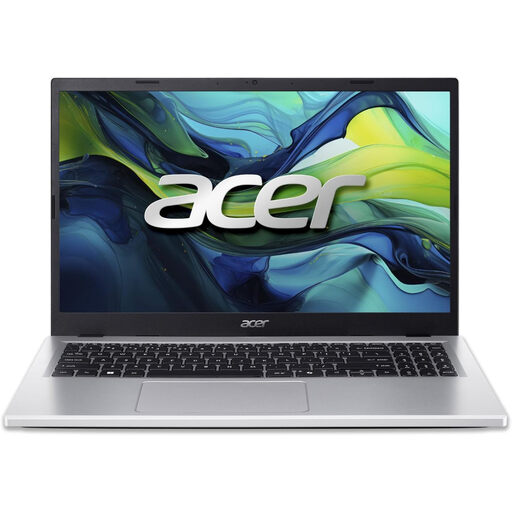
Acer Aspire Go 15 AG15-71P laptop, 8GB RAM, 256GB SSD
Consider a replacement laptop if the core computer, rather than its screen or available connections, is holding back your work. This configuration lists an Intel Core i5-13420H, 8GB DDR5 RAM, a 256GB NVMe SSD, a 15.6-inch Full HD screen and Windows 11 Home. Compare your applications and files with its memory and storage, and check its exact USB-C capabilities if you plan to add a display or dock.
Joybuy
Common questions
Will a USB-C dock run my external monitor?
It can if the laptop supplies the video capability the dock requires and supports the intended display arrangement. Check the exact laptop specifications for USB-C video output, compare them with the dock’s manual, and match the dock’s output to the monitor’s input. The Video Electronics Standards Association explains DisplayPort Alternate Mode over USB-C, but a USB-C socket alone does not confirm that capability.
Can an HDMI splitter give me two separate extended desktops?
A conventional splitter will not create two independent desktops: Microsoft says it duplicates the same signal. For separate extended displays, check how many external screens your exact computer supports and choose a compatible connection path.
Should I choose a small adapter or a dock?
Choose an adapter for a few essential connections when you regularly move your laptop; consider a dock when several peripherals stay at one desk. Dell distinguishes these mobile and workstation uses, but either purchase still depends on your laptop’s supported video, charging and connection capabilities.


