What matters when choosing?
For an existing home or hybrid-work laptop, settle employer provision and device compatibility before choosing the accessory that addresses your primary need.
| Concern |
What to check |
Who this matters to |
| Laptop and display compatibility |
Check the exact laptop model, video-capable ports, supported screens and charging requirement against the dock or monitor documentation. |
If I want screens and charging through one desk connection, I need to know my laptop can use both functions. Around 31% of consumers would make compatibility their primary concern. |
| Screen work and desk fit |
Check desk space and screen position; if the laptop will be raised or set farther away, consider separate input devices. |
For long stretches of screen work, I need an arrangement that fits my desk rather than simply another device. Workspace fit would come first for around 25% of consumers. |
| Meeting audio and video |
Check the meeting platform, available connections and employer-approved peripherals before choosing a camera or headset. |
When meetings dominate my day, I want to address the camera or audio problem I actually experience. Around 19% of consumers would prioritise meeting equipment. |
| Moving between workspaces |
Check which connections are needed at each desk and whether the equipment and its power supply are practical to move. |
If I switch between home and office, packing and reconnecting equipment can matter more to me than extra ports. Portability would lead the choice for around 13% of consumers. |
| Connection reliability |
Check provider faults and Wi-Fi conditions, then whether a practical Ethernet connection changes the problem. |
When calls drop, I want to identify whether the trouble lies with Wi-Fi or the broadband service before changing hardware. Around 12% of consumers would put connection reliability first. |
Joybuy product choices
These choices cover desk docks and adapters, a meeting webcam and external displays. Match the relevant type to your laptop, workspace and employer’s equipment arrangements before deciding.
 No image available
Targus USB-C Universal Dual HDMI 4K Docking Station, 100W PD Pass-Thru, Retail Packaging
Consider this for a desk where you want to connect HDMI displays through a dock. The product name specifies dual HDMI 4K and 100W Power Delivery pass-through; confirm your laptop’s display support and whether a suitable power adapter is included before relying on either function.
Joybuy
 No image available
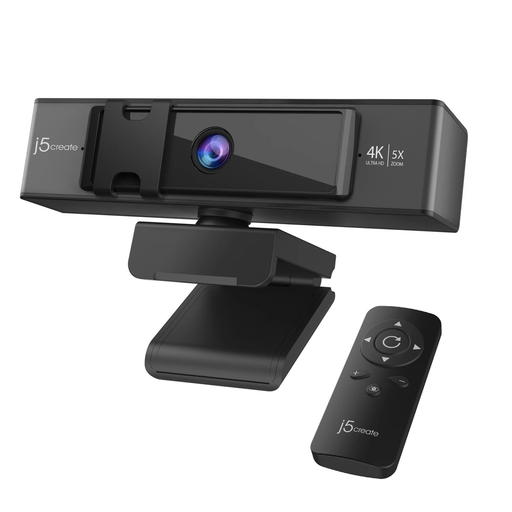
j5create JVCU435 USB 4K Webcam, 5x Digital Zoom Remote Control, Black and Silver
Consider this if camera framing is your main meeting-equipment concern. Its name specifies 4K video and a remote control for 5x digital zoom. Confirm the connection, conferencing-platform requirements and employer approval; a webcam will not resolve dropped calls caused by the network.
Joybuy
 No image available
V7 V7UC-U3CRJ45HDVG-BLK USB-C Adapter
Consider this when a laptop needs display, wired-network and USB connections in one adapter. Its product name specifies 4K HDMI, VGA, Gigabit Ethernet, 100W Power Delivery and two USB 3.0 ports. Check the laptop’s USB-C video capability, intended display mode and charging needs before buying.
Joybuy
 No image available
ASUS ZenScreen MB249C IPS USB-C Display
Consider this when an external screen would address your desk setup. The product name identifies an IPS display with USB-C connectivity. Check your laptop’s video and charging requirements, the available desk space and the display’s weight if you expect to move it between locations.
Joybuy
 No image available
Lenovo L32p-30 31.5-inch 4K UHD IPS USB-C Monitor
Consider this for a desk with room for a 31.5-inch external screen. Its product name specifies 4K UHD, an IPS panel and USB-C. Confirm that the laptop supports the intended video connection, and check the monitor’s charging output before planning to use one cable for power and display.
Joybuy
Frequently asked questions
Should I buy my own monitor or dock for home working?
Ask your employer what equipment it provides or approves before buying personally. Acas recommends agreeing who provides or pays for equipment and repairs; where a display screen equipment assessment indicates that equipment is needed, the Health and Safety Executive says workers cannot be charged for it.
What should I check before buying a USB-C dock?
Check your exact laptop model, video-capable ports, supported external displays and charging requirement against the dock documentation. Also confirm any driver or employer IT requirements. Apple Support and Lenovo Support both provide model-specific display guidance, so the connector shape alone is not enough.
Will any USB-C dock run two separate external screens?
No: two outputs on a dock do not establish what a particular laptop can display. Check the laptop’s supported screen configuration and the dock’s requirements for the intended connections, resolution and refresh rate before choosing a dual-display setup.
Should I replace my router if work calls keep dropping?
Check the source of the interruption before replacing the router. Ofcom recommends looking at other Wi-Fi use, outages and provider faults; where practical, an Ethernet test can help you assess whether the local wireless connection is involved.


