What should you check first?
Choose the accessory for the task that is difficult on your current laptop, then check the connection and software requirements before settling on a model.
| Priority | What to check | Your needs |
|---|
| Screen space |
Check the laptop’s supported external-display count and video output against the monitor input and cable. Choose an extended desktop if you need different content on each screen, rather than a mirrored image. |
I need documents and reference material visible together instead of continually switching windows. |
| One desk connection |
Check whether the exact USB-C or Thunderbolt port supports the required video route and whether the dock or hub monitor can meet the laptop’s charging requirement. Confirm the intended display arrangement and any managed-device restrictions. |
Connecting my display and desk peripherals through fewer cables would make moving my laptop between locations easier. |
| Video calls |
Test the built-in camera in your meeting app first. For an external webcam, check its connector, operating-system compatibility, camera permissions and whether it addresses the problem you identified. |
My calls would benefit from a different camera position or a fix for a recurring camera-access problem; I do not need to replace a camera that already works for my meetings. |
| Call audio and controls |
Match a headset’s wired connector or wireless method to the laptop. If physical Teams controls matter, check the exact device variant and supported Teams environment; wireless use also means managing charging. |
I take calls at one desk and want a wired connection, or I need to move during calls and would use wireless connectivity. |
| Workstation fit |
Consider the whole working position before choosing a monitor or laptop stand. A raised laptop used for typing may call for separate keyboard and mouse placement; extra screen space is a different need. |
I use my laptop at home for sustained periods and want the screen and input devices to suit the way I actually work. |
Joybuy options for your setup
These options cover external displays, a USB-C dock and a wired call headset. Match the accessory to the task you want to improve, then check it against your laptop and work setup.
 No image available
Targus USB-C Universal Dual HDMI 4K Docking Station with 100W Power Delivery Pass-Thru (Retail Packaging)
Consider this dock if you want to connect desk displays and peripherals through a USB-C laptop connection.
The listing specifies two HDMI 2.0 outputs, USB ports, Gigabit Ethernet and up to 100 W pass-through power delivery.
Check your laptop’s USB-C video capability, supported display arrangement and charging requirement; ask about device restrictions if it is managed by your employer.
View on Joybuy
 No image available
ASUS ZenScreen MB166CR FHD portable monitor
This portable display is an option if you want another screen for documents or apps when moving between work locations.
The listing specifies a 15.6-inch IPS Full HD screen, a weight of 780 g and USB-C DisplayPort Alt Mode connectivity; it says HDMI is not supported.
Confirm that your laptop provides the required USB-C video output and supports the external-display arrangement you intend to use.
View on Joybuy
 No image available
AOC Q32V4 31.5-inch QHD IPS monitor
Consider this desktop monitor if you want a separate viewing surface for documents and applications.
The listing specifies a 31.5-inch QHD display, HDMI and DisplayPort inputs, integrated speakers and VESA mounting compatibility. Speakers do not establish a microphone or dedicated call-headset function.
Check your laptop’s video output and external-display support, as well as any mounting or stand adjustment you need.
View on Joybuy
 No image available
KOORUI E2412F 24-inch FHD monitor
This is another fixed-desk screen option for keeping laptop work visible across two displays.
The listing specifies a 24-inch Full HD IPS display, HDMI and DisplayPort inputs, and tilt adjustment from -5° to 15°.
Match an input to your laptop’s video output and check its display support. If you need height, pivot or swivel adjustment, confirm those features separately.
View on Joybuy
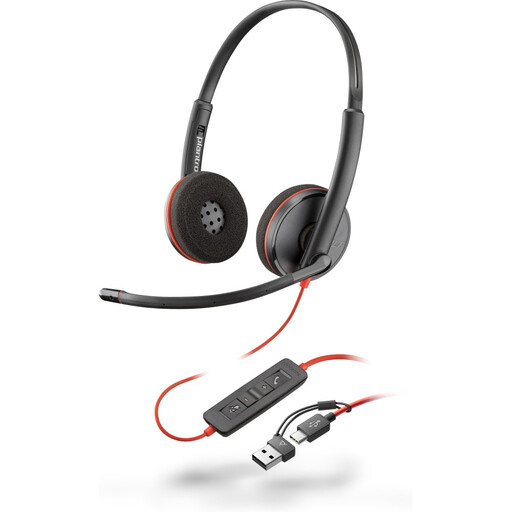 No image available
Poly Blackwire 3220 Stereo USB-C headset with USB-C-to-USB-A adapter
Consider this wired headset if laptop calls call for a separate microphone and physical call controls at your desk.
The listing specifies stereo audio, a noise-cancelling microphone, volume, mute and answer/end controls, plus a USB-C connection and an included USB-C-to-USB-A adapter.
Check the available laptop port, your meeting setup’s support for the controls and any employer accessory restrictions.
View on Joybuy
Home-working setup questions
Do I need a second monitor for home working?
Not automatically. An external display is worth considering when you regularly need several apps or documents visible together. Check your laptop’s supported display count and video connection, and use an extended desktop rather than mirroring if you need independent workspace.
Will any USB-C dock work with my work laptop?
No. Match the exact laptop’s video-capable port, supported display arrangement and charging requirement to the dock, monitor and cable. For a managed work laptop, check whether employer device settings permit the accessories you intend to connect.
Can my employer restrict an external USB camera?
Yes, a managed Windows device can be configured to restrict USB device categories. Microsoft documents such controls in Intune; ask employer IT whether an external camera needs approval before buying one for that laptop.
Why might a new webcam still not work in Teams?
Camera permission, another app using the camera or the wrong device selection can prevent it from working in a call. Microsoft recommends checking camera access, reconnecting an external camera and making a Teams test call where available.
Is a Teams-certified headset necessary?
No. Consider certification if supported physical Teams controls, such as answer, mute and volume, matter to you. Check the exact headset variant, its connection method and your employer’s Teams and device setup before relying on those controls.


