Hybrid workers reconnecting at a desk
If you move between home and office, a convenient desk connection depends on what your laptop, cable and dock can do together—not simply on how many ports a dock has.


Start with the laptop and the work it must handle, then check its ports, external-display support and charging requirements before choosing desk accessories. A direct monitor connection may be enough when screen space is the main gap; consider a dock when you regularly reconnect several devices, and check the laptop, dock and cable together. If calls are the problem, distinguish connection failures from camera or microphone needs before buying peripherals.
If you move between home and office, a convenient desk connection depends on what your laptop, cable and dock can do together—not simply on how many ports a dock has.
For sustained desk work, the choice may be a directly connected monitor, a portable second screen or a docked display arrangement. Available desk space and comfortable positioning matter alongside the connection.
If meetings are disrupted, identify whether the issue is the home connection, camera position, microphone or surrounding noise before choosing a webcam or headset.
Check the laptop’s work requirements and connection capabilities first. Then spend on the part of the setup that addresses your main difficulty, whether that is screen space, a repeatable desk connection or calls.
| Concern | What to check | Who this matters to |
|---|---|---|
| Connection compatibility | Match the exact laptop model and port capabilities to the monitor or dock; check the cable’s power and data markings. | I want to connect a display and charge my laptop without finding that a USB-C-shaped port cannot perform the required functions. Around 31% of consumers put connection compatibility first. |
| Screen space and positioning | Check supported display count and the intended resolution and refresh rate; allow for the screen and input devices on your desk. | If I work at a desk for long periods, I need usable screen space and a position that suits my workstation. For around 25% of consumers, that is the primary concern. |
| Portable work and desk flexibility | Check that the laptop suits your work tasks and has the ports needed in both locations; decide how many devices must stay connected at the desk. | Moving between home and office, I need to work away from the desk and reconnect without an awkward collection of adapters. Around 25% of consumers prioritise that flexibility. |
| Call reliability | Separate broadband or Wi-Fi faults from camera, microphone and noise issues; check a peripheral’s connection type against the laptop. | When calls freeze or colleagues struggle to hear me, I want to address the actual cause rather than replace the wrong device. Call reliability comes first for around 19% of consumers. |
Microsoft Support notes that USB-C display, charging and Thunderbolt functions can be limited by the connected port, device or cable. A connector fitting the socket does not settle whether the whole setup will work as intended.
Before buying, note the laptop model, port specification, charging requirement and required display connection. Compare them with the accessory and cable specifications.
A dock cannot override the laptop’s display limits. Apple Support says simultaneous external-display support depends on the Mac model and display configuration; Lenovo Support publishes model-specific dock output configurations.
Check the exact laptop and dock documentation for the number of displays, resolution and refresh rate you intend to use.
A different camera or headset can address local image or audio needs, but it cannot fix an unreliable broadband or Wi-Fi connection.
If video freezes or devices disconnect, investigate the network first. Choose a camera or microphone accessory when you have identified a separate camera, sound or noise issue.
The Health and Safety Executive says display-screen-equipment rules can apply to permanent or long-term home workers and those who routinely divide their time between home and the workplace. Where a workstation assessment identifies action such as providing DSE equipment, workers cannot be charged for that equipment.
If your home-working arrangement falls within that guidance, ask your employer about its workstation assessment and equipment process before buying an item the assessment may require.
Laptops, monitors and docks relevant to a fixed or hybrid-work desk.
Travel, USB-C and Thunderbolt docks for laptop setups, including ThinkPad-oriented configurations.
USB-C docking options for connecting power and desk peripherals through a laptop.
Webcams and headsets to consider when the computing and display setup already meets your needs.
These products cover a laptop, fixed and portable displays, a webcam and a USB-C hub. Choose the type of device that addresses your main need, then check its connection requirements against your own laptop and desk setup.
 No image available
Consider this fixed-desk monitor if a larger work display is your priority. It is an IPS WQHD model; check your laptop’s video connection and the monitor’s charging capability before planning to connect and power the laptop through one cable.
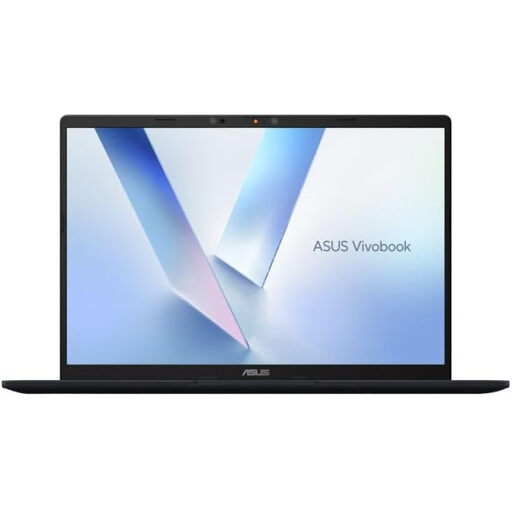 No image available
Consider this laptop if you need a computer to carry between working locations before adding desk accessories. This variant has a Snapdragon X processor, 16GB RAM and a 512GB SSD; confirm that your required work software and intended external-display arrangement suit the laptop.
 No image available
A portable second screen is worth considering when you work in more than one location. For this model’s stated USB-C video connection, the laptop must support DisplayPort Alternate Mode; HDMI is not supported, so check the host port before buying.
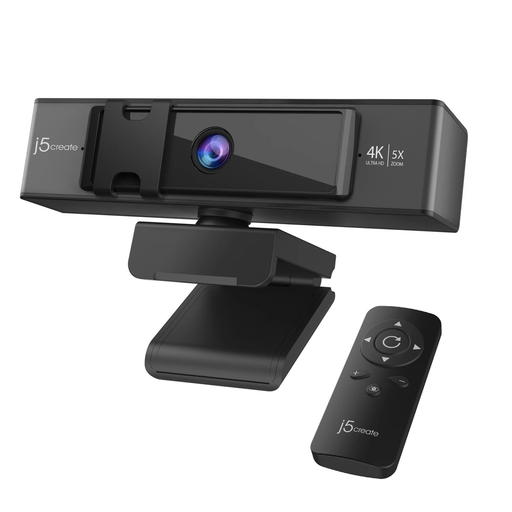 No image available
Consider a separate webcam if camera placement is the difficulty in frequent calls. The JVCU435 is a 4K model with 5x digital zoom and a remote control; check its connection and meeting-software requirements, and investigate frozen calls as a network issue separately.
 No image available
Consider a compact hub when your laptop needs additional desk connections without a permanent dock. Check that its intended display connection works with your laptop’s USB-C port, and confirm the power path, charger and cable before relying on it for laptop charging.
Not necessarily: a direct cable or suitable adapter can be enough if the laptop’s video output and monitor’s input are compatible. Consider a dock when you also want to reconnect charging and several desk devices together; check the exact laptop and monitor connections first.
No. USB-C identifies the connector shape, not every power, data or video capability of the complete connection. The USB Implementers Forum specifies power-capability markings for USB-C-to-USB-C cable categories; compare the cable, laptop and accessory requirements before buying.
That depends on the exact Mac model and the displays’ resolution and refresh rate, according to Apple Support. Check the Mac’s supported display configuration before selecting a dock. If the setup uses DisplayLink Manager, DisplayLink Support says macOS requires Screen Recording permission for it to function.
It can apply to permanent or long-term home workers and people who routinely split their time between home and the workplace, according to the Health and Safety Executive. Ask your employer about an individual workstation assessment; where that assessment identifies a need to provide DSE equipment, the HSE says the worker cannot be charged for it.
Yes, if calls freeze or devices disconnect: a webcam will not correct a broadband or home Wi-Fi fault. Check connection reliability first, then consider a webcam if camera position or image needs remain the problem.