What matters when choosing
Laptop only
Choose it when: Your work fits comfortably on the laptop screen and you regularly carry the computer elsewhere.
Accept: Less room to keep applications visible side by side.
Laptop and monitor
Choose it when: The laptop runs your applications adequately, but a fixed desk calls for more visible workspace.
Accept: A separate display needs desk space and a compatible connection.
Laptop, monitor and dock
Choose it when: You return to the same desk and want to reconnect a display and several peripherals together.
Accept: The dock cannot bypass the laptop’s own display limits, and charging depends on the complete setup.
Start with the problem you need to solve: computer performance, visible workspace, portability or repeated connections. If the screen is sufficient but the keyboard or trackpad is inconvenient at a desk, an external keyboard and mouse are another option without adding a monitor.
| Concern |
What to check |
Who this matters to |
| Screen space |
Decide whether you need windows side by side. Check the laptop’s supported display count and the monitor’s input against the intended cable or adapter. |
If I keep spreadsheets, documents and calls open together, I want more visible space without replacing a laptop that otherwise works well. Around 36% of consumers put screen space first. |
| Laptop performance |
Check your applications, operating-system requirements, storage and task-relevant performance before treating a monitor as the fix for a slow computer. |
When documents or office applications are slow to load, I need the primary computer to handle the work; for around 29% of consumers, performance is the main concern. |
| Portability |
Compare laptop size and weight with how often you carry it; consider whether a monitor can remain at your home desk. |
If I work in more than one location, I need a computer I can comfortably take with me. Portability comes first for around 21% of consumers. |
| Desk connections |
Match the laptop’s video output, supported displays and charging needs to the dock, cable and peripherals you intend to use. |
Returning to the same desk, I want fewer connections to make each time without assuming one port can do everything; around 14% of consumers prioritise that convenience. |
Joybuy product choices
These laptops, standalone monitors and dock relate to different parts of a home-working desk setup. Choose the part that addresses your need, then check connections and any employer requirements before combining devices.
 No image available
ASUS ProArt PA278CV IPS WQHD Monitor
Consider this separate monitor if your laptop works adequately but you want more screen space at a fixed desk.
The product name identifies an IPS WQHD display. Check your laptop’s display output and charging needs before planning a one-cable setup.
Joybuy
 No image available
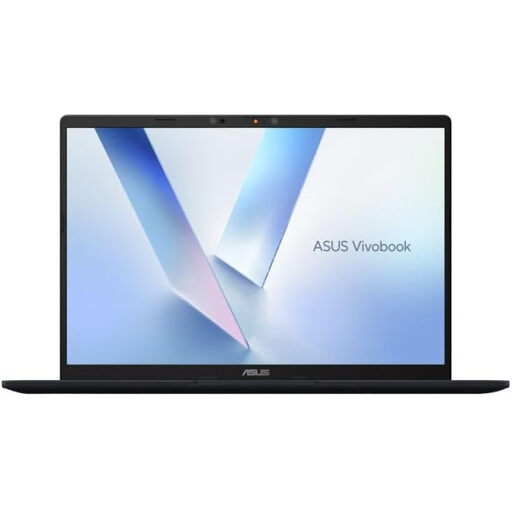
ASUS Vivobook 14 X1407QA-LY003W, Snapdragon X, 16GB RAM, 512GB SSD, Quiet Blue
Consider this 14-inch laptop if you need a primary computer you can carry between work locations.
Its named configuration has a Snapdragon X processor, 16GB RAM and a 512GB SSD. Confirm required work software and the exact external-display configuration before choosing a monitor or dock.
Joybuy
 No image available
Targus USB-C Universal Dual HDMI 4K Docking Station, 100W Power Delivery Pass-Thru, Retail Packaging
Consider a dock if you reconnect a laptop to desk equipment regularly and need the stated connections.
This variant is named for dual HDMI 4K output and 100W Power Delivery pass-through. Check the laptop’s supported displays, charging requirements and what power accessories are included before relying on that configuration.
Joybuy
 No image available
AOC Q32V4 31.5-inch 2K Ultra HD IPS Monitor
Consider this separate display if you want more visible workspace at a fixed desk rather than a different primary computer.
The product name identifies a 31.5-inch IPS monitor. Check the laptop’s output and the cable needed for the display mode you intend to use.
Joybuy
 No image available
Acer Chromebook Plus 514 CB514-5H, 14-inch WUXGA, Core i3-1315U, 8GB RAM, 256GB SSD, Iron
Consider this ChromeOS laptop for home work only if the applications and device-management tools you need are compatible with ChromeOS.
The named variant has a 14-inch 1920 × 1200 display, Intel Core i3-1315U processor, 8GB RAM and a 256GB SSD. Check its model-specific external-display support before adding a monitor.
Joybuy
Common questions
Do I need a separate monitor to work from home?
No: a monitor is a choice based on your work and usable screen space, not an automatic requirement for every home worker. The UK Health and Safety Executive says that, where display screen equipment rules apply, an individual assessment should determine whether additional equipment is needed; workers may not need office-type equipment at home.
Can I use a laptop I bought myself for employer work?
Confirm permission and device requirements with your employer before using a personal laptop for organisation data. The Information Commissioner’s Office advises workers to follow organisational policies and use approved technology; a laptop being technically capable does not establish approval.
What security requirements should I ask about for a personal laptop?
Ask which operating-system updates, management tools, account protections and storage or file-sharing methods your employer requires. The Information Commissioner’s Office identifies outdated software, weak access controls and mixing personal with organisational data as risks in personal-device arrangements.
What should I check before connecting a Mac to a monitor or dock?
Check the exact Mac model’s video ports and supported external-display configuration, then match the monitor input and cable. Apple Support says the number of displays a Mac can use depends on its model and the displays’ resolution and refresh rate.
Will a dock let my Windows laptop run two external monitors?
Only if the laptop and the complete connection support the intended two-display configuration; the dock’s output count alone is not enough. Check your laptop model’s display specifications alongside the dock, cables and monitors. Microsoft Support notes that external-display capability for Surface devices depends on the model and the cables or adapters used.


