What to check before buying
Choose the screen around where it will be used: a fixed monitor for a regular desk or a portable screen for a changing workspace. Add a dock when repeated reconnection is the problem; for a narrower need, an adapter or separate input devices may be enough.
These priorities concern consumers choosing a screen, dock or connection for a hybrid-work laptop. Each percentage refers to the primary need in that buying decision.
| Concern |
What to check when buying |
Who this matters to |
| Screen space and desk layout |
Check desk space, monitor adjustment and the laptop’s video output; consider keyboard and mouse position too. |
If I use the same desk regularly, I want a screen I can position alongside my input devices. Around 31% of consumers put screen space and desk layout first. |
| Repeated reconnection |
Check the exact laptop and operating system, supported display count, dock display method and charging requirements. |
If I reconnect at my home desk often, I want the display and charging arrangement to suit my laptop. Around 25% of consumers make reconnection and compatibility their main concern. |
| A movable second screen |
Check the laptop’s USB-C video capability, monitor connection, power arrangement and included cable. |
When my workspace changes or needs to be cleared, I want an extra screen I can move rather than leave set up. Around 19% of consumers prioritise a portable second screen. |
| Input position and calls |
Consider what the workstation assessment identifies, available connections and whether the laptop’s camera meets your meeting needs. |
I want a workable screen, keyboard and mouse arrangement before adding another display, and a webcam only if meetings call for one. Around 13% of consumers put input position and call setup first. |
| One display connection |
Check the laptop’s video output, the monitor input and the adapter’s rated resolution and refresh rate. |
If I only need to connect one existing display, I would rather check a suitable adapter than add dock ports I will not use. Around 12% of consumers prioritise a single display connection. |
Joybuy product options
These options cover separate input devices, fixed external monitors, a portable second screen and a USB-C dock for hybrid-work laptop setups. Check your laptop’s display support and connection requirements before choosing a screen or dock.
 No image available
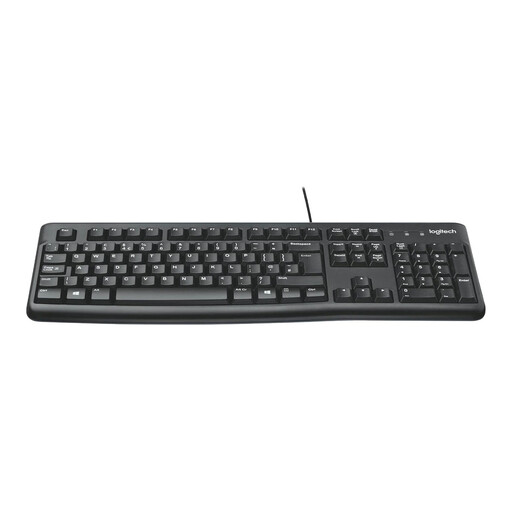
Logitech MK120 Wired Keyboard and Mouse Combo - Black
A keyboard-and-mouse option for a desk where separate input devices are needed.
The listed variant is wired and black.
View on Joybuy
 No image available
BenQ MA270UP 27-inch 4K UHD USB-C Monitor
A fixed-monitor option for a regular desk where a larger display is the priority.
The listed name specifies a 27-inch 4K UHD IPS monitor with USB-C, HDR, P3 and a height-adjustable stand. Check your laptop’s video and charging compatibility.
View on Joybuy
 No image available
MSI MD272UPSW 27-inch 4K UHD Smart Monitor
A fixed-display option for a recurring workstation where the listed smart-monitor features are also relevant.
The listed name specifies an IPS panel, Google TV, Dolby Audio, USB-C 65W and Multi-Control. Check that the laptop supports the intended display and charging arrangement.
View on Joybuy
 No image available
ASUS ZenScreen MB166C 15.6-inch Portable Monitor
A portable second-screen option for a workspace that changes location or needs to be cleared away.
The listed name specifies Full HD, an IPS panel and USB Type-C. Check that your laptop’s port supports the required video output and power arrangement.
View on Joybuy
 No image available
Targus USB-C Universal Dual HDMI 4K Docking Station
A dock option for a desk where multiple connections are needed; confirm your laptop supports the intended display arrangement.
The listed name specifies dual HDMI 4K and 100W Power Delivery pass-through. Check the laptop’s display limits and the dock’s power requirements.
View on Joybuy
Frequently asked questions
Will any USB-C dock run two external monitors from my laptop?
No: the connector shape alone does not establish that your laptop can drive two external displays. Check its display limit and port specifications, then the dock’s display technology and the resolution and refresh rate you need. Apple Support notes that a supported hub does not increase a MacBook Air’s maximum display count, and its guidance differs by model.
What do I need to set up a DisplayLink dock on a Mac?
A DisplayLink-based product requires DisplayLink Manager, and macOS requires Screen Recording permission for the software to function, according to DisplayLink Support. Check that installing the software and granting that permission are acceptable for the laptop you use.
Should I buy home-working screen equipment before speaking to my employer?
If the UK DSE rules apply to your work, the HSE says the employer should assess the home and office situations and use the assessment to decide whether additional equipment is needed. Discuss an identified need with your employer rather than assuming every hybrid worker needs to buy a monitor.
Can I use the old working-from-home tax relief to offset a desk setup?
Do not budget for a deduction for additional unreimbursed household expenses: HMRC says it is no longer permitted from 6 April 2026. Employer payments and qualifying equipment arrangements are separate matters, and neither automatically makes a personal monitor or dock purchase reimbursable.
What should I check about included accessories and setup requirements?
Check the exact product’s included cable, power arrangement, laptop-charging support and the seller’s terms before ordering. Lenovo UK lists a 1.0m Type-C cable with the cited ThinkVision M14d variant; Plugable says its cited UD-6950H does not charge its host and is discontinued.


