What to prioritise when choosing additions
Laptop-only setup
Consider it: For brief or mobile sessions when your existing equipment meets your work needs.
Trade-off: For prolonged use, HSE guidance advises separating the keyboard and mouse so the screen can be raised independently.
Monitor with separate keyboard and mouse
Consider it: When you need the screen and inputs positioned independently or want more working screen space.
Trade-off: Check that the laptop’s video output matches the monitor input; a suitable cable or adapter may also be needed.
USB-C or Thunderbolt dock
Consider it: When connecting several desk peripherals is the problem you need to solve.
Trade-off: Match the dock’s connection technology, display configuration and power delivery to your exact laptop, and confirm that any required software is permitted.
Call peripherals
Consider them: When your existing microphone, listening setup or camera position does not meet your call needs.
Trade-off: A headset addresses listening and microphone needs; a webcam addresses image capture, so choose for the specific issue.
For consumers choosing or supplementing a UK home-working laptop setup, start with what your employer provides and permits, then prioritise the one need your current arrangement does not meet.
| Concern |
What to check when buying |
Who this matters to |
| Screen and input positioning |
Use the workstation assessment to establish what changes are needed; check the screen position and whether the monitor variant includes an adjustable stand. |
If I work at a desk for long stretches, I want the screen and keyboard positioned independently rather than adding a display without a clear need. Around 36% of consumers put screen and input positioning first. |
| Laptop, dock and work-system compatibility |
Confirm the exact laptop model, port capabilities, intended displays, charging needs and approved software before choosing a dock. |
If my work laptop is managed, I need its connections and any required software to fit employer rules before I add desk equipment. Around 29% of consumers put compatibility first. |
| Call audio and camera needs |
Identify whether the issue is listening, microphone pickup or camera framing; check device connections and whether configuration software is permitted. |
If calls are part of my working day, I want to address the specific audio or camera problem rather than add a peripheral that solves something else. Around 21% of consumers put call quality first. |
| Avoiding unnecessary purchases |
Agree provision, payment, repairs and technical support with your employer; check whether a direct display connection will meet your needs before adding a dock. |
If existing equipment or ports already cover my needs, I want to add only what is missing and clarify who handles support. Around 14% of consumers put avoiding unnecessary purchases first. |
Joybuy products for this setup
These Joybuy options cover separate displays and inputs, docking, and video-call peripherals for a home-working laptop setup. Check each product’s connection requirements against your laptop and employer arrangements.
 No image available
BenQ MA270UP 27-inch 4K UHD USB-C monitor
A separate display for a laptop desk setup; check that your laptop supports the video and charging connection you intend to use.
27-inch 4K UHD display; USB-C; height-adjustable stand; Nano Glossy IPS; HDR and P3.
Shop on Joybuy
 No image available
HP 680 CFT Dual-Mode keyboard and mouse combo
A keyboard-and-mouse set for a desk setup where you want separate inputs; check that its connection options suit your work devices.
Shop on Joybuy
 No image available
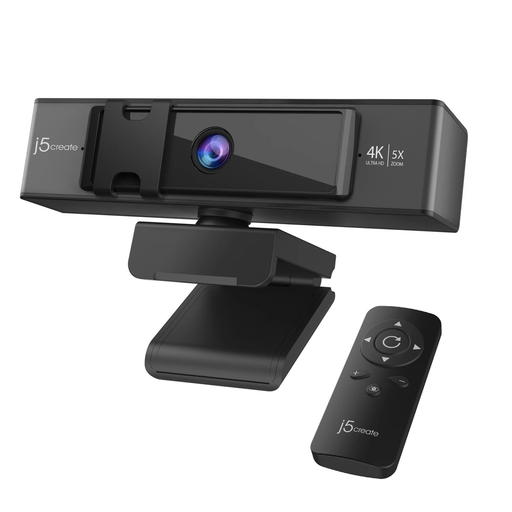
j5create JVCU435 USB 4K webcam
A separate webcam for a video-call setup; check that its connection and conferencing use suit your work device.
USB webcam; 4K Ultra HD.
Shop on Joybuy
 No image available
Targus USB-C Universal Dual HDMI 4K docking station
A dock for connecting desk displays and peripherals; confirm your laptop supports USB-C Alt Mode and the intended display setup.
Dual HDMI 4K; up to 100W Power Delivery pass-through. The listing specifies an external 100W+ adapter for the dock.
Shop on Joybuy
 No image available
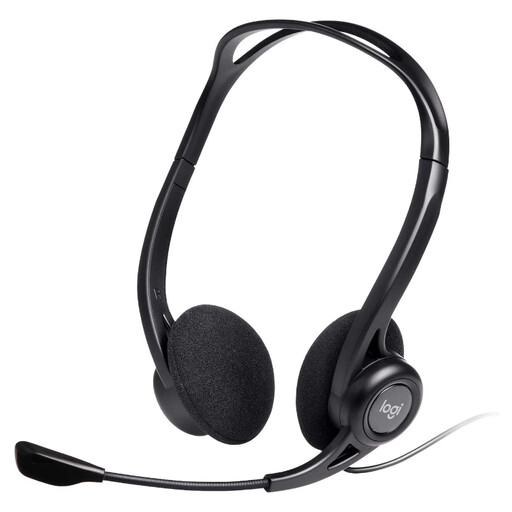
Logitech 960 Wired USB headset
A wired headset for calls when you need both listening audio and a microphone; check the connection against your work device.
Stereo audio; noise-cancelling microphone; USB-A connection.
Shop on Joybuy
Home-working setup FAQs
Do home and hybrid workers need a display-screen assessment?
In Great Britain, HSE says employers must assess workstations where normal work involves display screen equipment daily for continuous periods of an hour or more. In Northern Ireland, the Health and Safety Executive for Northern Ireland identifies daily use for an hour or more at a time as the relevant display-screen-user condition.
Will a dock let every MacBook Air run more monitors?
No. Apple says a supported native hub or daisy chain does not increase a MacBook Air’s maximum number of displays. Check your exact model and the intended displays’ resolution and refresh rate before choosing a dock.
Can I connect a monitor without buying a dock?
Yes, if the laptop’s video output and the monitor’s input are compatible. Check whether you need a particular cable or adapter and confirm that the connection supports your intended display.
Can I use a personal device or accessory for work?
Check with your employer before using personal equipment or installing software on a managed device. Acas guidance covers equipment, technical support and information security; NHS England separately directs health and care professionals to their organisation’s BYOD policies.
Must I pay for equipment identified by a workstation assessment?
For the Great Britain guidance, HSE says workers cannot be charged for action indicated by their display-screen workstation assessment, including the provision of equipment. This does not mean every optional accessory is required; discuss your assessment and equipment needs with your employer.


