Who each setup suits
The useful starting point is the problem at your desk: screen position, one straightforward display connection or expansion for several displays and peripherals.
People working for long periods from a laptop
If the built-in screen sits too low when the keyboard is comfortable to use, plan the screen position and input devices together. The Health and Safety Executive advises using a separate keyboard and mouse when raising a laptop screen on a riser or similar support.
People adding one external monitor
A direct connection may meet the need without a dock. Check the laptop's video output, the monitor's input and any required cable or adapter. Apple Support advises checking the ports and display support of the exact Mac model; Windows users should likewise check their laptop's display capabilities.
People connecting several displays and peripherals
A dock becomes more relevant when the desk also needs connections for devices such as a keyboard, mouse or Ethernet. Before choosing one, check the laptop's supported display count, host port, operating system and the monitor modes you intend to use. Microsoft Support notes that a graphics adapter can limit the number of external monitors.
What matters when choosing
Decide how many independent screens you need, then check the laptop's outputs and display limits. Treat screen height as a separate desk-fit decision: a stand cannot add video connections, and a dock cannot put a screen at a comfortable height on its own.
| Concern |
What to check |
Who this matters to |
| Screen height and desk fit |
Check usable desk space, screen position and whether a riser or monitor support fits the equipment. Plan for a separate keyboard and mouse if raising the laptop. |
If I work from a laptop for long stretches, I need to position the screen without making the keyboard awkward to use. Around 29% of consumers put posture and desk fit first. |
| One external display |
Match a confirmed laptop video output to the monitor input, using the appropriate cable or adapter. |
When one larger screen is enough for my work, I would rather establish a direct connection than add a dock I do not need. For around 29% of consumers, simple single-display connectivity is the primary concern. |
| Native dock expansion |
Confirm the exact laptop's USB-C, USB4 or Thunderbolt functions and display limit; check the dock's outputs and charging specification if charging matters. |
I want to reconnect displays and peripherals at a regular desk without handling each connection separately. Around 21% of consumers primarily need a compatible dock to bring those connections together. |
| USB-A or extra-display expansion |
Check DisplayLink software permissions, operating-system support and the exact dock's simultaneous display modes. |
If my laptop's native video connections cannot run the intended independent displays, I need another compatible route. That extra-display need comes first for around 21% of consumers. |
A USB-C connector does not by itself establish video output, a particular display count or laptop charging. For a Mac, Apple Support directs users to check the exact model's ports and supported number of displays. If a Windows laptop runs one external monitor but not another, Microsoft Support identifies the display adapter's limits as a possible cause. Check those host limits before comparing dock output claims.
USB-A DisplayLink uses software-driven USB graphics rather than an ordinary native video output. DisplayLink Support says available monitor modes depend on the DisplayLink device as well as the monitor, and its Windows guidance recommends at least 4 GB of RAM for two or more DisplayLink displays. Confirm that the required software can be installed, particularly on a work-managed laptop.
Brands to consider
These brands offer different docking approaches; compare the specification of the particular model with your laptop rather than assuming that every product in a range has the same connections or charging functions.
StarTech.com
A connectivity brand with USB-A DisplayLink and hybrid USB-C/USB-A docks relevant to laptops with different port arrangements.
- StarTech.com specifies dual DisplayPort output for its USB-A DisplayLink mini dock, USBA2DPGB.
- Its DK30A2DH hybrid dock explicitly does not provide USB-C Power Delivery to charge a laptop; check charging separately for each model.
Kensington
A docking brand with Thunderbolt and DisplayLink options for desks using multiple displays and devices.
- Kensington specifies up to four 4K displays at 60 Hz for its SD5920T when connected to compatible Thunderbolt 4 laptops and devices.
- The SD5920T's usable display configuration depends on the host connection and the applicable laptop and operating-system conditions; its stated maximum is not a promise for every laptop.
Plugable
A USB docking brand relevant to driver-based display expansion through USB-A.
- Plugable describes its UD-3900 as a USB 3.0 dual-display dock for compatible Windows computers.
- Check the operating-system requirements, outputs and charging provisions of the exact Plugable model rather than applying the UD-3900 description to the whole range.
Joybuy product choices
These choices cover USB-C display and peripheral connections plus a two-monitor stand. Match the connection products to your laptop's video capability and the stand to your physical desk setup; do not treat a USB-C adapter as a USB-A DisplayLink solution.
 No image available
Targus USB-C Universal Dual HDMI 4K Docking Station, 100W PD Pass-Thru
Consider this for a USB-C laptop desk that needs two HDMI connections and ports for peripherals. The product description lists USB-A and Gigabit Ethernet and claims dual 4K output at 60 Hz and up to 100 W Power Delivery pass-through. Confirm that the laptop supports the intended dual-display configuration and check the required power source for charging.
View on Joybuy
 No image available
USB-C Adapter, 2 HDMI, DisplayPort, USB, Ethernet, PD and Card Readers
This adapter is relevant if a USB-C laptop needs display outputs alongside desk connections. Its description lists two HDMI outputs, DisplayPort, USB ports, Ethernet, PD, SD/TF slots and audio. It claims three independent displays, but check the exact simultaneous resolution and refresh configuration, the laptop's display limit and the adapter's charging requirements before planning three screens.
View on Joybuy
 No image available
Mokin 2USBC to TB Adapter, HDMI 4K 60Hz, USB and SD/TF
This is a one-HDMI-output option for a compatible laptop that also needs peripheral and card-reader connections. The listing specifies HDMI 4K at 60 Hz, two USB-A 3.0 ports, a USB-C data port and SD/TF slots. Check the laptop's required USB-C video function; the stated HDMI output does not establish a two-monitor setup.
View on Joybuy
 No image available
V7 V7UC-U3CRJ45HDVG-BLK USB-C HDMI/VGA Adapter
Consider this when a compatible USB-C laptop needs one external display together with USB ports and Gigabit Ethernet. The description specifies HDMI up to 4K at 30 Hz, VGA up to 1920 × 1200 at 60 Hz and up to 100 W PD pass-through. It specifies single-display use only, so do not plan on HDMI and VGA providing two independent desktops.
View on Joybuy
 No image available
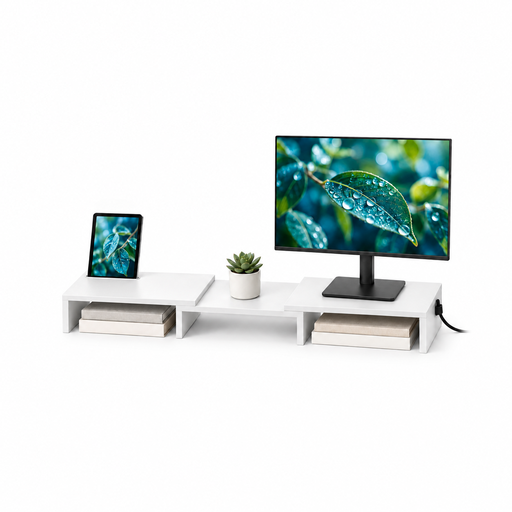
Floordirekt Two-Monitor Stand, 80–108 cm, White
This stand addresses positioning on a desk using two monitors; it does not add a display connection. The product name specifies MDF construction and adjustable width and angle. Check the stand's dimensions and the intended monitors' size and weight before choosing it.
View on Joybuy
Questions about laptop desk setups
Does working from home mean I need an external monitor or dock?
No particular monitor or dock follows automatically from working at home. The Health and Safety Executive says display-screen-equipment rules can apply to permanent, long-term and hybrid home workers; the useful equipment depends on the individual workstation and work being done. A riser and separate input devices may address screen position, while a dock addresses connections.
Will an HDMI splitter give me two independent extended screens?
A simple splitter duplicates one video signal rather than creating two independent desktop outputs, according to Microsoft Support. For two extended screens, check the laptop's graphics limits and choose a connection arrangement specifically supporting two independent displays.
What should I check before buying a USB-C or Thunderbolt dock?
Check the exact laptop's port functions and external-display limit, then match the dock's simultaneous display modes to the monitors and cables. If laptop charging is part of the plan, check the dock's power provision against the laptop's requirements. Apple Support advises Mac users to establish their model's ports and supported display count before connecting external screens.
Can I use a USB-A DisplayLink dock without installing software?
Do not assume that it will work without software. DisplayLink provides software installation routes for Windows and macOS; check the dock's operating-system requirements and whether software installation is permitted on the particular laptop before buying.
How should I position a laptop for prolonged desk work?
Arrange the screen and input devices together rather than choosing a monitor support in isolation. The Health and Safety Executive advises positioning the screen around an arm's length away, with its top around eye level, and using a separate keyboard and mouse when raising a laptop on a riser or similar support.


