Choose an accessory to solve a specific problem with your regular desk setup, rather than buying a complete bundle by default. A separate screen or raised laptop changes where you view your work, but may also call for a separate keyboard and mouse; a dock helps with repeated connections only if your computer supports the intended displays, ports and charging arrangement.
Who is this for?
Laptop-only hybrid workers
If you move between home and office, identify what is awkward at each desk before deciding what needs to travel with you. Apple Support notes that a Mac’s ports affect which external displays it can connect, so check the exact computer before planning a repeatable connection.
Fixed-desk laptop workers
At a regular home desk, you can consider screen position and keyboard and mouse placement together. The Health and Safety Executive advises considering the whole workstation and the work being done, rather than assuming that additional equipment is always needed.
Multi-display and peripheral users
If you routinely connect screens and other devices, establish the display arrangement your computer supports before choosing a monitor or dock. The number of physical connections on an accessory does not, by itself, establish what your laptop can run.
What matters when choosing?
Start with the part of your home or hybrid desk arrangement that needs changing, then check how the proposed equipment will connect to your exact computer.
| Concern |
What to check |
Who this matters to |
| Screen and input position |
Check whether the screen needs raising and whether a separate keyboard and mouse can remain within comfortable reach. |
If I raise my laptop, I still need a practical place to type and use a mouse. Roughly 33% of consumers would put screen and input positioning first. |
| Display workspace |
Check the computer’s supported external-display count and match its video connection to the monitor input. |
When I need to see work and reference material together, another screen is my main consideration; around 25% of consumers would prioritise display workspace. |
| Connections and charging |
Match the exact computer and operating system to the dock or monitor’s video requirements, cables and charging rating. |
If I reconnect several devices at my desk, I need the intended display and charging arrangement to work with my laptop. About 25% of consumers would make connection compatibility their primary concern. |
| Desk space and portability |
Check usable desk space and mounting fit, or whether the equipment needs to move between locations. |
I may need to clear my desk or carry part of the setup to another location; roughly 17% of consumers would put space and portability first. |
Mistakes to avoid
-
Assuming every USB-C socket handles video and charging
A dock’s ports cannot establish what the connected computer supports. Apple Support says a Mac’s ports determine which external displays it can connect; the dock or monitor has its own display and power requirements too.
Check the exact computer model, intended number of displays, connection type and charging requirement against the accessory and cable specifications.
An incompatible adapter or cable may need replacing.
-
Raising a laptop without planning where to type
Moving the screen also moves the built-in keyboard and trackpad. Consider their position before relying on a raised laptop for sustained desk work.
Plan the stand and separate input devices as one arrangement, allowing room for the keyboard and mouse on the desk.
-
Choosing a monitor arm by screen size alone
Ergotron’s desk-mount range includes different mounting and capacity options; a screen-size description alone does not establish that an arm fits a particular monitor and desk.
Compare the exact monitor’s weight and mounting pattern with the arm’s specifications, then check the desk edge and clamp requirements.
-
Buying a full desk bundle by default
The Health and Safety Executive says home workers may not need office furniture or equipment if their existing arrangement is suitable. An accessory should address an identified issue with the workstation or task.
Decide whether screen placement, input position, workspace or connections are the immediate problem before choosing what to add.
Relevant brands to consider
Dell
Dell’s Pro monitor range includes office displays with model-dependent stand and USB-C hub features.
- Dell UK lists a USB-C upstream connection with DisplayPort 1.4 Alt Mode and Power Delivery up to 100 W for the P2426HE variant it describes.
- Compare the exact monitor variant and its connections with your laptop; those features do not apply to every Dell display.
Logitech
Logitech’s Ergo range includes keyboards, vertical mice and trackballs with different approaches to desk input.
- A trackball is an option to consider when there is little room to move a mouse across the desk.
- Check the individual device’s fit, keyboard layout, connection method and operating-system compatibility; comfort claims from Logitech are not a substitute for those checks.
Ergotron
Ergotron’s desk-mount range covers monitor arms, stands and laptop mounting options.
- The range offers different ways to position a display when a fixed stand does not suit the desk arrangement.
- Check the selected mount’s weight range, monitor mounting pattern and desk-clamp requirements rather than applying one model’s capacity to the range.
StarTech.com
StarTech.com offers docks and adapters for connecting displays and peripherals at a laptop desk.
- One StarTech.com USB-C dock supports a dual Full HD HDMI display arrangement and host charging.
- Check the exact dock specification against the computer, operating system and intended displays; one dock’s stated arrangement does not establish support across the range.
Joybuy products for these setups
These products cover external screens, a USB-C adapter and separate keyboard and mouse input for home or hybrid laptop desks. Choose the type of equipment that addresses your setup issue, then check its fit with your computer.
 No image available
ASUS ZenScreen MB249C IPS USB-C monitor
Consider this external screen when a laptop display alone does not suit your desk arrangement. Check that your computer supports the intended USB-C video connection and charging arrangement, and confirm which mounting accessories and power adapter come with this offer.
View on Joybuy
 No image available
Dahua curved 4K 165Hz OLED monitor with USB-C 65W
Consider this monitor for a fixed desk where a curved 4K screen is the intended display format. The title specifies 165Hz, a USB hub and USB-C 65W; check your computer’s video and charging support, and confirm the exact screen size and physical fit before ordering.
View on Joybuy
 No image available
V7 V7UC-U3CRJ45HDVG-BLK USB-C adapter
Consider this adapter if you need to connect one external display and wired peripherals at a laptop desk. Its title lists 4K HDMI, VGA, Gigabit Ethernet, dual USB 3.0 ports and 100W Power Delivery; the adapter is specified for single-display operation, and the computer must support the required USB-C video mode.
View on Joybuy
 No image available
ASUS ZenScreen MB166C 15.6-inch Full HD USB-C monitor
Consider this portable second screen if your display needs to move between work locations. The title specifies a 15.6-inch Full HD IPS display and USB Type-C connection; confirm that your exact computer can send video through the intended USB-C port.
View on Joybuy
 No image available
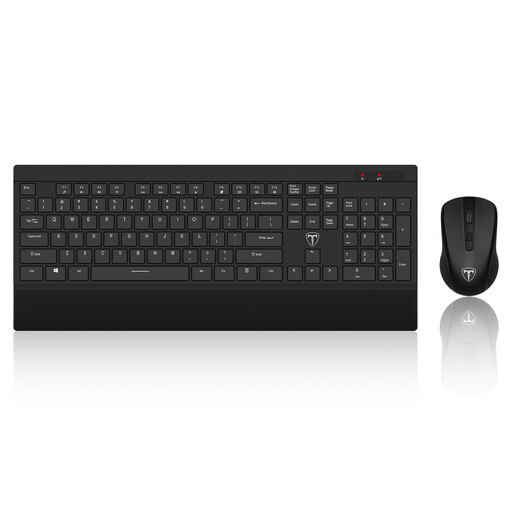
ET 2.4GHz wireless keyboard and mouse set, US layout
Consider separate input devices when a raised laptop or external display changes where you need to type and point. This set has a US keyboard layout; check that the layout, connection method, operating-system compatibility and battery arrangements suit your setup.
View on Joybuy
Common questions
Does every home worker need an external monitor or dock?
No. The Health and Safety Executive says home workers may not need additional office furniture or equipment if their existing arrangement is suitable. Consider equipment in response to the particular workstation and work task, rather than as a standard bundle.
Will any USB-C dock run two external monitors?
No universal compatibility follows from a USB-C connection. Check the exact computer’s supported display count and video ports, then compare the intended display arrangement with the dock’s operating-system, output, cable and charging specifications.
Can Great Britain display-screen guidance be relevant to hybrid work?
Yes, depending on the work pattern. The Health and Safety Executive says its display-screen-equipment guidance can apply to people who routinely split work between home and the workplace and use display-screen equipment daily for continuous periods; an individual workstation assessment informs whether equipment changes are needed.
What guidance should a home worker in Northern Ireland use?
Use the Health and Safety Executive for Northern Ireland’s display-screen-equipment guidance rather than assuming Great Britain guidance determines the position there. It states that its rules can also apply to permanent or long-term home workers; individual circumstances still matter.


