What to check before buying
For prolonged laptop work, Health and Safety Executive guidance addresses screen positioning and separate input devices. Match the setup to your main need, then check the laptop’s ports and supported functions.
| Concern |
What to check when buying |
Who this matters to |
| Screen and input-device position |
Match the laptop output to the monitor input; check the screen’s adjustment options and plan where the separate keyboard and mouse will connect. |
If I work at a laptop for long sessions, I want to position the screen and input devices for my desk rather than assume I need a dock. Around 36% of consumers put screen and input-device positioning first. |
| Display compatibility |
Check the exact laptop’s video-capable port, supported display count and operating system, along with the display settings you need. |
If I need one or more external screens, I want to know what my laptop can actually drive before choosing a hub or dock. Around 29% of consumers prioritise laptop-to-display compatibility. |
| Peripheral connections |
List the devices you use at the same time and check the number and function of the hub or dock’s ports. |
If I reconnect several devices at my desk, I want the accessory to cover the connections I use rather than pay attention to ports I will not need. Around 21% of consumers put peripheral expansion first. |
| Laptop charging |
Compare the laptop’s charging requirement with the accessory’s host-facing power output, and check which power adapter and cables are included. |
If I want to charge the laptop through the desk connection, I need to confirm that the accessory supplies the required power and what comes in the box. Around 14% of consumers prioritise laptop charging. |
Joybuy products for laptop desk setups
These Joybuy choices cover external monitors, a USB-C hub and separate keyboard-and-mouse input for laptop desk setups. Check each laptop’s display and power requirements before relying on a connection.
 No image available
BenQ MA270UP Nano Glossy IPS 4K UHD USB-C Monitor
For a desk setup considering a USB-C external display, check that your laptop supports the required video connection and charging arrangement; the listing positions this model for Mac users.
The product name specifies a 27-inch 4K UHD display, IPS and a height-adjustable stand.
View on Joybuy
 No image available
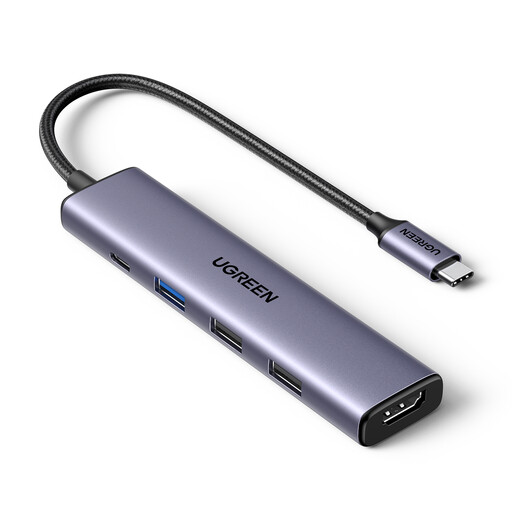
UGREEN Revodok 5-in-1 USB-C Hub
For a laptop desk setup needing extra connections, check that the laptop’s USB-C port supports video output before relying on the hub for a monitor.
The product name lists 100W PD, 4K HDMI and three USB-A data ports. Confirm charging compatibility and the power delivered to your laptop.
View on Joybuy
 No image available
MSI MD272UPSW 27-inch 4K UHD Smart Monitor with Google TV
For a desk setup considering a USB-C monitor, check that its connection and charging specifications match your laptop’s requirements.
The product name specifies an IPS display and USB-C 65W.
View on Joybuy
 No image available
ASUS ProArt PA278CV IPS WQHD Monitor
For a laptop desk setup considering a separate screen, match the monitor connection to the laptop’s supported video output.
The product name specifies an IPS WQHD display.
View on Joybuy
 No image available
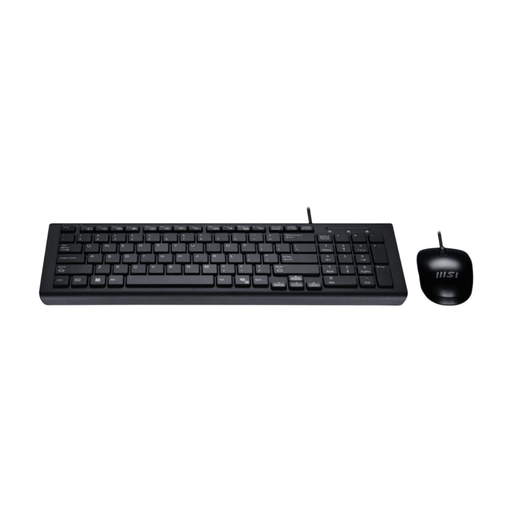
MSI GK-701 Office Keyboard and Mouse Set, USB, UK Layout
For a desk setup using separate laptop input devices, check that the computer has a suitable USB connection available.
The product name specifies a USB keyboard and mouse set with a UK-layout keyboard.
View on Joybuy
Frequently asked questions
When is a direct monitor connection enough for a home-working laptop?
A direct connection may be enough if you need one external screen and the laptop has a compatible video output. Match the laptop output to the monitor input and keep the existing charger and separate input-device connections if the display connection does not provide those functions.
Will any USB-C socket connect my laptop to a monitor?
No. Check whether the exact laptop port supports video, such as DisplayPort Alt Mode or compatible Thunderbolt or USB4 capability, then match the monitor connection and display settings. The USB-C connector’s shape alone does not confirm video output.
Why might a dock with two display sockets not give my Mac two extended screens?
The result depends on the exact Mac’s external-display limit and the dock’s video method. Plugable says macOS does not use MST for independent extended displays, and Apple says a hub does not increase a MacBook Air’s stated maximum. DisplayLink is a different approach and requires compatible software setup.
Does a USB-C hub’s power rating mean it replaces my laptop charger?
Not necessarily. Check the power delivered to the host laptop and what the package includes. Anker says its 565 USB-C Hub, model A8388, supports up to 85 W pass-through charging, but does not include the charger or cable.
Who pays if a home-working DSE assessment identifies equipment that is needed?
The Health and Safety Executive says workers cannot be charged where a DSE assessment covered by the rules identifies action such as providing a piece of DSE equipment. The circumstances matter, so do not assume every occasional or short-period home use requires an employer-funded personal upgrade.


