What to consider before buying
Choose around the work you do, the functions your laptop supports and the space available; a connector label alone does not confirm that a setup will work.
Direct external monitor
Consider when: one additional screen would give you useful room for documents or calls and your laptop has a compatible video output.
Trade-off: a direct connection may avoid buying a dock just for one screen, but it does not consolidate other peripherals or necessarily charge the laptop.
Laptop stand with separate input devices
Consider when: you want to raise the laptop screen and have room to position a separate keyboard and mouse; the Health and Safety Executive discusses this arrangement in its posture guidance.
Trade-off: a stand changes screen position but does not add display area, and the laptop’s built-in keyboard rises with its screen.
USB-C or Thunderbolt monitor or dock
Consider when: you regularly reconnect a compatible laptop and want display, data and possibly charging through fewer connections.
Trade-off: a USB-C connector does not by itself confirm video, multiple independent displays or sufficient charging; check the laptop, operating system and chosen device.
USB-A DisplayLink dock or adapter
Consider when: your laptop lacks the required native USB-C video output and a compatible USB-data display solution suits its operating system.
Trade-off: DisplayLink requires compatible software, and a USB-A connection should not be assumed to charge the laptop.
| Concern |
What to check when buying |
Who this matters to |
| Usable screen space |
Check the display’s size, resolution, input and stand adjustment against your desk and laptop’s supported display count. |
If I work across documents and calls, I want enough usable screen area without assuming I need two displays. Around 31% of consumers put screen space first. |
| Laptop and peripheral compatibility |
Check the exact laptop model, operating system and port functions against the dock’s display method and output modes. |
I need my existing laptop to run the displays and everyday peripherals I plan to connect. Around 31% of consumers prioritise laptop and peripheral compatibility. |
| Screen and input positioning |
For a raised laptop screen, check whether a separate keyboard and mouse can be positioned on the work surface. |
I work at a laptop for long sessions and need the screen and input devices to fit my working arrangement. Around 25% of consumers prioritise screen and input positioning. |
| Desk footprint |
Measure the space available for the screen or stand, laptop and input devices before choosing a one- or two-display layout. |
I share a small desk and need the whole setup to fit alongside its other uses. Around 13% of consumers put desk fit first. |
Relevant brands for reference
These model examples illustrate different product approaches; they are not endorsements of every product from each brand.
Dell
The P2726HE illustrates a Full HD monitor with a USB-C hub for a one-screen desk setup.
- Dell specifies a 27-inch Full HD display and up to 100 W power delivery for this model.
- That power figure does not confirm that every laptop supports USB-C video or accepts that charging level. Compare the 1920 × 1080 resolution with your screen-area and detail needs. Source: Dell UK.
Lenovo
The ThinkVision T27h-30 illustrates a 27-inch QHD monitor with USB-C docking.
- Its listed ports include Ethernet, USB and DisplayPort output, alongside monitor adjustment.
- Check that the laptop and operating system support the intended DisplayPort daisy-chain arrangement. Source: Lenovo UK.
LG
The 27UP850K-W illustrates a 27-inch 4K monitor with USB-C display, data and charging functions.
- LG specifies up to 90 W charging and an adjustable stand for this model.
- A compatible laptop and suitable cable are still needed, and 4K is an option rather than proof that ordinary text work requires that resolution. Source: LG UK.
Targus
The DOCK116GLZ illustrates a DisplayLink docking option with a USB-C host connector and a USB-A adapter for legacy hosts.
- Targus lists dual-HD output up to 2048 × 1152 at 60 Hz and up to 80 W power-delivery pass-through.
- That is not dual 4K output or unconditional charging from a USB-A host; check software permissions and the power source. Source: Targus UK.
Plugable
The UD-3900 illustrates USB-data-based expansion to two displays for a compatible laptop.
- Plugable specifies two HDMI outputs for the model.
- The dock requires compatible display software and does not charge the host laptop. Source: Plugable Technologies.
Joybuy products for a home-working setup
These Joybuy options cover laptop positioning, external screens, docking and separate input devices for a home-working desk.
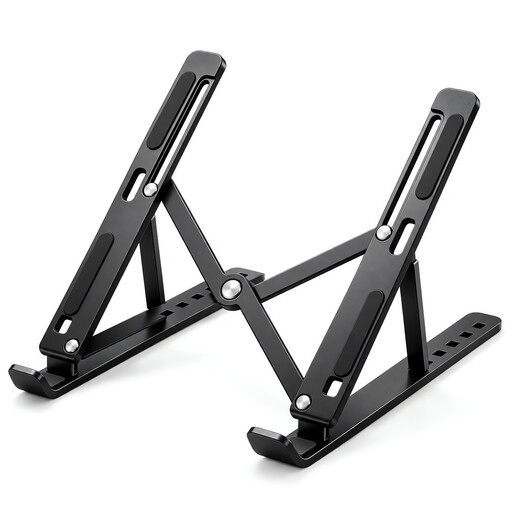 Image unavailable
Foldable Carbon-Steel Laptop Stand, 10–17-inch
For raising a laptop screen on a desk; the product name specifies seven angle levels and a 10–17-inch laptop range.
The listed angle range is 15 to 45 degrees. For separately positioned input devices, the Health and Safety Executive’s posture guidance suggests using a separate keyboard and mouse.
Joybuy
 Image unavailable
MSI MD272UPSW 27-inch 4K UHD IPS Smart Monitor with Google TV
For adding an external screen to a home-working desk when the laptop supports the required display connection.
The product name specifies a 27-inch 4K UHD IPS display and USB-C 65 W power delivery. Check the laptop’s USB-C video capability and charging requirements before relying on that connection.
Joybuy
 Image unavailable
ASUS PROART PA278CV IPS WQHD Monitor
For a desk-based setup where you want a separate monitor rather than relying only on the laptop screen.
The product name identifies an IPS WQHD model. Check the laptop’s supported video output and display configuration for the connection you plan to use.
Joybuy
 Image unavailable
Targus USB-C Universal Dual HDMI 4K Docking Station with 100W Power Delivery Pass-Thru
For a desk where you regularly connect displays and peripherals through a dock.
The product name specifies USB-C, dual HDMI and 100W power-delivery pass-through. Confirm the laptop supports the required video mode and display configuration before relying on both outputs.
Joybuy
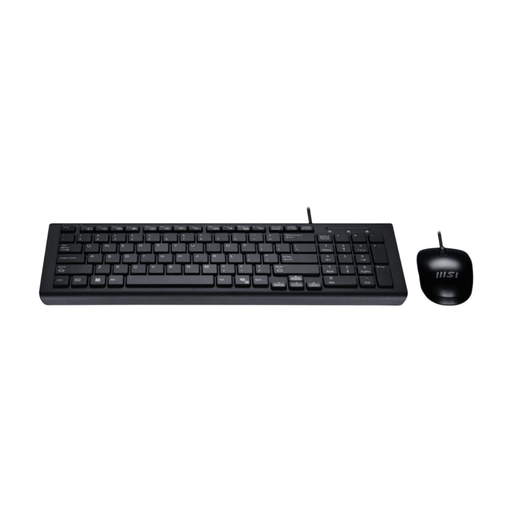 Image unavailable
MSI GK-701 Office Keyboard and Mouse Set, USB, UK Layout
For a setup where you want input devices separate from a raised laptop screen.
The product name identifies a USB keyboard-and-mouse set in UK layout. Check that the laptop or dock has the connections you need and allow desk space for the devices.
Joybuy
Home-working laptop setup FAQs
Should I buy my own monitor or ask my employer first?
Ask about the applicable workplace DSE process if the equipment may address an assessed work need. In Great Britain, the Health and Safety Executive says DSE rules can apply to permanent, long-term and routine hybrid home workers who use DSE daily for continuous periods of an hour or more; where an applicable workstation assessment indicates action such as providing equipment, workers cannot be charged for it. Northern Ireland has separate DSE guidance. This does not mean every home worker needs to buy a monitor.
Will a USB-C dock run two separate monitors from my laptop?
Not from the connector name alone. Check the exact laptop’s video capability and supported display count, the dock’s video method and the intended resolutions. Plugable Technologies explains that dock behaviour can depend on Alt Mode, MST, Thunderbolt or DisplayLink; Apple Support advises checking the exact Mac model’s display support.
Can a USB-A laptop use a dual-monitor dock?
A compatible USB-data graphics dock may be an option, subject to its display modes and the laptop’s operating-system software support. USB-A does not establish video support in an ordinary USB-C video dock, and it should not be assumed to charge the laptop.
How should I arrange a raised laptop for long sessions?
The Health and Safety Executive’s posture guidance suggests using a separate keyboard and mouse when elevating a laptop screen on a riser, or using a separate display. Check that the screen and input devices can each be positioned on the actual work surface; this is practical workstation guidance, not a claim that an accessory prevents injury.
What should I check about extra equipment and after-sales terms?
Check whether your setup needs a separate keyboard, mouse, video cable, power supply or compatible dock, then read the seller’s warranty and return terms. Citizens Advice distinguishes a warranty from statutory rights relating to faulty goods; its cited change-of-mind guidance applies to England, so check the guidance for the relevant UK nation.


