Long-session laptop workers
If you use a laptop for sustained periods, you may want to position its screen separately from your hands. The Health and Safety Executive (HSE) describes using a separate keyboard and mouse when raising a laptop screen.


Start with the task your current setup makes difficult: separate input devices let you raise a laptop screen, an external monitor adds space for documents, and a dock can simplify repeated connections when it suits your computer. Before buying connected equipment, check your laptop’s video outputs, supported display count, charging requirements and any workplace software or device rules.
If you use a laptop for sustained periods, you may want to position its screen separately from your hands. The Health and Safety Executive (HSE) describes using a separate keyboard and mouse when raising a laptop screen.
If you regularly work across documents and applications, consider whether one external display provides enough visible space or whether your computer supports the additional screens you have in mind.
If you often reconnect desk equipment or join calls, check the laptop’s ports, charging setup and camera or audio needs before adding screens or call accessories.
Identify the main limitation first—screen position, display space, repeated connections or calls—then check that your laptop can support the equipment you are considering.
| Concern | What to check when buying | Who this matters to |
|---|---|---|
| Screen and input position | Check that the stand fits and stays stable with your laptop, and plan where a separate keyboard and mouse will sit. | If I work at a laptop for long stretches, I want to raise the screen without raising the keyboard with it. Around 31% of consumers put screen and input positioning first. |
| Space for documents | Check the screen count and resolution your laptop supports, plus the monitor’s inputs; confirm video and charging functions separately. | When I need documents and applications visible together, I focus on additional display space. Around 31% of consumers prioritise room for documents and applications. |
| Connections and charging | Check your laptop’s video-capable port, display limits and operating-system support, as well as the dock’s power output and any required charger or cable. | If I reconnect several desk devices, I want the ports and charging setup to suit my computer. Around 23% of consumers put repeated connections first. |
| Video-call equipment | Identify whether camera position, microphone use or listening is the issue, then check the accessory’s connection, software and workplace permissions. | When a particular camera or audio issue affects my calls, I look for equipment that addresses that need. Around 15% of consumers prioritise call equipment. |
Raising the screen also raises the laptop’s attached keyboard, so the screen and input devices cannot be positioned independently that way.
Plan the screen and hand positions together; a raised laptop setup may also call for a separate keyboard and mouse.
The laptop’s display support and the dock’s host requirements determine whether the intended screen arrangement will work. Some software-based display methods also need permissions.
Check your exact laptop configuration, the dock’s requirements and any workplace rules before choosing a two-screen setup.
For the Anker 553 hub, up to 85 W pass-through is conditional on using a 100 W PD charger and a USB-C cable.
Compare the power your laptop needs with the power delivered through the hub, and check which charger and cable the setup requires.
The Pro 27 Plus 4K USB-C Hub Monitor P2725QE illustrates a display with hub and laptop-charging functions.
The 553 USB-C Hub is a compact multiport option for a laptop setup that needs additional connections.
The MX Keys S Combo and Brio 500 illustrate separate input devices and an external camera for home-working setups.
The USB-C 100W G6 Dock illustrates a fuller desk dock for connecting displays and peripherals.
Belkin’s 7-in-1 USB-C hub illustrates a portable adapter with an HDMI output and additional accessory ports.
The Evolve2 40 SE line is a headset option to consider when call audio is a specific requirement.
These Joybuy product choices cover laptop positioning, separate input devices, additional display space, desk connections and call audio for home-working setups.
 No image available
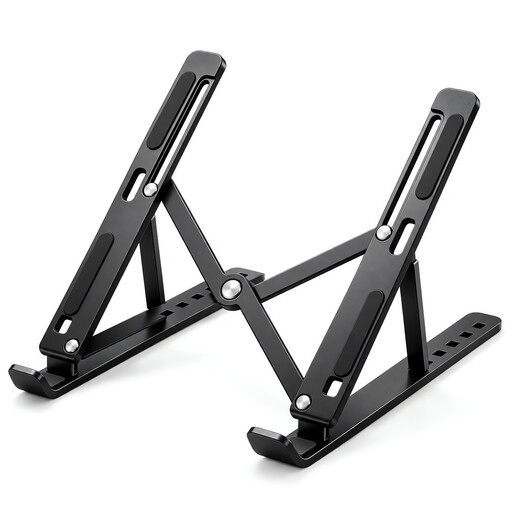
Consider this stand if raising your laptop screen is the main need and you plan to use separate input devices.
It has seven height levels, a stated 15 to 45-degree tilt range and a fit for 10 to 17-inch laptops. The listing also describes a ventilated panel, anti-slip pads and a fold-flat design.
 No image available
Consider this monitor if you want additional display space for documents and applications and its connections suit your laptop.
The listing specifies a 27-inch, 2560 × 1440 display, USB-C with power delivery, a USB hub and an adjustable stand. Check the exact laptop’s video and charging support.
 No image available
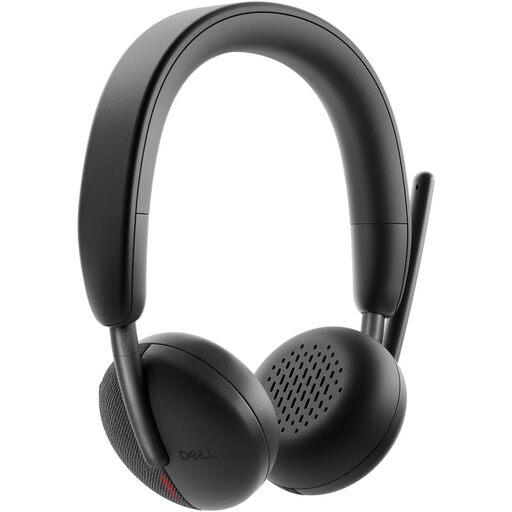
Consider this headset if you want a dedicated microphone and wireless audio for work calls.
The listing specifies Bluetooth 5.3, a USB receiver with a USB-A adapter and a rotatable boom microphone. Check that its connection options suit your work computer.
 No image available
Consider this dock if you need several desk connections and your laptop supports the intended display setup.
The listing specifies two HDMI outputs and up to 100 W power-delivery pass-through. It requires an external 100 W or higher adapter as its power source; verify host compatibility and display support.
 No image available
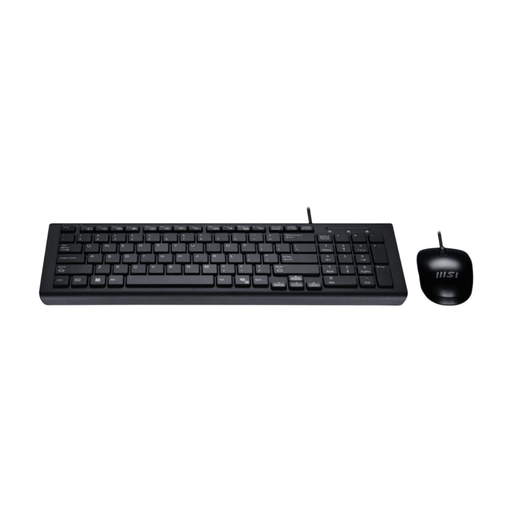
Consider this set if you want separate input devices for a laptop setup with a wired desk connection.
The listing specifies a full-size UK-layout keyboard with number pad, an optical mouse and USB-A connections.
If screen position is the main issue, consider raising the laptop and using a separate keyboard and mouse; if you need more visible workspace, consider a separate display. The HSE describes separate input devices as part of its guidance for prolonged laptop use.
No. Check your laptop’s supported external displays and video-capable connection, the dock’s host and display requirements, and the power actually delivered to the computer. Anker specifies that the 553 hub’s up-to-85 W pass-through requires a 100 W PD charger and USB-C cable.
Check your workplace’s software and device rules before choosing that setup. DisplayLink Support says its Manager on macOS needs Screen Recording permission to operate.
HSE guidance does not establish a universal requirement to buy either accessory. It says display screen equipment rules can apply to permanent, long-term or hybrid home workers who use such equipment daily for continuous periods of an hour or more; where they apply, an individual assessment can consider whether existing equipment is suitable.
Check the exact laptop’s supported screen count and display configuration, the dock’s host requirements and whether any required software or permissions are allowed on your work device. Two video sockets on a dock do not by themselves confirm that your laptop can run two independent external displays.