What to consider before buying
Start by identifying whether the main issue is screen position, repeat connections, spending responsibility or a specific call or lighting need. The percentages below refer to consumers choosing equipment for a home laptop workstation, grouped by their main purchasing concern.
| Concern |
What to check when buying |
Who this matters to |
| Screen space and position |
Measure usable desk space; check the intended screen position, display connection and any charging requirement. |
If the laptop screen feels restrictive during extended work, I would prioritise usable display space and positioning. Around 28% of consumers put screen space or position first. |
| Positioning in a small space |
Measure the desk; check a stand’s stability or an arm’s weight range, VESA pattern and attachment method. Plan separate controls if raising the laptop. |
When my desk is small, I need the screen and controls to fit in workable positions without assuming a full-size monitor will fit. Roughly 22% of consumers prioritise positioning in limited space. |
| Ports, displays and charging |
List the devices and displays you use; check the laptop’s exact port capabilities, dock outputs and power delivered to the laptop. |
If I reconnect several devices, I want a hub or dock that works with my laptop and the displays I use. About 22% of consumers put connections and charging first. |
| Who pays and what is included |
If employed, discuss the assessment outcome and equipment provision before buying; check which power supplies and cables come with the chosen product. |
Before paying personally, I want to know whether equipment identified by a workplace assessment should be provided for me. Approximately 17% of consumers prioritise spending responsibility and provision. |
| Calls and lighting |
Identify whether the issue is camera, audio, task visibility or screen reflections; check connections and any software permissions required. |
If calls or lighting are the specific problem, I would focus on the accessory that addresses it rather than expecting it to change screen position. Around 11% of consumers prioritise calls or lighting. |
Joybuy product options
These Joybuy product options cover desk lighting, laptop connections, a separate display, a webcam and an external mouse. Choose only the items that address a specific need in your setup.
 No image available
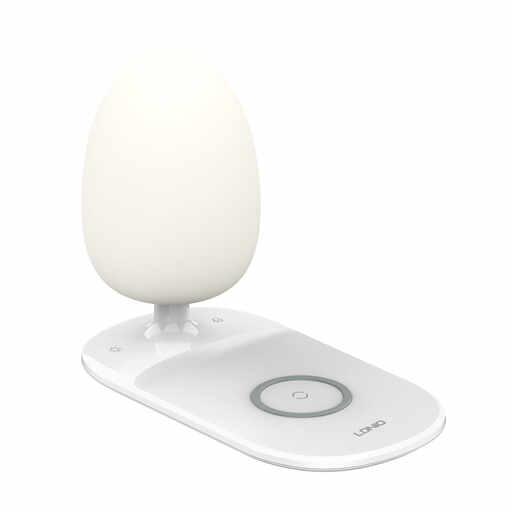
LDNIO Wireless USB-C Charging Desk Lamp, 1M, White
A desk-light option if you also want a charging point; check that your device is compatible with the wireless charging feature.
Variant: 1M, White.
Joybuy
 No image available
Baseus Metal Gleam Series II 10-in-1 USB-C Hub
For a laptop setup needing several connections, provided the laptop supports the hub’s video connection.
The listed connections include HDMI up to 4K at 120 Hz and HDMI up to 4K at 60 Hz, USB-A and USB-C data ports, RJ45, SD/TF card slots and USB-C PD input. Video output requires a device that supports USB-C DisplayPort Alt Mode.
Joybuy
 No image available
MSI 27-inch 4K UHD MD272UPSW Smart Monitor with Google TV
A separate-display option if you have room for a 27-inch monitor; check whether its stated USB-C charging output meets your laptop’s needs.
The product name specifies an IPS panel and USB-C 65 W power delivery. Measure the desk space and confirm the laptop’s display and charging compatibility.
Joybuy
 No image available
Targus 2K Webcam with Auto Focus
Consider a separate webcam when you have an identified camera need for work calls; check that its connection suits your laptop.
The product name specifies 2K resolution and autofocus.
Joybuy
 No image available
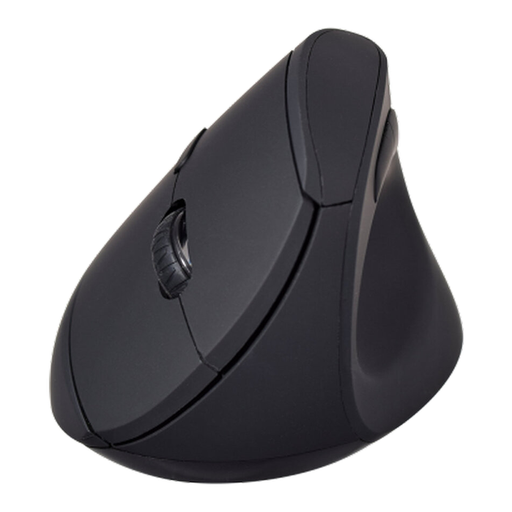
V7 MW500BT Bluetooth Vertical Mouse
An external pointing-device option if a vertical mouse suits your setup; check the wireless connection you intend to use.
The product name specifies Bluetooth and 2.4GHz dual-mode connectivity, six buttons and an adjustable 1600 DPI sensor.
Joybuy
Frequently asked questions
Can I use a raised laptop without buying a monitor?
Yes, if the resulting workstation suits your needs. For extended laptop use, the Health and Safety Executive advises using a separate keyboard and mouse so the screen can be raised independently; assess the whole arrangement rather than treating a stand alone as a complete setup.
Will any USB-C dock run my displays and charge my laptop?
No. Compare the laptop’s supported connection and display configuration with the exact dock, then check the power delivered to the laptop against its requirements. An input rating or maximum charging claim does not by itself establish the supplied setup’s output.
Does my employer have to pay for my home setup?
Not for every accessory you would personally prefer. In Great Britain, the Health and Safety Executive says that when an applicable home-working DSE assessment identifies action such as providing DSE equipment, workers cannot be charged for it. Northern Ireland has separate guidance from the Health and Safety Executive for Northern Ireland. Discuss the assessment and who will provide equipment or repairs before making a personal purchase.
Do DSE assessment requirements cover every occasional home user?
No. In Great Britain, the Health and Safety Executive describes the rules as applying to workers who use display screen equipment daily for continuous periods of an hour or more, including qualifying home workers. The Health and Safety Executive for Northern Ireland describes daily use for an hour or more at a time and says infrequent or short use is outside its DSE rules. An assessment considers the workstation; it is not a mandatory shopping list.
What if an online accessory purchase is unsuitable or faulty?
For covered UK distance purchases, GOV.UK says consumers generally have 14 days after receiving an item to notify the seller of cancellation and a further 14 days to return it; exceptions can apply. Faulty or misdescribed goods have separate remedies. Check the seller’s terms and the circumstances of your purchase.


