Who this setup is for

Laptop-only desk workers

If your laptop screen gives you enough workspace, compare a suitable riser with a separate keyboard and mouse, and check what your workstation assessment identifies. The Health and Safety Executive (HSE) recommends separating the keyboard and mouse when raising a laptop screen.

People who need more screen space

If you work across documents or applications, consider an external monitor and check its connections, positioning and your laptop’s display support before choosing one or more screens.

Frequent desk switchers

If you often reconnect a laptop at a desk, compare direct connections with a compact hub or powered dock against the ports, displays and charging your setup needs.

What to prioritise when choosing equipment

Laptop stand with separate input devices

Consider it when: your laptop screen provides enough workspace but needs raising for regular desk use.

Trade-off: it does not add screen area, and the laptop’s keyboard and trackpad rise with the screen.

External monitor

Consider it when: you want more display space or prefer the laptop off to one side.

Trade-off: it takes desk space; confirm that the laptop supports the intended display and connections.

USB-C hub or docking station

Consider it when: you regularly reconnect several desk devices and need a more convenient connection arrangement.

Trade-off: extra ports alone do not confirm display or charging compatibility; check the exact laptop and accessory combination.

Concern What to check when buying Who this matters to
Screen and input positioning Check the stand’s device-size limit and stability, and plan for a separate keyboard and mouse. Ask about an applicable workstation assessment. If my laptop screen is large enough, I want to raise it while keeping separate input devices on the desk. Roughly 36% of consumers put screen and input positioning first.
More display space Check your laptop’s supported external-display count and the monitor’s connections, resolution and adjustment. If I work across several documents or applications, I want another usable screen and need to know my laptop can run the planned setup. About 29% of consumers prioritise additional display space.
Reconnecting desk equipment Match the laptop’s video-capable connection and charging needs to the hub or dock; check the intended display configuration. If I often reconnect the same desk equipment, I want the displays and peripherals to work through the connection I choose. Around 21% of consumers prioritise simpler reconnection.
Work-call equipment Check whether a separate camera or audio device is needed, and confirm connection type and any work-platform requirements. If my existing laptop camera or audio does not meet my work-call needs, I want to check the required equipment before adding accessories. Approximately 14% of consumers prioritise call equipment.

Buying pitfalls to avoid

  • Buying before checking the employer’s assessment process

    Where DSE requirements apply, the HSE says the assessment should help determine what equipment is needed, and workers cannot be charged for equipment their employer must provide.

    Ask about the applicable assessment and equipment process before paying, and distinguish a personal preference from an assessed need.

  • Assuming a USB-C socket or two video ports guarantee two screens

    The laptop’s display and video capabilities affect whether the planned arrangement works; a hub’s connectors alone do not establish support for two independent displays.

    Check the exact laptop against the hub or dock and each intended screen, including the planned resolution and refresh rate.

    An incompatible arrangement may call for a different cable or connection approach.

  • Raising a laptop without planning for separate input devices

    The HSE’s guidance pairs an elevated laptop screen with a separate keyboard and mouse for prolonged laptop use.

    Plan the stand and input devices together, or compare an external monitor with separate input devices.

  • Assuming a hub includes everything needed for charging

    The Anker 565’s stated pass-through charging requires a separate charger, which is not included.

    Check what is supplied and compare the hub’s power provision with your laptop’s charging requirements.

    You may need a suitable separate charger for the intended power arrangement.

Brands and product lines to compare

Kensington

The SmartFit Easy Riser Go K50421EU is a laptop-riser option for a compact, laptop-only desk arrangement.

  • Kensington specifies an adjustable, folding design for laptops up to 14 inches.
  • Check that size limit and plan for a separate keyboard and mouse if raising the laptop for prolonged use.

Dell

The P2726HE monitor and SD25TB4 dock address different needs: display space and connection consolidation.

  • Dell lists adjustment and up to 100 W power delivery for the P2726HE. For the SD25TB4, Dell lists 130 W delivery to Dell systems and 96 W to non-Dell systems.
  • These are model-specific specifications; check compatibility with the laptop and intended display setup.

Lenovo

The ThinkVision T27h-30 is a USB-C monitor option that also lists hub connections.

  • Lenovo specifies a 27-inch 2560 × 1440 display with USB-C, Ethernet and USB hub connections for this model.
  • Check the selected part number, laptop video capability and intended additional-display arrangement.

Anker

The 565 A8388 is a compact hub option for adding display, USB and Ethernet connections.

  • Anker specifies up to 85 W pass-through charging for this hub.
  • Anker says the pass-through arrangement requires a charger that is not included; its display outputs depend on the laptop’s DisplayPort version.

Logitech

The MK470 keyboard-and-mouse combo is a separate-input option for a raised-laptop arrangement; the Brio 300 is a separate webcam option.

  • Logitech describes the MK470 as compact and wireless, and specifies the Brio 300 at 1080p with USB-C connectivity.
  • Check the preferred fit and connection type, and whether a separate camera is required for your work.

Joybuy products for a home-working laptop setup

These Joybuy product choices cover laptop stands, monitors, separate input devices and USB-C hubs or docks for a home-working laptop desk. Match each accessory to your laptop and intended setup.

HOCO HB28 USB-C multi-function hub, Metal Grey

HOCO HB28 USB-C Multi-Function Hub, Metal Grey

Consider it if you need to add display and peripheral connections at a laptop desk.

Its stated video output is 4K at 30 Hz, with up to 60 W Power Delivery. SD and TF cards cannot be read simultaneously.

View on Joybuy
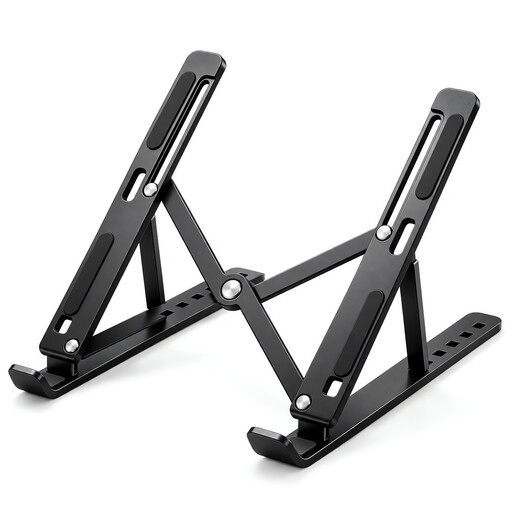
Foldable adjustable laptop stand for 10 to 17-inch laptops

Foldable Adjustable Laptop Stand, 10–17-inch

Consider it if your laptop screen provides enough workspace but needs raising; plan for a separate keyboard and mouse.

The listing specifies seven tilt levels from 15 to 45 degrees and a stated 10–17-inch device range.

View on Joybuy

BenQ MA270UP 27-inch 4K UHD USB-C monitor

BenQ MA270UP 27-inch 4K UHD USB-C Monitor

Consider it if you want an external screen for a desk-based laptop setup; check that your laptop supports the intended display connection.

The listing specifies USB-C connectivity, 90 W Power Delivery and an adjustable stand. It also lists HDMI and USB ports.

View on Joybuy

HP 680 CFT dual-mode keyboard and mouse combo, US QWERTY layout

HP 680 CFT Dual-Mode Keyboard and Mouse Combo

Consider it as a separate-input option for a laptop setup, including one where the screen is raised.

The listing specifies a US QWERTY layout and Bluetooth or wireless-dongle connectivity.

View on Joybuy

Targus USB-C Universal Dual HDMI 4K Docking Station with 100 W Power Delivery pass-through

Targus USB-C Universal Dual HDMI 4K Docking Station

Consider it if you regularly reconnect a laptop to displays and peripherals; confirm that the laptop supports the intended arrangement.

The listing specifies dual HDMI output, up to 100 W Power Delivery pass-through and a USB-C Alt Mode host connection. It requires an external 100 W or higher adapter as its power source.

View on Joybuy

Frequently asked questions

Do I have to buy my own monitor or laptop stand for home working?

Not automatically. Where UK DSE requirements apply, the employer should use a workstation assessment to decide what equipment is needed, and workers cannot be charged for equipment the employer must provide, according to the Health and Safety Executive.

When may a UK home worker need a DSE workstation assessment?

HSE guidance says employers must assess workstations when workers use display screen equipment daily as part of their normal work, continuously for an hour or more. It also says DSE requirements can apply to permanent or long-term home workers and people who routinely divide their work between home and a workplace; check how the requirements apply to your working arrangement.

Will a dock with two video connections run two external screens?

Not necessarily. Check the exact laptop’s supported number of external displays and match its video connections to the dock and each screen at the resolution and refresh rate you intend to use.

What should I use with a raised laptop for prolonged desk work?

HSE guidance pairs an elevated laptop screen with a separate keyboard and mouse. Position the devices for your desk and take account of any individual workstation assessment; a stand on its own raises the laptop keyboard as well as the screen.

Does a USB-C hub include what I need to charge my laptop?

Not always. Check the laptop’s charging requirement and the exact hub’s power provision. Anker says its 565 A8388 supports up to 85 W pass-through charging but requires a charger that is not included.