What to check before buying
Among consumers considering home-working laptop upgrades, the first priority may be screen and input position, extra display area or fewer repeated connections; other needs can still matter to the same setup.
| Concern |
What to check |
Who this matters to |
| Screen and input position |
Check the stand’s size and weight limits, space for a separate keyboard and mouse, and whether the screen can be positioned as needed. |
If I raise my laptop on a shared table, I need room to place the keyboard and mouse separately. Around 36% of consumers prioritise screen and input positioning. |
| More screen area at a regular desk |
Check desk space, stand adjustment, monitor inputs and the laptop’s supported display connections; do not assume a USB-C port carries video or charges the laptop. |
For consumers who work in one place and want independently positioned screen area, a fixed display is the central consideration. Roughly 29% put that need first. |
| A second screen to put away |
Check the packed size, stand arrangement and monitor input against the laptop’s video output. |
If I need extra screen space but must clear the table or move between work locations, portability is my priority. About 21% of consumers prioritise a movable second screen. |
| Fewer repeated connections |
Check the laptop’s port and display specifications, each hub port’s function, and whether the required charger and cable are included. |
For consumers who regularly reconnect a display and peripherals, matching the dock to the laptop matters more than the number of sockets alone. Around 14% prioritise consolidating connections. |
Joybuy product choices for home-working laptop setups
These options cover portable and fixed displays, plus a USB-C hub, for laptop workspaces where screen area or connection needs shape the setup.
 No image available
UPERFECT 14-inch 60Hz Touchscreen Portable Monitor
Consider it when you need a second screen that can be packed away, provided your laptop supports the required video connection.
The listing specifies a 14-inch Full HD touchscreen, 60Hz, 100% sRGB, a 180° adjustable stand and VESA compatibility. It describes USB-C for video and power, and advises against use in humid environments, including kitchens.
View on Joybuy
 No image available
BenQ MA270UP 27-inch 4K UHD USB-C Monitor
Consider it for a regular work spot where you want a separate monitor; confirm that your laptop supports the connection and power arrangement you need.
The listing specifies a 27-inch 4K IPS display, HDMI and USB-C with 90 W Power Delivery, plus height, pivot, swivel and tilt adjustment.
View on Joybuy
 No image available
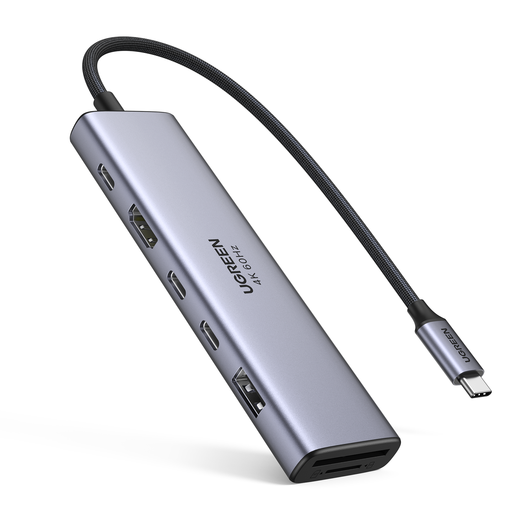
UGREEN 7-in-1 USB-C Docking Station
Consider a hub when you regularly connect a display and peripherals, after checking that its functions match your laptop and screen.
The product name specifies HDMI, two USB-C 3.2 ports, USB-A 3.2, SD and TF slots, and PD. Check the laptop’s supported video output and what each port does before relying on a particular display or charging arrangement.
View on Joybuy
 No image available
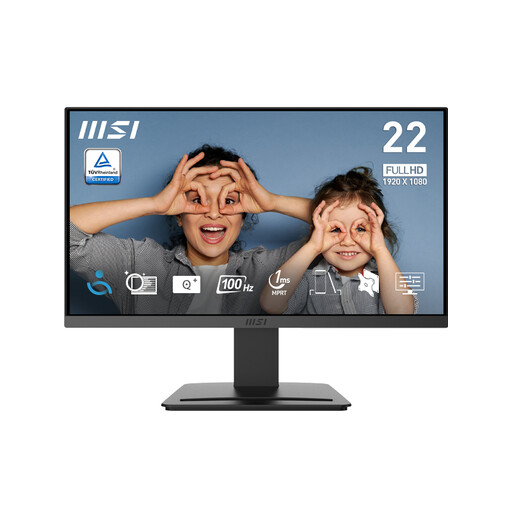
MSI PRO MP223 E2 21.45-inch Full HD Monitor
Consider it for a regular work spot where a separate display and tilt adjustment suit the available space.
The listing specifies 1920 × 1080 resolution, 100Hz, HDMI 1.4b and DisplayPort 1.2a, with tilt adjustment and 75 mm VESA mounting. Check your laptop’s supported display output.
View on Joybuy
 No image available
ASUS ZenScreen Go MB16AHP FHD Portable Monitor
Consider it when you need a second display that can move between work locations; check that your laptop supports the chosen video connection.
The listing specifies a 15.6-inch IPS Full HD panel, a built-in battery and a foldable Smart Case stand. It lists USB-C and Micro-HDMI connections and includes a Micro-HDMI-to-HDMI cable.
View on Joybuy
Frequently asked questions
Will any USB-C laptop port run a portable monitor or dock?
No; check the exact laptop manual for video output, such as DisplayPort Alt Mode or supported Thunderbolt, and for external-display limits. ASUS specifies DisplayPort Alt Mode for the MB166C, while Dell documents some laptop USB-C ports that carry data without video.
If I raise my laptop on a stand, can I keep typing on its built-in keyboard?
A stand does not separate the screen from the built-in keyboard. For prolonged laptop use, the Health and Safety Executive’s setup guidance shows a separate keyboard and mouse so the screen can be raised while the inputs are positioned independently; check what will fit your table.
What should I check before connecting a multi-screen setup?
Match the laptop’s supported display count and video output to the monitor and hub, then check each port’s function and which cables and power equipment are included. For a DisplayLink-based device on macOS, DisplayLink says its Manager app and specified system permissions are required; this does not apply to every dock.
Does my employer have to pay for home-working display-screen equipment?
It depends on whether the UK display-screen-equipment rules apply and what the workstation assessment identifies. Health and Safety Executive guidance describes DSE users as people using equipment daily for continuous periods of an hour or more, including in relevant home-working arrangements; where an applicable assessment indicates action such as supplying equipment, the worker cannot be charged for that action. This is not an entitlement to every accessory a worker might prefer.
What if an online monitor or dock is faulty, or I change my mind?
Faulty or misdescribed goods and a change-of-mind cancellation are different situations. GOV.UK explains that qualifying online purchases can be cancelled by telling the seller within 14 days of receiving the item, followed by another 14 days to return it; check the stated exceptions and the seller’s policy. Fault-related rights are separate.


