What to prioritise when buying
In Great Britain, Health and Safety Executive guidance says DSE rules may apply to people using display screen equipment daily for continuous periods of an hour or more. Where an assessment identifies necessary equipment, workers cannot be charged for it.
| Concern |
What to check when buying |
Who this matters to |
| Assessment and provision |
Check what the assessment identifies and your employer’s equipment-provision process before ordering. |
If my assessment may call for a workstation change, I want to know what my employer will provide before buying equipment; about 33% of consumers put assessment findings and provision first. |
| Positioning and input |
Check screen position, desk space and room for a separate keyboard and mouse. |
When I raise my laptop screen for sustained work, I need separate input devices that fit my desk; about 27% of consumers prioritise screen positioning and separate input devices. |
| Screen space and desk fit |
Check the display size, stand adjustment, laptop video output and available desk space. |
If I need a separate screen for my regular tasks, I want it to fit the desk and connect to my laptop; about 20% of consumers put screen space and fit first. |
| Dock compatibility |
Check the exact laptop’s video protocol, display limit, charging needs and permitted software. |
When I reconnect my work laptop to desk peripherals, I need the dock to match its display and charging capabilities and my IT policy; about 13% of consumers prioritise reconnection and compatibility. |
| Work-call equipment |
Check whether existing camera and audio equipment meets the work requirement and whether the intended connection supports the feature. |
If my work calls need equipment my current setup does not provide, I want to check the exact device and connection before adding anything; about 7% of consumers put call equipment first. |
Relevant brands to consider
These examples relate to particular workstation equipment and models; a brand’s inclusion does not establish availability or suitability for every laptop setup.
BenQ
The GW2486TC illustrates a positionable home-office monitor with USB-C video and rated power delivery.
- BenQ specifies a 23.8-inch, 1920 × 1080 display and an adjustable stand for this model.
- The stated microphone function requires a USB-C connection. Check laptop compatibility and display support before relying on the monitor for charging or multiple displays.
Dell
The P2425HE illustrates a USB-C hub-monitor option with an adjustable stand.
- Dell specifies up to 90 W upstream USB-C power delivery for this model.
- The rated power does not establish compatibility with every laptop; check the host’s requirements and connection capabilities.
Lenovo
The ThinkPad Universal USB-C Dock, model 40AY0090UK, is an example for a desk setup with multiple peripherals.
- Lenovo lists multiple video and USB ports on this dock.
- Check power delivery for the exact supplied adapter and host. Some ThinkPad-specific management features may not work with other laptops.
Logitech
The MX Keys Mini for Business illustrates a compact external-keyboard option.
- Logitech lists Bluetooth Low Energy or a Logi Bolt USB-A receiver as connection options.
- Check the exact UK layout and your managed laptop’s connection policy; a compact keyboard may not include every key you need.
HP
HP’s Series 5 Pro conferencing monitors illustrate an integrated display-and-calls option when those functions are needed for work.
- HP lists models with different display resolutions, sizes and connections.
- Check the exact model’s footprint, laptop charging compatibility and call features before deciding whether it meets your setup needs.
Joybuy product options
This selection covers laptop positioning, external displays, laptop reconnection, separate input devices and work-call audio. Choose components to match your workstation assessment, available space and work laptop.
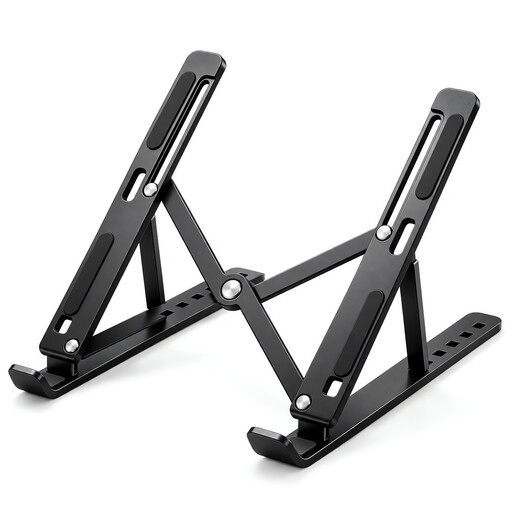 Image unavailable
Foldable adjustable laptop stand for 10–17-inch laptops
Consider this stand if you want to raise a laptop screen at a workstation and can place a separate keyboard and mouse alongside it.
The listing specifies seven height levels, a 15–45° tilt range, a ventilated panel and a carbon-steel frame. Its stated laptop fit is 10–17 inches.
Joybuy
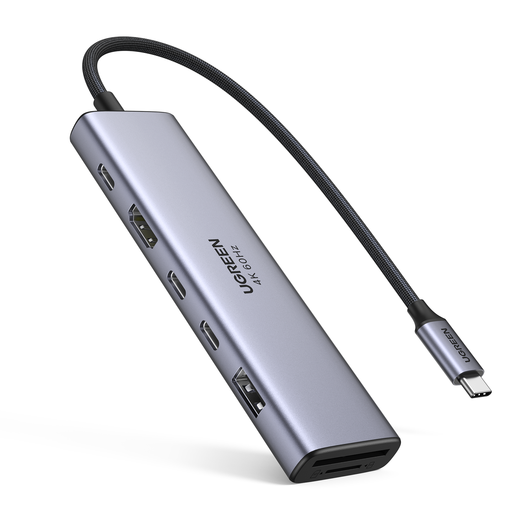 Image unavailable
UGREEN 7-in-1 USB-C multi-function docking station
Consider this hub if you need to reconnect a laptop to a display and desk peripherals, after confirming that the laptop supports the intended video connection.
The listing specifies HDMI, two USB-C 3.2 ports, one USB-A 3.2 port, SD and TF card readers, and up to 100 W USB-C PD pass-through. Check the host’s video and charging capabilities before relying on these functions.
Joybuy
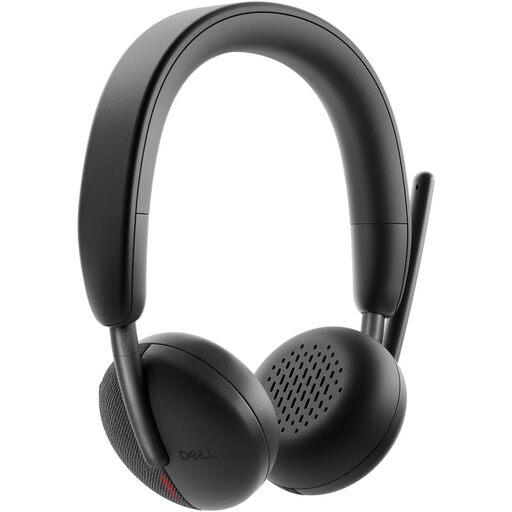 Image unavailable
Dell Pro Headset WL3024
Consider this headset if work calls require a separate microphone and your work device permits its intended connection.
The listing describes Bluetooth multipoint, a USB-C receiver with a USB-A adapter, and a flip-to-mute boom microphone. Check connection compatibility and your employer’s device policy.
Joybuy
 Image unavailable
ASUS ZenScreen MB249C monitor
Consider this separate display if its size and positioning options suit your desk and the laptop supports the connection you plan to use.
The listing specifies a 23.8-inch Full HD IPS display, HDMI, USB-C with 60 W power delivery, and kickstand, clamp-arm and partition-hook mounting options. USB-C video and power delivery depend on a compatible laptop and connection.
Joybuy
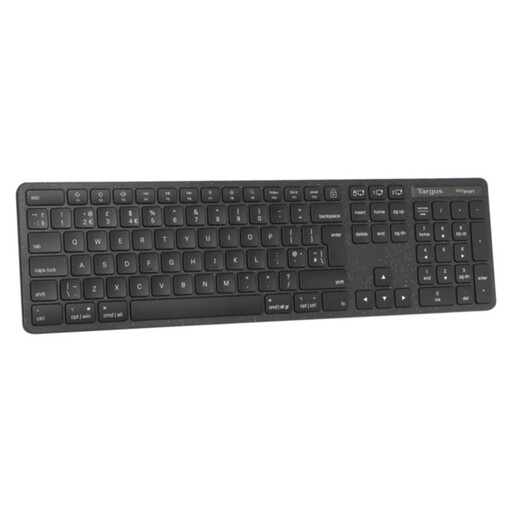 Image unavailable
Targus EcoSmart full-size wireless keyboard (UK)
Consider a separate keyboard if you need to type independently of a raised laptop screen and its layout suits your work.
The listing specifies a full-size UK layout with a numeric pad and Bluetooth or 2.4 GHz USB-A receiver connectivity. Check which connection your work device permits.
Joybuy
Frequently asked questions
Does a regular home or hybrid worker need a DSE workstation assessment?
In Great Britain, an employer should assess an individual worker’s workstation where DSE rules apply. Health and Safety Executive guidance identifies daily DSE use for continuous periods of an hour or more as a relevant condition; an assessment should cover home and office settings when both are used. Northern Ireland has separate Health and Safety Executive for Northern Ireland guidance.
Should I pay for equipment an assessment says I need?
In Great Britain, the Health and Safety Executive says workers cannot be charged for equipment or other action identified as necessary by a DSE workstation assessment. Ask your employer how it will provide the identified equipment before ordering it yourself; agree separately how optional equipment and repairs are handled.
Can changing my layout or work routine help instead of buying accessories?
It depends on what the workstation assessment identifies. Review screen and input-device placement, the desk arrangement and work conditions; the Health and Safety Executive also says employers must plan breaks or changes of activity for DSE users. Buying accessories does not replace that work-routine planning.
Will any USB-C dock run two monitors and charge my laptop?
No. Check the exact laptop’s video output and display limit, the dock’s video method, the intended display modes and the charging requirements. Plugable Technologies explains that macOS does not support MST extended displays in the same way as compatible Windows systems, while DisplayLink requires software and permission on managed devices.
Who should handle setup, repairs and technical support?
Agree the approved equipment, repair arrangements, technical support and any training with your employer before relying on a particular setup. A product’s connection specifications do not establish permission to install software or drivers on a managed work device.


