Buying priorities
Choose the screen format and desk position first, then confirm that the computer, cable and any dock can deliver the display setup you intend to use.
| Priority |
What to check |
Your needs |
| Usable workspace |
Assess screen size and resolution together with viewing distance and desk space. Consider whether a wider aspect ratio or multi-input layout genuinely helps your workflow. |
I want enough room for documents, communication tools and concurrent applications without making gaming or travel-focused features the deciding factor. |
| Connection compatibility |
Check the exact computer for HDMI, DisplayPort, USB-C DisplayPort Alt Mode, Thunderbolt or USB4 support. Confirm the graphics hardware’s external-display limit and match the cable to the monitor input. |
I need the monitor count and resolution I plan to use, including independently extended screens rather than a duplicated image. |
| One-cable desk setup |
For USB-C video, verify compatible video support at both the computer and monitor or dock. Compare the stated power-delivery output with the laptop’s charging requirement, and choose hub, Ethernet or webcam functions only when useful. |
I reconnect a laptop regularly and would value one desk connection for display, power and peripherals. |
| Desk position and sustained use |
Measure usable desk width and depth, including keyboard space. Check height, tilt, swivel, pivot or VESA options alongside chair and desk height; employer workstation arrangements may also matter. |
I need a screen position that works with the rest of my desk setup, rather than simply the largest panel that will fit. |
Joybuy product options
Joybuy monitor options for fixed home-working desks, covering direct display connections, wider workspaces and selected USB-C desk setups.
 No image available
BenQ MA320UP 31.5-inch 4K USB-C Monitor
A larger fixed-desk option for MacBook users who want a 4K workspace and a stated one-cable connection.
Stated USB-C video and data support, 90W power delivery, HDMI inputs, height, pivot, swivel and tilt adjustment, plus VESA support. Check non-Mac laptop video support, charging needs and available desk space before relying on one cable.
Joybuy
 No image available
Dell P2425H 24-inch Full HD IPS Monitor
A conventional fixed-monitor route for home-office documents and communication where desk space is limited.
Stated 1920 × 1080 IPS panel with HDMI, DisplayPort, USB-C and VGA connections, plus height, tilt and swivel adjustment. Check the monitor manual and laptop specification before planning a USB-C one-cable setup.
Joybuy
 No image available
LG UltraWide 29U511A 29-inch Monitor
A single wider screen for side-by-side applications on a fixed desk, where a second monitor is not preferred.
Stated 21:9 2560 × 1080 panel with HDMI and DisplayPort inputs and a tilt-adjustable stand. Measure the 688.5 mm-wide display area and check the computer’s supported output resolution.
Joybuy
 No image available
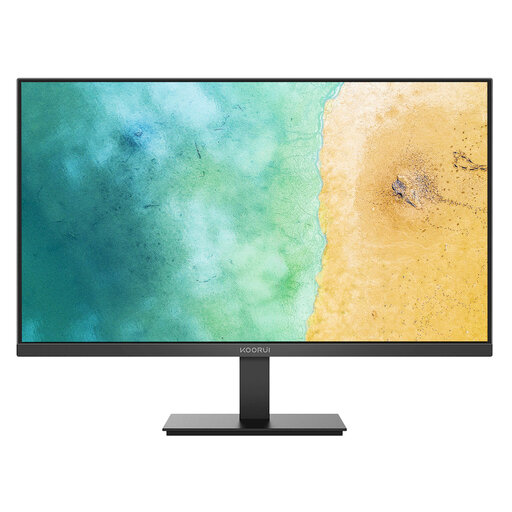
KOORUI MB27V29FS2 27-inch IPS Monitor
A straightforward larger conventional screen for a desk using HDMI or VGA rather than a dock-style connection.
Stated 27-inch Full HD IPS display, HDMI and VGA inputs, tilt adjustment and VESA 100 × 100 mounting. USB-C video, charging, hub and Ethernet functions are not stated, so check whether a basic direct-monitor setup meets your needs.
Joybuy
Frequently asked questions
Does my employer have responsibilities for a home-working monitor setup in the UK?
If you use display screen equipment daily for continuous periods of an hour or more as part of normal work, the Health and Safety Executive says DSE regulations can apply and the employer must carry out a workstation assessment. For home and hybrid workers, the assessment should cover both settings where both are used; if it identifies needed DSE equipment, the worker cannot be charged for it.
Should I ask whether my employer will provide or support a monitor before buying one?
Yes. Acas advises employers to review home-working equipment and technology needs, including who provides or pays for equipment and repairs, technical support, and security or data-protection requirements. Check your employer’s policy before purchasing a monitor, dock or wired-network accessory for work use.
Does a USB-C port guarantee that my laptop will work with a USB-C monitor or dock?
No. DisplayPort explains that video over USB-C uses DisplayPort Alternate Mode, and Microsoft advises checking the device manufacturer for display-adapter and multi-monitor support. Confirm video output from the exact computer, then check the monitor or dock input, cable, charging requirement and intended resolution.
Can I use a splitter to turn one laptop display output into two independent screens?
Usually no. Microsoft states that a display splitter duplicates the same signal rather than creating two independent displays. For two extended displays, verify support from the computer’s graphics hardware and the chosen dock or connection method.
How should I arrange screens after connecting them in Windows?
Use Windows display settings to identify and arrange detected screens so cursor movement follows their physical desk layout. Microsoft also provides options for remembering window locations by monitor connection, which can help when repeatedly docking and undocking a work laptop.


