Start with the part of your laptop setup that limits your work: an external monitor and a workable desk layout for screen space, a call device for meetings, or separate input devices when the laptop’s position makes typing and pointing awkward. Consider a USB-C dock or hub monitor only after checking that your exact laptop, cable and chosen device support the display, charging and peripheral connections you need.
Who might need an addition?
Laptop-based document workers
If you regularly read, write or move between applications on a laptop, more screen space may help you arrange the work in front of you. Plan the display and the positions of your keyboard and mouse together, in line with Health and Safety Executive workstation guidance.
People reconnecting a laptop at one desk
If you repeatedly attach a display, charging and USB accessories, a hub monitor or dock may simplify those connections. Dell, Anker and DisplayPort guidance all make the underlying laptop port’s capabilities important to that decision.
Frequent video-call workers
If meetings are a regular part of your day, assess camera position, room lighting, microphone pickup and the devices your work platform permits. A camera’s stated resolution alone does not settle those questions.
What should you check first?
For regular home working, decide which limitation most affects your next purchase, then check how the proposed device fits the whole desk and your exact computer.
| Concern |
What to check |
Who this matters to |
| Screen space and position |
Check desk dimensions, display inputs and stand adjustment. If you plan to use an arm, check its mounting compatibility. |
If I spend long periods reading documents on a laptop, I want room for the work and a screen I can position without leaving the controls awkward to use. Around 36% of consumers put screen space and desk layout first. |
| Laptop connections and charging |
Check the exact laptop’s video output, charging requirements and supported display count against the dock or monitor and cable. |
When I reconnect my laptop at a desk, I need the intended displays and accessories to work together, not just a plug that fits. Connectivity is the primary concern for around 29% of consumers. |
| Video calls |
Check work-platform compatibility, camera mounting, room lighting, audio needs and employer device rules. |
If meetings expose a poor camera angle or make my voice hard to pick up, I want to address that particular call problem. Around 21% of consumers prioritise their video-call setup. |
| Keyboard and mouse use |
Check keyboard layout, mouse size and handedness, connection method and compatibility with the work computer. |
Once my screen is raised, I need controls I can place where I can use them comfortably; the shape and layout must also suit me. Separate input devices are the main priority for around 14% of consumers. |
Buying pitfalls
-
A USB-C socket means a dock will do everything
A dock can fit the socket while the laptop lacks the video output, charging support or display configuration you intended. Dell’s dock guidance notes that compatibility depends on laptop hardware and that unlisted systems can have limited functionality or errors.
Check your exact laptop model, required charging level, display count, operating system and cable against the dock’s compatibility information before buying.
-
A monitor completes the desk setup on its own
An external screen does not determine where your keyboard, mouse or laptop will sit. The Health and Safety Executive advises considering the display and controls as parts of the same workstation.
Measure the desk and plan the viewing position, controls, power and cables together before choosing a stand or monitor arm.
-
Dual-display and charging figures apply to every computer
Anker specifies dual-display operation for Windows on its A210B hub page. A stated charging output or pair of display ports likewise does not establish what a particular laptop will accept or drive.
Match the manufacturer’s operating-system and display-mode notes to your computer, including whether you need two extended screens rather than mirrored images.
-
A work laptop will accept any external device
Work-device rules may restrict USB accessories or software even where the physical connection fits.
Check your employer’s equipment and IT rules before purchasing a camera, microphone, dock or driver-dependent accessory for a managed laptop.
Relevant brands to consider
Dell
Dell has business monitors and laptop docks relevant to a fixed desk or a regularly reconnected laptop.
- Dell specifies a 23.8-inch Full HD IPS panel and up to 90W power delivery for the P2425HE USB-C hub monitor.
- Dell’s dock guidance makes compatibility dependent on the laptop hardware; confirm the exact computer rather than treating a USB-C connection as an assurance.
LG
LG’s USB-C business monitors are relevant when a fixed-desk display may also connect laptop accessories.
- LG specifies a 23.8-inch Full HD IPS panel, four USB downstream ports and charging up to 65W for the 24BA650-B.
- Using its display, data and charging functions through one cable still depends on the laptop’s USB-C capabilities and the cable.
Anker
Anker makes compact USB-C hubs and larger docks for adding laptop connections.
- Anker specifies two HDMI outputs supporting up to 4K at 60Hz for the A210B Nano hub, with its dual-display description applying to Windows.
- Anker advises checking the laptop port’s video, charging and monitor support before choosing a dock.
Logitech
Logitech has webcams and input devices relevant to calls and desk-control preferences.
- Logitech specifies Full HD video, automatic light correction and noise-reducing microphones for the Brio 500.
- For a specialised mouse such as Lift, check the stated hand-size fit, handedness and device compatibility rather than assuming its shape will suit everyone.
Joybuy product choices
These choices cover different additions to a home-working desk: a USB-C dock, external monitors, a call device and separate keyboard and mouse controls. Choose by the limitation you need to address, then confirm compatibility and desk fit.
 No image available
Targus USB-C Universal Dual HDMI 4K Docking Station, 100W Power Delivery Pass-Thru, retail packaging
Consider this dock if you want to reconnect a laptop to two HDMI displays and desk accessories. Its named 100W Power Delivery pass-through is not a promise that your laptop will accept that charging arrangement: check its USB-C video support, display configuration and charging requirements. Confirm the required external adapter and package contents before ordering.
View on Joybuy
 No image available
ASUS ZenScreen MB249C IPS USB-C monitor
This is an external-screen option for a desk where the laptop display feels restrictive. Check your laptop’s USB-C video and charging support before planning a one-cable connection. Confirm the monitor’s weight, mounting accessories and power adapter for the variant you order before deciding how to position it.
View on Joybuy
 No image available
EMEET All-in-One 4K USB webcam with Sony sensor, 4-mic array and dual speakers
Consider a separate call device if your laptop’s camera position or audio arrangement does not meet your meeting needs. This fixed-focus model lists an adjustable 98° field of view; its feature claims do not establish call quality in your room. Check your work platform’s compatibility and your employer’s rules for external camera and audio devices.
View on Joybuy
 No image available
BenQ MA320UP 32-inch 4K UHD USB-C monitor with height-adjustable stand
This Mac-oriented monitor is a choice to consider when you want a larger, adjustable external display. The named model has a Nano Glossy IPS panel and HDR P3 designation. Measure the desk and check the particular laptop’s USB-C display, charging and Mac-specific control compatibility before relying on a one-cable setup.
View on Joybuy
 No image available
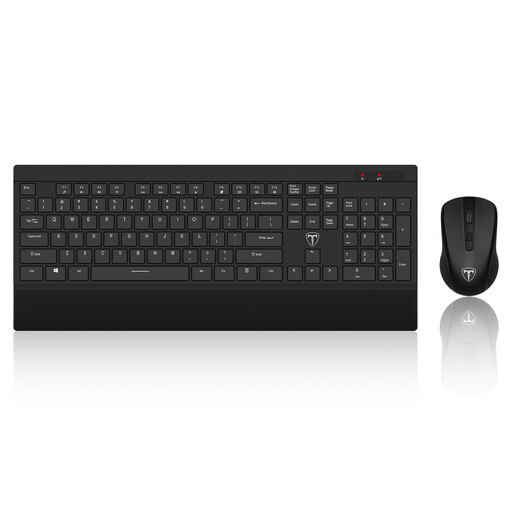
ET 2.4GHz wireless keyboard and mouse set, US layout
Separate controls can help you position a raised laptop or external screen independently of where you type and use the mouse. This set has a US keyboard layout, which may not suit UK-layout typing requirements. Check device compatibility and whether your employer permits its USB receiver on a managed computer.
View on Joybuy
Questions about setup and compatibility
Will any USB-C laptop work with a monitor or dock?
No: the connector alone does not establish video output, laptop charging or support for the number of displays you want. Check the exact laptop’s port specification, the monitor or dock’s compatibility information, its charging arrangement and the cable. Dell warns that docks used with unlisted systems may have limited functionality or errors.
Should my employer provide equipment for home working?
An employer may need to provide equipment when a home-working display-screen assessment identifies action that requires it. The Health and Safety Executive says workers cannot be charged for equipment identified in that assessment. Ask your employer about the assessment and its equipment and IT policies before buying a device for a managed work setup.
How should I position an external monitor alongside a laptop?
Position the screen and controls as one workstation, rather than placing the monitor wherever it fits. The Health and Safety Executive’s standard guidance puts the top of the screen around eye level, the screen about an arm’s length away and directly in front of you, with the keyboard just below elbow height and the mouse in line with your elbow. If you raise the laptop, consider separate controls so you do not have to type on its raised keyboard.


