What should you check before buying a monitor or dock?
Start with the main constraint: screen space, screen position, laptop connections, working across devices or avoiding unnecessary spending.
| Concern |
What to check when buying |
Who this matters to |
| Screen space for documents and calls |
Compare screen size, native resolution, desk space and the window layout you want. Philips UK specifies 2560 × 1440 for its 27E1N1600AE/00; Dell UK specifies 1920 × 1200 for the 24.07-inch P2425. |
If I want documents and a call visible alongside each other, I will compare the usable screen area with the space on my desk. Around 29% of consumers put screen space first. |
| Positioning for sustained work |
Check the supplied stand’s height and angle adjustments before adding an arm. The Health and Safety Executive’s guidance discusses screen positioning and using a separate keyboard and mouse when raising a laptop. |
If the laptop screen sits too low, I want to improve its position without leaving the keyboard awkward to use. Around 22% of consumers prioritise screen and input-device positioning. |
| Video, cable and charging compatibility |
Check the exact laptop port, supported video output, display count, cable capability and charging requirement. Plugable Technologies notes that USB-C alone does not confirm video support; BenQ specifies 65 W USB-C power delivery for the GW2790QT, while LG specifies up to 90 W for the 27UP850K-W. |
If I want fewer cables at my desk, I need the laptop, display or dock and cable to support the same video and charging setup. Around 21% of consumers put connection compatibility first. |
| Multiple displays or switching computers |
Decide whether you need separate extended screens or want to share a screen and input devices between computers. Check the laptop’s display limit and the monitor’s KVM or dock specifications; iiyama states that its dock functions depend on USB-C support from the laptop. |
If I switch between computers or need independently extended displays, I will check the host device’s limits as well as the monitor’s features. Around 14% of consumers prioritise multi-device use. |
| Total cost and necessary equipment |
Check which cables and input devices are included and whether you need the monitor’s hub features. If an applicable employer DSE assessment identifies equipment that needs to be provided, the Health and Safety Executive says the worker cannot be charged for it. |
If I want a workable setup without buying features I will not use, I will check what is already available and whether an employer assessment applies. Around 14% of consumers put total cost first. |
Joybuy monitor options for home-working setups
These Joybuy options are external monitors for adding screen space to a laptop-based home-working setup. Compare the screen and stand features with your desk and check that your laptop supports the connection you plan to use.
 Image unavailable
AOC Q32V4 31.5-inch QHD IPS Monitor
A larger screen option for adding room for documents and work windows.
31.5-inch display; 2560 × 1440 resolution; HDMI and DisplayPort inputs.
IPS panel and built-in speakers are listed. VESA mounting is specified if you are considering an alternative to the supplied stand.
View on Joybuy
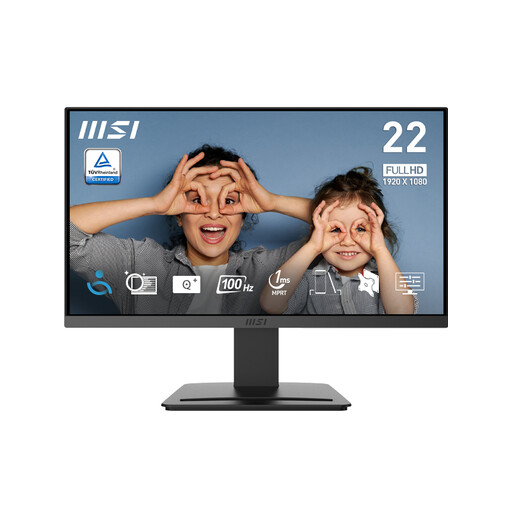 Image unavailable
MSI PRO MP223 E2 21.45-inch Full HD Monitor
A separate desk display option with a smaller screen size than the larger models in this selection.
21.45-inch screen; 1920 × 1080 resolution; 100 Hz listed.
HDMI 1.4b and DisplayPort 1.2a inputs; tilt-adjustable stand. A 75 mm VESA mounting option is specified.
View on Joybuy
 Image unavailable
ASUS ProArt PA278CV 27-inch WQHD Monitor
A 27-inch WQHD option for a separate work screen with an adjustable stand.
2560 × 1440 resolution; USB-C with power delivery and a USB hub are listed.
The stand is specified with height, tilt, swivel and pivot adjustment. Check the laptop’s video and charging requirements before relying on USB-C.
View on Joybuy
 Image unavailable
Lenovo L32p-30 31.5-inch 4K UHD Monitor
A larger 4K screen option for work involving documents and multiple windows.
31.5-inch IPS display; 4K UHD resolution; USB-C video, data and power delivery are listed.
The stand is height-adjustable. Check the laptop and cable specifications for the intended USB-C connection.
View on Joybuy
 Image unavailable
Dahua 32-inch 4K 165Hz Curved OLED Monitor
A large 4K screen option with USB-C and a USB hub listed for a compatible laptop setup.
32-inch curved OLED display; 3840 × 2160 resolution; 165 Hz listed.
USB-C with 65 W power delivery and a USB hub are specified. Confirm video support and whether the stated power delivery suits your laptop.
Height adjustment, tilt and swivel are listed.
View on Joybuy
Frequently asked questions
Does regular home-working mean I have to buy a monitor myself?
No universal monitor-purchase requirement follows from the guidance. The Health and Safety Executive says that where an applicable DSE assessment identifies equipment as an action the employer needs to provide, the worker cannot be charged for it. The equipment needed depends on the assessment.
Can I raise my laptop instead of buying a monitor?
Yes, if the laptop screen gives you enough working space and its position is the main issue. The Health and Safety Executive’s guidance describes raising the screen while using a separate keyboard and mouse; check that the arrangement suits your desk.
Will a USB-C dock give my MacBook Air two extended external screens?
It depends on the exact MacBook Air model and connection method. Apple Support specifies that the M3 MacBook Air can use a second external display with its lid closed. Plugable Technologies notes that ordinary DisplayPort MST does not provide separate extended desktops on macOS, while DisplayLink-controlled displays require software and permissions. Check your exact model and any managed-device software policy.
What should I check if a new monitor is faulty or an online purchase does not suit?
Faulty or misdescribed goods and a change of mind are subject to different rules. GOV.UK explains that most distance purchases can be cancelled, with exceptions; for an eligible online purchase, the buyer generally has 14 days from receiving the item to notify the seller and a further 14 days to return it. Check the applicable exceptions and any additional seller warranty terms.
Is UKCA marking the only acceptable product marking throughout the UK?
No. GOV.UK guidance says Great Britain continues to recognise CE marking alongside or instead of UKCA for relevant products under applicable rules. The guidance applies to England, Scotland and Wales and notes that Northern Ireland has a different process; it does not establish the correct marking for every monitor or dock.


