What should you check before choosing?
Start with the space available and the tasks on screen, then work back from the laptop’s outputs to a compatible monitor input and a position you can use comfortably.
| Priority |
What to check |
Your needs |
| Desk fit and screen detail |
Measure usable width and depth, including the stand and keyboard. Compare screen size and resolution separately; Which? identifies smaller displays for limited spaces and larger ones for home offices. |
I want more room for documents or spreadsheets, but the screen still has to fit where I work. For detailed visual tasks, I may want to consider a higher-resolution display. |
| Laptop connection |
Match the laptop’s video output to an HDMI, DisplayPort or supported USB-C monitor input. For USB-C video, check the laptop’s stated video capability; VESA explains that DisplayPort over USB-C uses an alternate mode. |
My laptop and monitor need a connection that supports the display I plan to use, not just ports with matching shapes. |
| Charging and accessories |
If you want one USB-C cable, compare the monitor’s power-delivery rating with the laptop’s charging requirement. Check whether the required cable, adapter or dock is part of your setup. |
Fewer cables would be useful, but I need to know whether the monitor can both show video and supply suitable power to my laptop. |
| Screen position |
Check stand height and tilt, or confirm mounting and arm compatibility. The Health and Safety Executive advises placing the top of the screen around eye level and the display about an arm’s length away. |
I need to position the screen without being forced to work at the laptop keyboard’s screen height. A separate keyboard and mouse may help with prolonged laptop use. |
Which brand models are relevant?
These model examples illustrate different desk, connection and screen-detail choices; a feature on one model does not apply to every monitor from the same brand.
Dell
Dell’s P2726HE is a 27-inch Full HD USB-C hub monitor for a desk where connections and screen adjustment matter.
- Dell UK specifies up to 100W power delivery for the P2726HE.
- Compare that rating with your laptop’s charging requirement, and check the exact model’s ports and adjustment range.
BenQ
BenQ’s GW2486TC is a 23.8-inch USB-C home-office monitor to consider when a smaller separate display suits the desk.
- BenQ UK specifies 65W USB-C power delivery and stand adjustment for this model.
- Check whether 65W meets your laptop’s needs. BenQ’s stated daisy-chain route for Mac devices requires compatible Thunderbolt-based docking or other suitable equipment.
LG
LG’s 27U730A-B pairs a 27-inch 4K IPS screen with USB-C for a desk setup where display detail matters.
- LG UK specifies USB-C power delivery up to 90W for this model.
- Measure the desk and compare the power-delivery rating with the laptop’s requirement.
HP
HP’s larger business monitors are references for fixed desks with room for a wide display.
- PCMag UK names the HP Series 7 Pro 34-inch WQHD Conferencing Monitor (734pm) as its business-monitor pick for most users in its 2026 work-monitor roundup.
- That editorial selection does not establish whether a 34-inch display fits your desk, viewing distance or laptop connection.
Joybuy monitor options
These are external displays to consider for a home-working desk, from a Full HD work screen to higher-resolution options. Match the size and inputs to your desk and laptop rather than assuming USB-C will provide video and charging in every setup.
 No image available
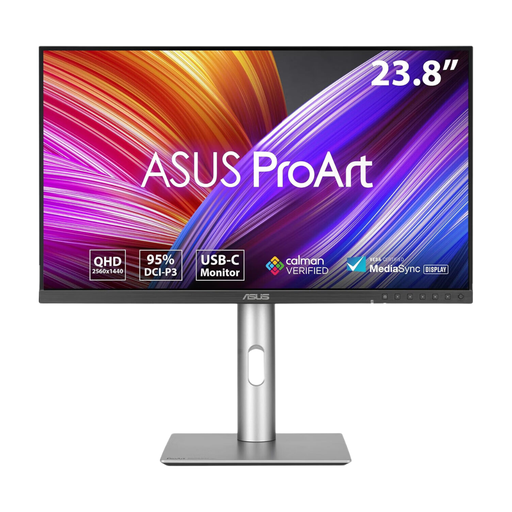
ASUS ProArt PA24ACRV IPS QHD
Consider this separate QHD display if document detail matters at your home-working desk. Check the exact laptop and monitor connections, and whether your intended screen position works with the stand.
View on Joybuy
 No image available
BenQ MA270UP 27-inch 4K USB-C
The 27-inch 4K IPS screen is an option for detailed work on a desk with enough room. Its name specifies USB-C and a height-adjustable stand; check video compatibility and charging requirements against your particular laptop.
View on Joybuy
 No image available
MSI MD272UPSW 27-inch 4K Smart Monitor
This 27-inch 4K IPS model adds Google TV to a display that could serve a fixed home-working desk. The product name specifies USB-C 65W; check the laptop’s USB-C video capability and charging requirement before planning a one-cable connection.
View on Joybuy
 No image available
LG 27UP650K 27-inch 4K IPS
For detailed documents or visual work, this 27-inch 4K display lists HDMI and DisplayPort connections. Check which output your computer has, whether you need a cable or adapter, and whether the desk has room for the screen.
View on Joybuy
 No image available
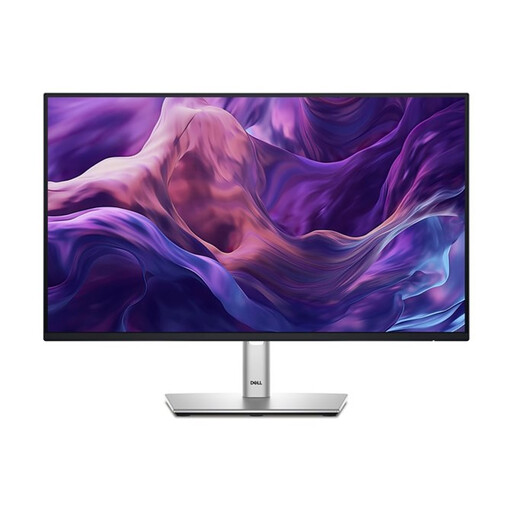
Dell P2425H 24-inch Full HD
This 24-inch IPS screen offers a separate display for everyday home-office work. The product name lists HDMI and DisplayPort as well as USB-C; check the exact USB-C video and charging functions before relying on that port for your laptop setup.
View on Joybuy
Frequently asked questions
How should I position a monitor for prolonged home working?
The Health and Safety Executive advises placing the top of the screen around eye level, with the display directly in front of you and about an arm’s length away. For prolonged laptop use, it advises a separate keyboard and mouse so the laptop screen can be raised, or a separate display.
Will any USB-C laptop work with a USB-C monitor using one cable?
No: the connector shape alone does not establish video and charging compatibility. VESA explains that DisplayPort video over USB-C uses an alternate mode; check your laptop’s external-display capability and charging requirement against the exact monitor’s USB-C functions and power delivery.
When might I need an HDMI or USB-C adapter?
You may need an adapter when the laptop’s video output does not match the monitor’s input. Check the intended resolution and refresh rate for your devices and allow for any required cable: Apple states that its USB-C Digital AV Multiport Adapter needs a separately sold HDMI cable.
Can I attach any monitor to a desk arm?
Not without checking the combination. Confirm the monitor’s mounting interface, its size and weight against the arm’s stated limits, and whether the clamp suits your desk. VESA’s mounting-interface standard does not establish that a particular arm and monitor will fit together.


