Choose a conventional external monitor for a regular desk, or consider a portable screen if the workspace must be cleared away. A USB-C hub monitor can reduce desk cables only when the laptop supports video through that port and the monitor’s stated charging capability meets its needs. For sustained work, check screen positioning as well as size; dual screens and ultrawide displays also need enough desk space and compatible computer outputs.
Who each setup suits
Laptop workers seeking fewer desk cables
If you use a laptop at a regular desk, a USB-C hub monitor may combine display and peripheral connections, with charging on compatible models. Check the laptop port’s video capability and charging requirements against the exact monitor; VESA describes the functions USB-C can carry, but the connector alone does not establish which functions your devices support.
Workers using a shared or temporary space
If your screen must move off a kitchen table after work, weigh the space available against the effort of setting it up and storing it. Which? distinguishes smaller displays for limited spaces, while ASUS’s ZenScreen range includes portable secondary screens.
Daily desk workers who need adjustable positioning
If you spend long periods at a screen, consider where it will sit relative to your chair, keyboard and eyes rather than choosing on panel size alone. The Health and Safety Executive advises placing the screen directly in front of you, with its top around eye level and roughly an arm’s length away.
What to check before choosing
Start with where the screen will live and what you need to keep visible. Then check the computer’s display outputs, the monitor’s connections and whether its stand lets you position it for your working day.
| Concern | What to check | Who this matters to |
|---|
| Connections and charging |
Match the computer’s video output to the monitor input. For USB-C, check display support, the required cable and any stated power delivery against the laptop’s needs. |
If I want one cable at my desk, I need to know it will carry video and, if needed, charge my laptop. Around 31% of consumers put connection and charging certainty first. |
| Desk space and storage |
Measure usable width and depth, including room for the stand, laptop and keyboard. If the screen must be put away, consider its setup method and carrying requirements. |
When I work at a shared table, I need a screen I can fit and move without taking over the space. For around 23% of consumers, that flexibility is the primary concern. |
| Screen positioning |
Check height and tilt adjustment, or whether a suitable mount and desk can accommodate the screen. |
If I work at the same desk for long periods, I need to position the screen without adapting my posture to a fixed stand. Around 23% of consumers prioritise adjustability. |
| Visible workspace |
Decide whether separate screens or one wide display suits the work; check desk width and whether the computer or dock supports the intended arrangement. |
When I compare documents while keeping another application open, I need enough visible workspace without crowding my desk. That is the leading need for around 23% of consumers. |
Common buying mistakes
-
Assuming every USB-C port carries video
A matching plug does not establish that a laptop can send a display signal. ASUS also notes that some portable-monitor connections through USB-A require a driver.
Check the laptop’s port specification and the monitor manual for DisplayPort Alt Mode, another documented USB-C display function or the model’s stated alternative connection method.
An unsuitable connection may mean using a compatible adapter, dock or cable, or installing a driver for a supported alternative.
-
Choosing screen size without measuring the desk
A screen and its stand can leave too little room for a keyboard, laptop or documents, particularly where the workspace is shared. Which? identifies smaller displays as an option for limited spaces.
Measure the usable desk area and the proposed stand or clamp position. If the space must be cleared regularly, compare a compact desk monitor with a portable display.
-
Assuming a USB-C monitor will replace the charger
Power delivery varies by model: Dell states up to 90W for its P2425E, while LG states 60W for its 32UN880K-B. Neither figure establishes compatibility with a particular laptop.
Compare the exact monitor’s stated power delivery and intended cable with the laptop manufacturer’s charging requirements.
You may still need to use the laptop’s separate charger if the monitor’s charging capability is unsuitable.
-
Adding a second display without planning its position
Another screen needs room and a supported computer output. Its physical placement also matters: the Health and Safety Executive advises keeping the main screen directly in front of you.
Confirm support for the intended number of displays, position the main viewing area, then arrange detected screens in the computer’s display settings to match the desk layout.
Relevant brands to consider
Dell
Dell’s P2425E is an example of a desk-based USB-C hub monitor, rather than a specification for the whole Dell range.
- Dell lists USB-C DisplayPort Alt Mode, up to 90W power delivery, Ethernet and height, tilt, swivel and pivot adjustment for the P2425E.
- Check the exact laptop’s video and charging compatibility before planning a one-cable setup.
ASUS
ASUS ZenScreen includes portable secondary displays for workspaces that cannot accommodate a permanent second monitor.
- ASUS describes the 15.6-inch MB16ACE as weighing 0.71 kg and supporting USB-C and USB-A hybrid-signal connections.
- For the MB16ACE, USB-A use requires a driver; USB-C plug-and-play display output depends on compatible video functionality.
LG
LG’s cited models illustrate two different desk setups: the clamp-mounted 32UN880K-B and the 34-inch ultrawide 34WQ75C-B.
- LG lists an adjustable C-clamp stand and 60W USB-C power delivery for the 32UN880K-B; it lists USB-C, Ethernet and up to 90W charging for the 34WQ75C-B.
- Check clamp fit or available desk width, as applicable, along with the laptop’s USB-C video and charging requirements.
HP
HP’s productivity-monitor listings cover different combinations of conventional inputs, adjustment features and USB-C connectivity.
- HP lists models with HDMI and VGA as well as a 27-inch QHD USB-C model with a USB hub and DisplayPort connections.
- Check the particular model rather than assuming that USB-C charging, height adjustment or DisplayPort output is standard across the range.
Home-working monitor choices on Joybuy
These choices include monitors for a regular home desk and portable displays for shared or changeable workspaces. Check each model’s connections and physical setup against your computer and desk before choosing.
 No image available
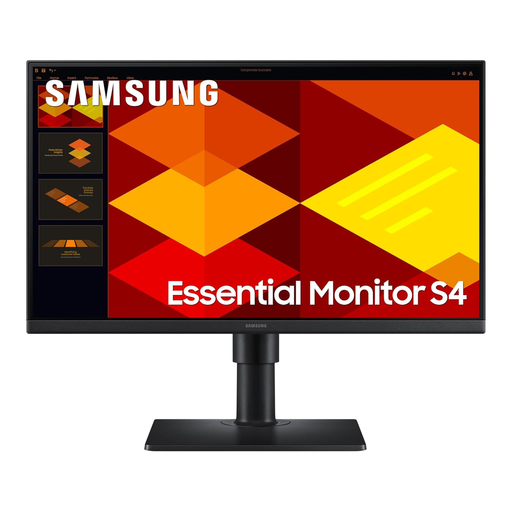
Samsung 22-inch S40GD LS22D400GAUXXU Full HD monitor
Consider this for a regular desk where a 22-inch screen fits the available space. Check that your computer has a compatible display connection; if you want USB-C video or laptop charging, confirm those requirements against the exact model.
View on Joybuy
 No image available
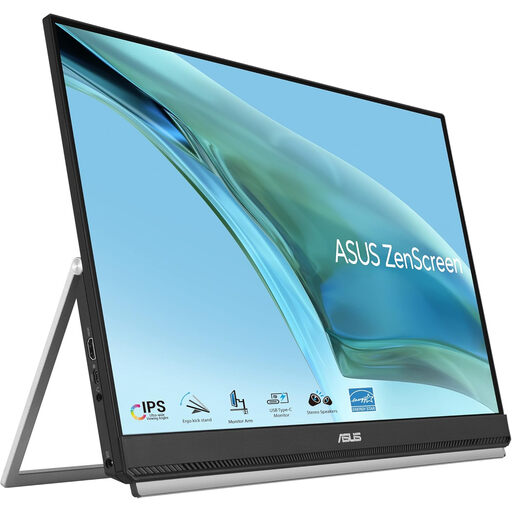
ASUS ZenScreen MB249C IPS USB-C monitor
Consider this for a workspace where the screen position may change. Its USB-C connection makes the laptop’s display-output support an important check; confirm the intended mounting arrangement and carrying weight if you plan to move it regularly.
View on Joybuy
 No image available
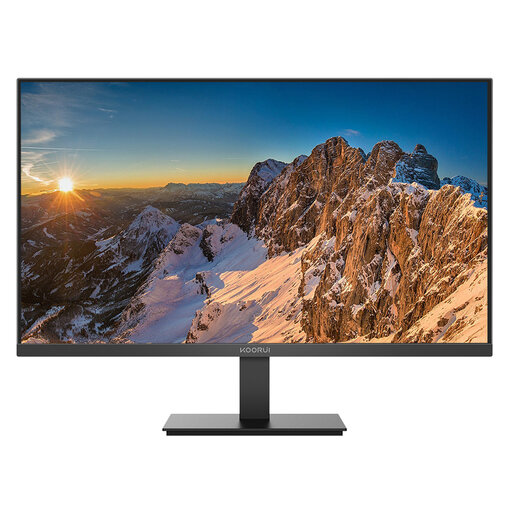
KOORUI E2412F 24-inch FHD business monitor
This is a desk-monitor option for everyday office tasks. Check its inputs against your computer and confirm the stand’s height-adjustment capability if you need to raise the screen.
View on Joybuy
 No image available
UPERFECT 18.4-inch 4K QLED portable monitor
The 18.4-inch display is an option if you want a movable second screen and have room to set it up. Its title specifies 3840 × 2160 resolution, USB-C, Mini HDMI, an integrated mount and VESA mounting; check computer video compatibility and the weight before relying on it for regular transport.
View on Joybuy
 No image available
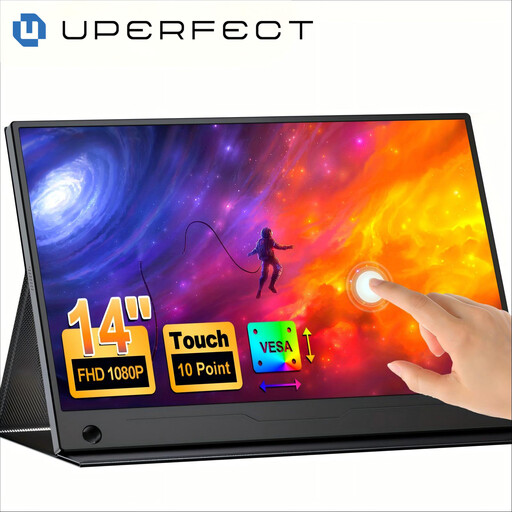
UPERFECT 14-inch 60Hz touchscreen portable monitor
Consider the 14-inch format where a temporary second screen needs to fit a smaller workspace. The title specifies VESA compatibility and a 180° adjustable stand; check USB-C video support on your computer and the screen’s carrying dimensions if you will move it often.
View on Joybuy
Frequently asked questions
Will any laptop USB-C port work with a USB-C monitor?
No: the connector alone does not establish native video support. Check the laptop and monitor specifications for DisplayPort Alt Mode or another documented display-capable USB-C connection; some portable-monitor alternatives require a driver.
Can a USB-C monitor replace my laptop charger?
It can if the laptop accepts USB-C charging and the monitor’s power delivery meets that laptop’s requirements. Dell states up to 90W for the P2425E and LG states 60W for the 32UN880K-B, but these model-specific maximums do not guarantee compatibility with your laptop.
Does a portable monitor make sense at a kitchen table?
It can make sense when a permanent second screen would occupy shared space after work. Check how the portable screen connects, stands and packs away, and whether you can position it appropriately during use.
Where should I position a monitor for prolonged work?
The Health and Safety Executive advises placing the screen directly in front of you, with its top around eye level and the display about an arm’s length away. Check whether the stand or a suitable mount lets you achieve that position alongside your keyboard and mouse.


