What should you consider before buying?
The HSE says the DSE rules can apply to people working at home who use display screen equipment daily for continuous periods of an hour or more. Where they apply, discuss your workstation assessment and any identified equipment needs with your employer before buying.
| Concern |
What to check when buying |
Who this matters to |
| Screen position |
Compare a raised laptop with separate input devices against a separate monitor; check your desk layout and viewing position. |
If I need to position my laptop screen without placing its keyboard awkwardly, I would compare a stand-plus-input-devices setup with a separate display. Around 33% of consumers put screen position first. |
| Connection compatibility |
Check the laptop’s documented video output and charging needs against the exact monitor or dock, its display configuration and the cable. |
If I regularly reconnect my laptop and need the display, peripherals and charger to work together, I would check every part of that connection. Around 25% of consumers prioritise compatibility. |
| Space to view work |
Compare screen size, resolution and desk fit with the content you need to see; check the laptop’s supported output. |
If I need to keep more work content visible at once, I would consider the screen’s viewing area as well as its fit on my desk. Around 17% of consumers prioritise viewing space. |
| Input-device position and fit |
Check whether separate devices can be positioned comfortably; seek an individual assessment if you report discomfort. |
If I am raising a laptop screen or finding my input position uncomfortable, I would consider where a separate keyboard and mouse can sit. Around 17% of consumers prioritise input-device fit. |
| Employer provision |
Check whether the DSE rules apply and discuss the assessment outcome and provision before buying for an identified workplace need. |
If an assessment identifies equipment I need for work, I would clarify provision with my employer before spending personally. Around 8% of consumers prioritise who should provide the equipment. |
Joybuy product choices for home-working setups
These Joybuy choices cover external monitors, a USB-C hub, a laptop stand and an alternative mouse shape. Match any connection or mounting requirements to your own equipment, and consider an individual assessment where your workstation or input position is a concern.
 No image available
ASUS ProArt PA278CV IPS WQHD
Consider this separate display if you need to position a work screen independently from your laptop.
Listed specifications include a 27-inch WQHD display, height, tilt, swivel and pivot adjustment, and HDMI, DisplayPort and USB-C inputs with power delivery. Check the laptop’s supported video mode and charging needs.
Joybuy
 No image available
ASUS ZenScreen MB166CR FHD
Consider this portable second screen if you need an additional display that can move between work locations.
The listed specifications are a 15.6-inch IPS Full HD display, 60 Hz refresh rate and 780 g weight. USB-C video uses DisplayPort Alternate Mode, so check that the host device supports the required mode.
Joybuy
 No image available
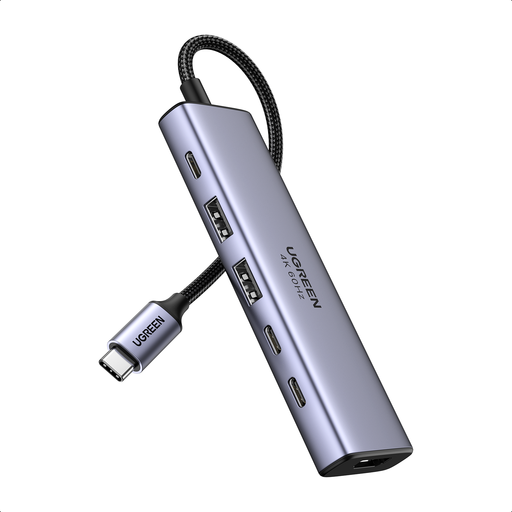
Ugreen 6-in-1 USB-C Multifunctional Adapter
Consider this hub if you regularly connect a laptop to a display and peripherals and its ports meet your setup needs.
It lists HDMI 2.0 output up to 4K at 60 Hz, two USB-A 3.2 ports, two USB-C 3.2 ports and a PD port supporting 20 V and 5 A. The video and charging arrangement depends on the laptop and cable capabilities.
Joybuy
 No image available
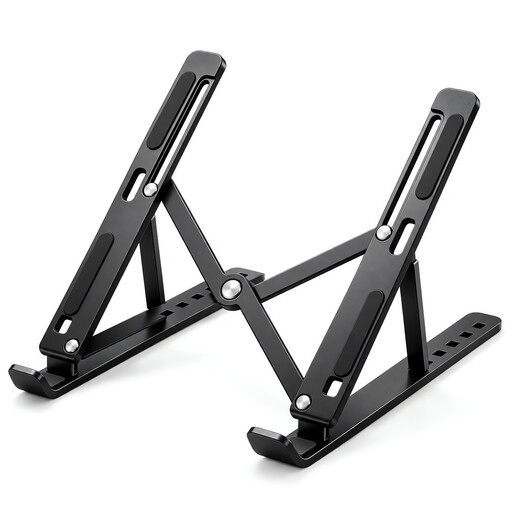
Foldable Laptop Stand, 10–17-inch Fit
Consider a stand if you need to raise or angle your laptop screen; for prolonged laptop use, plan for a separate keyboard and mouse as well.
The listing specifies seven tilt positions from 15 to 45 degrees, a foldable design and a fit range for 10- to 17-inch laptops.
Joybuy
 No image available
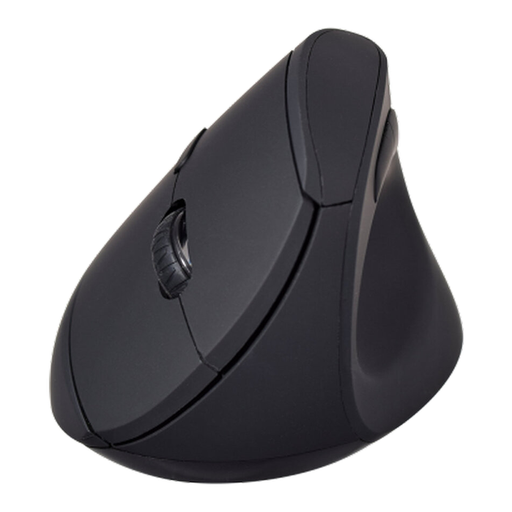
V7 MW500BT Bluetooth Vertical Mouse
Consider an alternative mouse shape only if it suits your individual input needs; its design does not establish that it will relieve discomfort.
The listing specifies Bluetooth and 2.4 GHz connectivity, six buttons and adjustable 800, 1200 and 1600 DPI settings. Consider it alongside an individual workstation assessment if you report discomfort.
Joybuy
Frequently asked questions
Does working at home automatically mean I need to buy a monitor?
No. Where the DSE rules apply, the HSE says the employer should assess the individual home workstation, including whether existing equipment is suitable. The assessment, not home-working status alone, informs whether additional equipment is needed.
If an assessment identifies equipment I need, must I pay for it?
HSE guidance says that where a DSE workstation assessment indicates necessary action, such as providing DSE equipment, workers cannot be charged for that action. This does not establish reimbursement for an unapproved personal purchase or every optional upgrade.
Can I put a laptop on a stand and keep using its built-in keyboard?
For prolonged laptop use, HSE posture guidance describes a separate keyboard and mouse so the screen can be elevated independently. Check the position of the whole workstation rather than treating the stand alone as a complete solution.
Will any USB-C dock drive and charge my laptop?
No; the connector shape alone does not confirm compatibility. Check the laptop’s specified video mode and charging needs, the dock’s host requirements and intended display configuration, and the cable’s capabilities. The USB Implementers Forum notes that cables do not all have the same capabilities.
Are UKCA and CE markings interchangeable everywhere in the UK?
There is no blanket rule that applies identically throughout the UK. Department for Business & Trade guidance describes flexibility to use UKCA or CE marking for covered products in Great Britain, while Northern Ireland has different applicable provisions. Check the product category and destination against the relevant rules.
What should I do if a new setup still causes discomfort?
Raise it through the workstation-assessment process where applicable. The HSE says an assessment should be carried out when a worker reports aches, pains or discomfort; buying a different input device is not a substitute for that review.


