Buying priorities
Work through the identified workstation issue first, then check the equipment, desk space and laptop compatibility needed to address it.
| Priority |
What to check |
Your needs |
| Screen position and posture |
Check whether the display can be positioned suitably in the available workspace. For a stand or monitor, confirm adjustment range, stability, desk fit and relevant laptop size or weight limits. |
I need a display arrangement that works with my desk and working position, rather than simply a larger screen. |
| Keyboard and mouse position |
If raising the laptop changes access to its keyboard and trackpad, assess separate input devices alongside the stand. Check the layout and connection method required by the work device. |
Once my screen is raised, I still need a keyboard and pointing device that I can use appropriately at the desk. |
| Dock and display compatibility |
Confirm the exact laptop port capability, operating system, supported display count, target resolution, charging requirement and whether driver-based video is acceptable. |
I need one connection for my required displays, charging and peripherals, not just a USB-C connector that looks compatible. |
| Video-call setup |
For a webcam or headset, check the available USB or audio connection, mounting position, call-platform requirements and any privacy feature needed for the workspace. |
I want my call equipment to match how and where I work, whether that means framing, microphone use or a privacy shutter. |
Joybuy product options
Joybuy product options for regular home-working setups, covering external displays, a docking station and a wired call headset.
 No image available
ASUS PROART PA278CV IPS WQHD
For a fixed home desk where an assessment identifies a display-position issue.
27-inch WQHD IPS monitor with height, tilt, swivel and pivot adjustment, HDMI, DisplayPort, USB-C power delivery, USB hub and VESA support.
Confirm that the laptop supports video and charging through the monitor’s USB-C connection, and check the required charging wattage if single-cable charging matters.
Joybuy
 No image available
Dahua 31.5-inch 4K Curved OLED Monitor
For a permanent desk with room for a larger adjustable external display.
31.5-inch 3840×2160 curved OLED display with 120 mm height adjustment, tilt, swivel, VESA support, USB hub, HDMI, DisplayPort and Type-C 65W.
Check desk width, viewing distance, laptop Type-C video support and whether 65W meets the laptop’s charging requirement.
Joybuy
 No image available
Targus USB-C Universal Dual HDMI 4K Docking Station
For a laptop setup that needs displays, wired networking and peripherals through one connection.
Two HDMI 2.0 ports, up to 4K at 60 Hz, Gigabit Ethernet, USB 3.2 Gen 1 Type-A ports, SD and MicroSD readers, plus 100W USB-C power-delivery pass-through.
Verify USB-C Alt Mode support, operating-system display limits, required resolution and whether a suitable 100W+ external power adapter is included.
Joybuy
 No image available
ASUS ZENSCREEN MB166CR Full HD
For hybrid workers who need a portable second screen away from a fixed desk.
15.6-inch 1920×1080 IPS portable monitor, stated at 780 g and 11.8 mm thick, with USB-C DisplayPort Alternate Mode and an anti-glare surface.
Check that the laptop USB-C port provides DisplayPort Alternate Mode and sufficient power, and confirm that the viewing position works for the intended desk.
Joybuy
 No image available
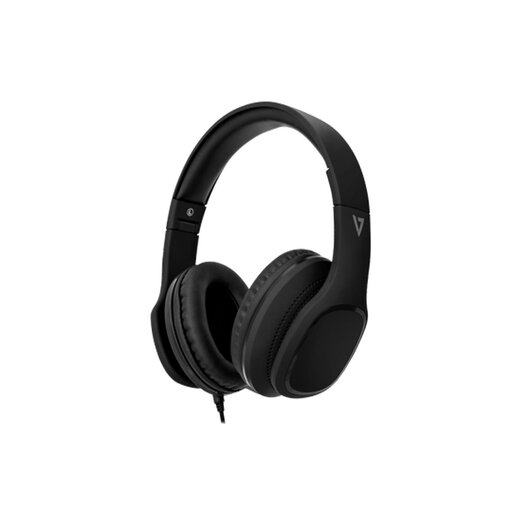
V7 HA701-3EP Wired Over-Ear Headset
For regular calls where a wired audio connection and integrated microphone meet the identified communication need.
Over-ear headset with 40 mm drivers, adjustable padded headband, memory-foam ear pads, integrated MEMS microphone, in-line controls and detachable 1.8 m 3.5 mm cable.
Confirm that the laptop, dock or phone has a compatible 3.5 mm headset connection, or that a suitable adapter is available.
Joybuy
Frequently asked questions
When do UK DSE rules apply to someone working from home?
The Health and Safety Executive says the rules can apply to permanent or long-term home workers and routine hybrid workers who use DSE daily for continuous periods of an hour or more. They do not apply to occasional or short-duration home use.
Should I buy a monitor or accessories before asking my employer about a DSE assessment?
For a regular employee DSE user, use the employer’s assessment process first because it should consider the complete workstation, work conditions, job and individual requirements. If the assessment indicates that DSE equipment must be provided, the Health and Safety Executive says the worker cannot be charged for it.
Does a USB-C port guarantee that a dock will run two external monitors?
No. Confirm the laptop’s video capability, operating system, supported external-display count, required resolution and whether a driver-based solution is acceptable. USB-C ports do not all support the same functions, and display support depends on the host computer as well as the dock.
How should I choose a laptop stand for regular home working?
Check that the stand supports the exact laptop size and weight, provides enough height and angle adjustment for the desk, and remains stable in the intended position. If raising the laptop makes its built-in keyboard or trackpad unsuitable, assess separate input devices as part of the same arrangement.
Can a monitor, stand or dock remove the need for breaks?
No. The Health and Safety Executive advises planning breaks or changes of activity for DSE users and gives short, frequent breaks as a preferable example to longer, less frequent breaks. The appropriate pattern should fit the work being done.


