What to check before choosing
Start with the problem that follows you away from the desk, then check the screen, connections and accessories needed at home.
| Priority |
What to check |
Your needs |
| Laptop performance |
Check whether slowdowns occur in ordinary documents, spreadsheets or calls, including away from the desk. Compare a replacement laptop’s stated configuration with the software you use. |
Work is slow wherever I take the laptop, so another screen alone would not address the problem. |
| Desk viewing space |
Check monitor size against available desk space, the connections you need and the stand’s adjustment options. Which? identifies ports and adjustment as considerations when choosing a monitor. |
My laptop handles the work, but I want more room to view documents, calls or spreadsheets at my regular desk. |
| Display connection |
Check the laptop’s exact video-output specification, the monitor input and the required cable. Microsoft Support notes that a USB-C connection alone does not establish that every display arrangement will work. |
I want a second screen that connects in the display mode my laptop actually supports. |
| Dock charging |
Compare power delivered to the laptop with the laptop maker’s charging requirement; also check any adapter needed by the dock. Apple Support advises checking the recommended minimum wattage for a USB-C-chargeable Mac. |
If I use one cable at my desk, I need the charging arrangement to suit my particular laptop. |
| Multiple displays |
Check the laptop and dock together for the intended number of extended displays, resolutions and connection modes. Microsoft Support says a display splitter duplicates a signal rather than creating two independent displays. |
I need separate space across two external screens, not the same picture repeated on both. |
| Desk peripherals |
Identify whether a keyboard, mouse or webcam addresses a specific limitation. Check how each will connect before choosing a hub or dock. |
My computer still works for me, but particular desk accessories would make my regular tasks easier to manage. |
| Employee workstation |
Where display-screen equipment regulations apply, ask about an individual assessment of home and office use. The Health and Safety Executive says workers cannot be charged for equipment an assessment indicates must be provided. |
For my employment-related home setup, I want equipment needs assessed rather than assuming I must resolve them through a personal purchase. |
Brand and product-line references
These manufacturer examples show why dock and docking-monitor specifications need to be checked model by model; they do not describe every product from each brand.
Lenovo
Lenovo UK lists docking monitors for buyers considering a display with desk connections built in.
- Lenovo UK lists USB-C 75W for the L24m-4A and Thunderbolt with USB-C 100W for the ThinkVision P27u-20.
- Those model-specific figures do not establish what a particular laptop can receive or which display mode it supports.
HP
HP’s USB-C 100W G6 Dock is an example of a separate dock for connecting a portable laptop to desk equipment.
- HP Store UK lists delivery of up to 100W through one USB-C cable and support for up to three external displays, subject to display configuration and resolution.
- Check the host laptop’s video and charging capabilities before applying those figures to a planned setup.
Dell
Dell UK’s WD25Z listing illustrates how a dock’s power and display specifications can depend on the connected system.
- Dell UK lists 130W delivery for Dell systems and 96W for non-Dell systems on the WD25Z.
- Its stated support for up to four displays applies under specified display modes, not every laptop connection.
Joybuy product options
These options cover external monitors, a dock and a replacement laptop for everyday home-working tasks. Choose the route that addresses your current limitation before comparing individual models.
 No image available
ASUS ZenScreen MB249C IPS USB-C monitor
Consider this external-monitor route if your laptop handles work adequately but you want another display at your desk. Check the laptop’s USB-C video support and charging requirements before planning a one-cable connection; if you will move the monitor regularly, confirm its weight.
View on Joybuy
 No image available
ASUS ZenScreen MB166CR FHD monitor
This is a second-screen option to consider when you also work away from your main desk. Check that the intended laptop has a compatible USB-C video connection and can provide the power the monitor requires.
View on Joybuy
 No image available
Targus USB-C Universal Dual HDMI 4K Docking Station with 100W Power Delivery Pass-Thru
Consider a separate dock if you keep your laptop portable but want to connect desk displays and peripherals. The model name specifies dual HDMI 4K and 100W Power Delivery pass-through; check the laptop’s video modes, display limits and accepted charging power, as well as the adapter needed for the planned power arrangement.
View on Joybuy
 No image available
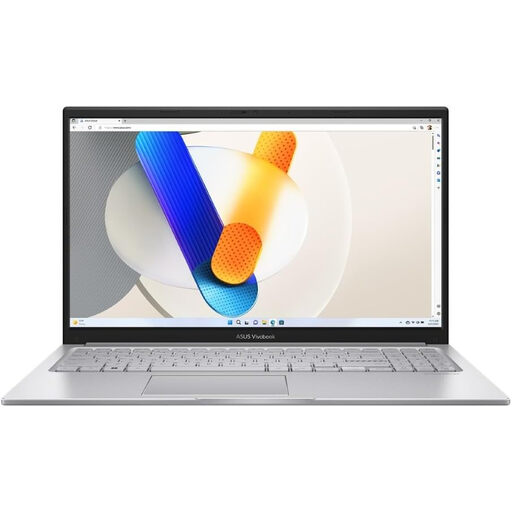
ASUS Vivobook 15 X1504VA, 15.6-inch, Intel Core 5 120U, 24 GB, 1 TB SSD
This replacement-laptop option is relevant if the computer itself regularly slows down everyday work, rather than merely lacking desk screen space. Compare its stated 15.6-inch size, Intel Core 5 120U, 24 GB and 1 TB SSD configuration with your software needs; check model-specific battery use and USB-C display or charging support if those matter to your setup.
View on Joybuy
 No image available
Lenovo L32p-30 31.5-inch 4K UHD IPS USB-C monitor
This external display is worth considering when you work mainly at a desk and have room for a 31.5-inch screen. Its name specifies 4K UHD, IPS and USB-C; check the laptop’s supported video mode and the monitor’s delivered charging power before relying on a one-cable setup.
View on Joybuy
Common questions
Should I replace my laptop or add a monitor first?
Consider replacing the laptop first if ordinary work repeatedly slows down both at and away from your desk. If the laptop still handles those tasks but you need more viewing space at a fixed desk, consider a monitor and check its connections and placement options.
Does every USB-C laptop port support a monitor and dock?
No. Microsoft Support says USB-C connection capabilities vary, and video adapters require a port configured for video output. Check your exact laptop’s supported video mode, display limits and cable requirements against the monitor or dock.
Can a display splitter give me two extended screens?
A splitter duplicates a signal rather than creating two independent displays, according to Microsoft Support. For two extended external screens, check that the laptop’s display hardware and the proposed dock support that arrangement.
Will a 100W dock charge any laptop at 100W?
No. The laptop’s accepted power and the dock’s power delivered to the host both matter. Apple Support advises checking a USB-C-chargeable Mac’s recommended minimum wattage; for any laptop, compare its model-specific charging requirement with the proposed dock and power arrangement.
Should an employee raise home-workstation needs with their employer?
Yes, where display-screen equipment regulations apply, raise the setup with your employer. The Health and Safety Executive says employers should carry out an individual assessment covering home and office use where relevant, and workers cannot be charged for equipment the assessment indicates must be provided.


