Start with a workstation assessment, then choose only the change that addresses your setup: a monitor for more screen space or a different screen position, a stand with separate keyboard and mouse if your laptop screen already suits your work, or a dock after checking your laptop’s ports, display limits, software and charging needs. In Great Britain, employers cannot charge workers for action that a DSE assessment identifies as necessary, so discuss provision before buying.
Who this setup suits
Laptop users adjusting screen position
If your laptop works for your tasks but you need to position its screen separately from your keyboard and mouse for regular extended work, compare a monitor with a stand-and-separate-input setup. The Health and Safety Executive (HSE) advises assessing the complete workstation arrangement.
Desk workers who need more screen space
If you want a separate display, consider its resolution, physical footprint and adjustment alongside the space available on your desk. HSE workstation guidance also covers screen position and input placement.
Hybrid workers reconnecting a desk
If you regularly reconnect your laptop to displays and peripherals, check whether a suitable adapter, native-video dock or software-driven dock fits your exact device. Apple, DisplayLink and device manufacturers document model- and software-specific requirements.
What to prioritise
Choose the route that solves your main workstation constraint; the trade-off is whether it changes screen position, adds a display or depends on a compatible connection.
External monitor
Consider when: your laptop screen does not give you the display space or positioning your work requires, and your desk and laptop can support a separate screen.
Trade-off: it takes up desk space; a USB-C hub monitor also depends on compatible video support and suitable charging output.
Laptop stand with separate inputs
Consider when: your laptop screen is suitable but needs raising independently of your typing and pointing position.
Trade-off: a stand does not change screen size or resolution, and you still need space for a separate keyboard and mouse.
Dock or display adapter
Consider when: you need a specific supported display connection or want to reconnect several desk peripherals through one host connection.
Trade-off: native USB-C video, host charging and display limits depend on the laptop and dock; DisplayLink has separate software and operating-system requirements.
Replacement laptop
Consider when: the existing laptop cannot support your work or the documented display setup you need, even after checking connection options.
Trade-off: replacing the host does not by itself solve screen positioning, and the new model may still need a separate display or raised screen.
| Concern |
What to check when buying |
Who this matters to |
| Screen and input positioning |
Check screen-height adjustment, stand support for your laptop, and space to position a separate keyboard and mouse. |
If I raise my laptop screen, I still need typing and pointing positions that work for my setup; around 31% of consumers put screen and input positioning first. |
| Readable display and desk fit |
Check resolution and text scaling separately from screen size, then compare the display and stand footprint with your available desk space. |
When I need a separate screen, I want it to fit my desk and leave room for other inputs; around 25% of consumers prioritise display readability and workspace fit. |
| Video, charging and displays |
Verify the laptop’s video-capable ports, supported display configuration and the dock or monitor’s charging behaviour. |
If I reconnect a laptop to displays and peripherals, I need the complete connection path to work as intended; around 25% of consumers make compatibility their primary concern. |
| Provision and support |
Before buying for an employer-managed setup, discuss assessment findings, equipment provision, repairs and technical support. |
I want to clarify what my assessed workstation needs and who will provide or support it before spending; around 19% of consumers prioritise provision and ongoing support. |
Buying pitfalls
-
Treating a laptop stand as a complete setup
Raising a laptop also raises its built-in keyboard. HSE guidance for prolonged laptop use describes separating the inputs so screen position can be adjusted independently.
Plan the screen, keyboard and mouse positions together, and check that the stand supports your exact laptop size.
A separate keyboard and mouse need their own usable space on the desk.
-
Assuming every USB-C port carries video and power
USB-C connector shape alone does not confirm video support or laptop charging. The Dell P2725HE, for example, distinguishes its upstream USB-C connection from a downstream USB-C data-only port.
Check the laptop documentation and the exact functions of the monitor or dock’s upstream and downstream ports.
A suitable cable or adapter may be needed, and a dock without host charging leaves the laptop’s own power connection in the setup.
-
Choosing a dock by its number of display sockets
Apple states that a supported hub does not increase a MacBook Air’s maximum native display count; the supported configuration depends on the model, resolution and refresh rate. DisplayLink docks follow a separate software path.
Check the exact laptop model, intended display arrangement, operating system and dock technology before ordering. On macOS, DisplayLink requires Screen Recording permission.
A DisplayLink setup can involve software installation, permission approval and additional technical-support time.
-
Buying assessment-required equipment before discussing provision
In Great Britain, HSE says workers cannot be charged for action required by their DSE workstation assessment. Additional equipment is not automatically necessary; the assessment should establish what is needed.
Discuss the assessment findings and equipment arrangements with your employer before purchasing. Do not assume an unverified reimbursement policy.
Relevant brands
BenQ
The GW2790QT is a model-specific example of a desk monitor with QHD resolution, USB-C charging and adjustable positioning.
- BenQ UK specifies a 27-inch, 2560x1440 display, 65 W USB-C Power Delivery, 110 mm height adjustment and a 614.0 × 238.5 mm footprint with stand.
- Check that the resolution, charging output and desk footprint suit your laptop and workspace; these are model specifications, not evidence that the monitor prevents symptoms.
Dell
The Dell Pro 27 Plus USB-C Hub Monitor P2725HE illustrates a hub display with adjustable positioning and peripheral connections.
- Dell UK specifies a 27-inch Full HD screen, height, tilt, swivel and pivot adjustment, and up to 90 W upstream USB-C charging.
- Its downstream USB-C port is data-only, with up to 15 W; distinguish it from the upstream charging connection when planning the setup.
Kensington
SmartFit Easy Riser Go K50421EU is a stand option for keeping an existing laptop screen while adjusting its position separately from external inputs.
- Kensington UK describes the K50421EU as a folding, height- and angle-adjustable stand for laptops up to 14 inches.
- Separate keyboard and mouse positioning still matters for prolonged laptop use. Manufacturer cooling claims are not independent evidence of a user benefit.
Logitech
Pebble Keys 2 K380s is a compact Bluetooth keyboard example for a separately positioned input setup.
- Logitech UK describes it as a slim, compact and portable keyboard.
- Check the keyboard layout and host connection requirements, and make sure its key arrangement suits your tasks.
Plugable
The UD-6950H illustrates a software-driven DisplayLink approach to connecting displays and desk peripherals.
- Plugable’s manufacturer specifications describe dual-display output and USB peripherals when DisplayLink software is installed.
- The UD-6950H does not charge the host and does not support Linux or Unix. Confirm software compatibility and the power supply and warranty terms for the specific UK listing.
Joybuy products
These options cover separate monitors for a laptop desk and a USB-C docking station for reconnecting displays and peripherals.
 No image available
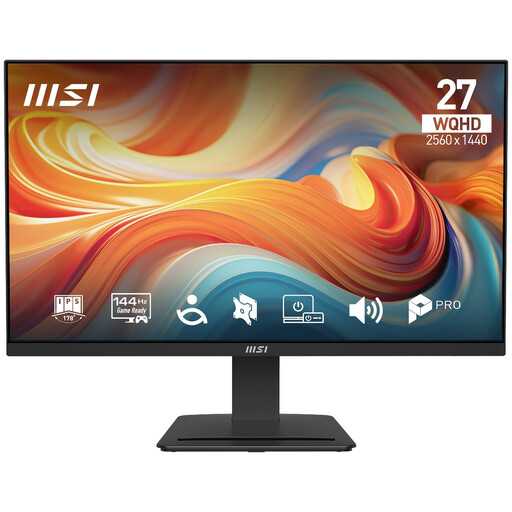
PRO MP273Q E14 27-inch 2560x1440 144Hz IPS Monitor
A separate display option for a desk-based laptop setup.
27-inch 2560x1440 WQHD screen; 144Hz; IPS.
Joybuy
 No image available
BenQ MA270UP 27-inch 4K UHD USB-C Monitor
A separate-screen option where a 27-inch 4K UHD display suits the laptop workstation.
27-inch 4K UHD; IPS; USB-C.
Joybuy
 No image available
ASUS ProArt PA24ACRV IPS QHD Monitor
A QHD external-display option for a laptop-based desk setup.
QHD; IPS; USB-C.
Joybuy
 No image available
ASUS ZenScreen MB249C IPS USB-C Monitor
A separate display option for a laptop workstation with a USB-C or HDMI connection.
23.8-inch Full HD IPS; USB-C with 60 W Power Delivery; HDMI.
USB-C video requires a compatible device with DisplayPort Alt Mode; HDMI is also listed as a connection option.
Joybuy
 No image available
Targus USB-C Universal Dual HDMI 4K Docking Station, 100W Power Delivery Pass-Through
A docking option for reconnecting displays and desk peripherals through a laptop connection.
Dual 4K HDMI outputs; USB-A; Gigabit Ethernet; 100 W Power Delivery pass-through.
The host connection uses USB-C Alt Mode. The listing specifies an external 100 W or higher adapter as the power source.
Joybuy
FAQs
Does every regular home worker need a new monitor or equipment bundle?
No. The Health and Safety Executive says existing furniture or equipment may be suitable. For workers covered by the DSE rules, the assessment should establish what changes or additional equipment are needed, including for both home and office arrangements in hybrid work.
Can I raise my laptop and keep using its built-in keyboard for prolonged work?
HSE guidance for prolonged laptop use shows a separate keyboard and mouse so the screen can be raised independently. Plan the complete setup rather than choosing a stand on its own.
Will a USB-C socket necessarily connect my laptop to a monitor?
No; check the exact laptop port’s video capability in its documentation. DisplayPort over USB-C requires DisplayPort Alt Mode, and any adapter must also suit the monitor’s input.
Will a two-output dock give every MacBook Air two extended displays?
No. Apple’s native display support depends on the exact MacBook Air model and the displays’ resolutions and refresh rates; a supported hub does not increase that native maximum. Check DisplayLink separately because it has software and permission requirements.
Who pays for equipment identified as necessary by a home DSE assessment?
In Great Britain, HSE says workers cannot be charged for action indicated by their DSE assessment, including providing equipment. Discuss provision, repairs and technical support with your employer; Acas advises agreeing those arrangements, but that is not evidence of an individual employer’s policy.


