For sustained home-working laptop use, choose the equipment that addresses the workstation need: a raised laptop with a separate keyboard and mouse, a monitor when you need an independently positioned display, or a dock when you repeatedly connect compatible devices at one desk. In Great Britain, an employer-led display screen equipment (DSE) assessment should guide changes it identifies for qualifying long-term or hybrid workers. Check your laptop’s video ports, supported displays, charging requirements and cables before choosing connected equipment.
Who is this setup for?
The useful combination depends on whether you work mainly from a laptop, reconnect equipment between workplaces or need a change identified through a DSE assessment.
Long-term laptop-based home workers
If you use a laptop for sustained work at a home desk, consider how the screen and input devices can be positioned separately. The Health and Safety Executive (HSE) advises a separate keyboard and mouse when a laptop screen is raised on a riser or similar support; a separate display is another arrangement.
Hybrid workers with a repeat desk connection
If you regularly reconnect a monitor, input devices or a network cable, a dock may simplify the desk connection. Dell’s docking guidance cautions that docks depend on the laptop’s actual ports, so check compatibility before choosing one.
Workers completing a DSE assessment
For long-term or hybrid home workers who use DSE daily for continuous periods of an hour or more, HSE says employer workstation assessment duties can apply. Use the assessment outcome to identify equipment changes rather than buying a generic bundle.
What should you choose first?
Start with screen and input positioning, then decide whether you need more display space or a simpler way to connect equipment. Treat call accessories as a separate choice.
| Priority |
What to check |
Your needs |
| Screen and input position |
For prolonged laptop use, HSE advises a separate keyboard and mouse with a raised laptop screen, or a separate display. Check that the screen and input devices can be placed suitably on your desk. |
I mainly work from my laptop and want to raise its screen without raising the keyboard and trackpad with it. |
| Separate display |
Check the space available, the display connection and how the screen can be positioned. Apple advises Mac users to confirm the exact model’s video ports and supported number of external displays. |
A regular desk and an independently positioned screen matter more to me than keeping the setup compact. |
| Dock or hub connection |
Match the laptop’s video-capable port and supported display count to the dock’s outputs. Check charging requirements, the power supply and cables separately; Dell notes that not every USB-C port carries video. |
I reconnect several desk devices often enough that a single laptop connection would be useful. |
| Assessment-led changes |
For qualifying DSE use in Great Britain, follow the employer’s workstation assessment and clarify which changes it calls for. HSE says identified problems should be addressed through changes to the DSE or workstation. |
If my workstation assessment identifies a problem, I want the equipment choice to address that finding. |
| Calls and communication |
Check whether a separate webcam or headset solves a practical call need, then confirm its connection, placement and work-device compatibility. |
I make work calls and need to decide whether my current camera and audio arrangement is adequate. |
What commonly goes wrong?
-
Assuming every USB-C port can run a monitor
A USB-C connector does not, by itself, establish video capability. Dell warns that a dock connected to an incompatible port may not work as intended.
Check the exact laptop’s port specification and supported external-display count against the dock or monitor before buying.
-
Raising a laptop without planning for input devices
When the laptop screen moves up, its built-in keyboard and trackpad move with it. HSE’s guidance for prolonged laptop use identifies a separate keyboard and mouse alongside a raised screen.
Plan the stand and separate input devices as one workstation arrangement, with room for each on the desk.
-
Choosing a dock by port count alone
Ports can have different jobs. Anker specifies charging-only USB-C input on its 565 hub and different dual-display modes according to the laptop’s DisplayPort version.
Check each function you need: video connection, display count and resolution, charging, data ports, power supply and cables.
A separate power supply may be needed for some setups: Anker says a wall charger is not included with its 555 hub.
-
Buying before resolving an assessment finding
For qualifying DSE users in Great Britain, HSE describes an employer workstation assessment and changes to address identified problems. A personally chosen accessory may not address the change the assessment calls for.
Complete or update the employer’s DSE process where it applies, then check any proposed equipment against its outcome and your work device.
Relevant brand references
These examples show why specifications must be checked by model; a brand name alone does not establish the connections your laptop can use.
Dell
Dell’s monitors and docks are relevant to a fixed desk where display, charging and peripheral connections need to work together.
- Dell lists its P2726HE USB-C hub monitor with a height-adjustable stand and up to 100W power delivery.
- Dell’s docking guidance says docks require compatible laptop ports and that not every USB-C port supports video.
Anker
Anker’s named hub models illustrate how a compact connection device can vary in video and charging arrangements.
- Anker specifies HDMI display output and up to 100W pass-through charging, minus 15W for operation, for its 555 hub.
- For dual monitors, Anker specifies different display modes for its 565 hub depending on whether the laptop supports DP 1.4 or DP 1.2.
Logitech
Logitech’s home-working range is relevant when separate input or call accessories address a particular desk or communication need.
- Its collection includes keyboard and mouse, webcam and headset options, including an H390 headset listed with a USB-A connection.
- Those accessories do not replace a screen or input-positioning change identified for a workstation.
Joybuy setup options
These options cover separate monitors for a home desk, a dock for repeat connections and a headset for work calls. Choose the equipment type from your workstation needs, then check the exact device connections and any assessment requirement.
 No image available
ASUS ZenScreen MB249C IPS USB-C monitor
Consider this separate-display route if your laptop screen needs to be positioned independently of your keyboard. The MB249C name identifies an IPS monitor with USB-C; check your laptop’s video capability, charging requirements and the supplied UK power arrangement before choosing a connection.
View on Joybuy
 No image available
BenQ MA320UP 32-inch 4K UHD USB-C monitor
This Mac-oriented monitor is a fixed-desk option when a separate, height-adjustable screen suits the workstation. Its name specifies a 32-inch 4K UHD display and USB-C connection; confirm desk space, the exact Mac model’s external-display support and its charging requirements.
View on Joybuy
 No image available
Lenovo L32p-30 31.5-inch 4K UHD USB-C monitor
For a regular desk needing a separate screen, this model offers a 31.5-inch 4K UHD IPS monitor with USB-C, as identified in its product name. Check that the screen fits the desk and that the laptop supports the intended video connection; a monitor alone does not settle keyboard and mouse positioning.
View on Joybuy
 No image available
Targus USB-C Universal Dual HDMI 4K Docking Station, 100W Pass-Thru
A dock is worth considering if you repeatedly connect displays and other desk devices to one laptop. This model’s name specifies dual HDMI and 100W Power Delivery pass-through, but the intended display arrangement and charging still depend on the laptop and power setup. Check its USB-C video capability and whether a suitable external adapter is included.
View on Joybuy
 No image available
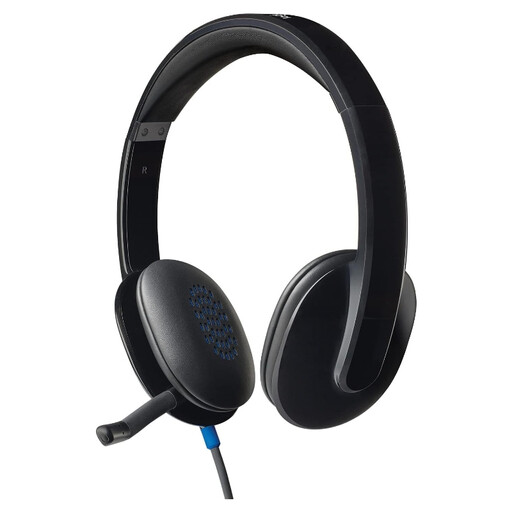
Logitech H540 wired headset
This is a call accessory for a setup that needs a separate headset, not a substitute for display or input equipment. Check the work device’s available connection and the requirements of your call software before buying.
View on Joybuy
Questions about home-working setups
Do DSE assessment duties apply when I work from home?
They can. For permanent, long-term or routine hybrid home working in Great Britain, HSE says DSE rules can apply; employers must assess workstations for workers who use DSE daily as part of normal work for continuous periods of an hour or more. An identified equipment change should be considered through that assessment.
Should I start with a laptop stand or a monitor?
Start with the workstation need. A stand can raise the laptop screen if you also have room for a separate keyboard and mouse, as HSE advises for prolonged laptop use. A monitor is the route to consider when you need a separate display positioned independently of the laptop; follow any applicable assessment finding.
Will any USB-C dock run my external monitor?
No. Dell notes that not every USB-C port supports video and that docks must match the laptop’s ports. Check the exact laptop’s video capability and supported display count, then match the dock outputs, monitor inputs and cables. Apple likewise advises checking the exact Mac model’s external-display support.
Can a dock take the place of a laptop charger?
Only if the connected power arrangement meets the laptop’s requirements. Check the dock’s compatible charging output and whether its power supply is included. For example, Anker specifies up to 100W pass-through charging minus 15W for operation on its 555 hub and says a wall charger is not included.
What should I check on a mains-powered dock or monitor?
Check that the product is intended for use in Great Britain and that its supplied or required power arrangement suits your equipment. Read the model documentation for power-supply and cable requirements rather than assuming they are the same across docks or monitors.


