What matters when choosing hardware?
If you are buying equipment for regular home or hybrid work, check any employer assessment or equipment arrangements, then identify the task your current setup makes difficult. A stand, monitor, dock and headset address different needs; adding several at once is not necessary to solve one clearly defined problem.
| Concern |
What to check |
Who this matters to |
| Laptop screen and input position |
Check that a stand fits the laptop and desk, and leaves room for a separate keyboard and mouse. The Health and Safety Executive advises separating these input devices when raising a laptop screen for prolonged use. |
If I spend long stretches working on a laptop, I need its screen higher without having to use its raised keyboard and trackpad; around 29% of consumers put this arrangement first. |
| Visible workspace |
Check the exact laptop’s external-display support, available connection and the monitor resolution and refresh rate you intend to use. Apple Support notes that Mac display limits depend on the model and display settings. |
When documents and communication windows compete for room on my laptop screen, I want more space to see them; roughly 36% of consumers prioritise visible workspace. |
| Desk connections |
Compare the laptop’s USB-C or Thunderbolt capabilities with the dock’s display connections and charging requirements. As Laptops Direct notes, a USB-C port does not necessarily carry video or power. |
If I move my laptop between desks, reconnecting several devices each time interrupts my routine; around 21% of consumers make simpler desk connections their primary need. |
| Meeting audio and video |
Check the required headset or webcam connection, available ports, call controls and camera mounting position. |
For frequent calls, I need equipment that fits how I speak and appear on screen, rather than another display connection; about 14% of consumers put meeting equipment first. |
Joybuy products for home-working setups
These products address different parts of a laptop-based desk: external screens, a dock, separate input devices and a call headset. Choose the type that matches your main need, then check its connections against your computer.
 No image available
Targus USB-C Universal Dual HDMI 4K Docking Station, 100W Power Delivery Pass-Thru
Consider this dock if you repeatedly connect a laptop to desk displays and peripherals and its port supports the connection you need.
The product name specifies dual HDMI 4K connections and 100W power-delivery pass-through. Check your laptop’s display and USB-C capabilities, and confirm whether the required external 100W+ adapter is included.
Joybuy
 No image available
CRUA 32-inch 1500R Curved QHD Monitor, 165Hz
Consider a desk monitor when the main need is more visible room for documents and applications, provided its size suits your workspace.
The product name specifies 2560 × 1440 resolution, HDMI and DisplayPort connections, and VESA 100 × 100mm mounting. Check which resolution and refresh rate your computer can provide through the intended connection; confirm any colour-gamut requirement separately.
Joybuy
 No image available
ASUS ZenScreen MB166C 15.6-inch Full HD Portable USB-C Monitor
This portable screen is an option when you want additional visible workspace that can move with a laptop.
The product name specifies a 15.6-inch Full HD IPS display and USB Type-C connection. Check that your computer’s port supports the video and power the monitor requires, and confirm the cable needed.
Joybuy
 No image available
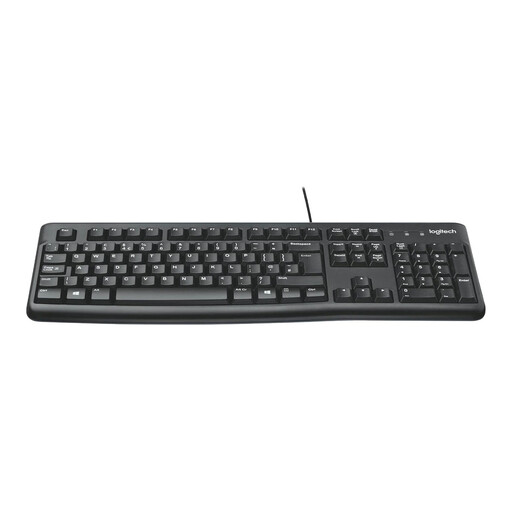
Logitech MK120 Wired Keyboard and Mouse Combo, Black
A separate keyboard and mouse allow you to position input devices independently when raising a laptop screen for prolonged use, as the Health and Safety Executive advises.
This is a wired keyboard-and-mouse set. Check that your computer has suitable connections and that its operating system is compatible.
Joybuy
 No image available
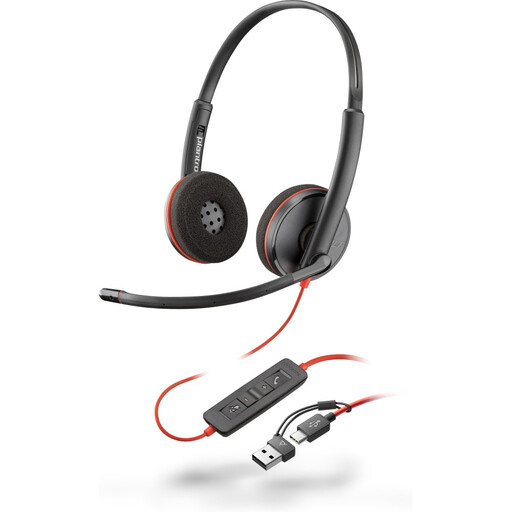
Poly Blackwire 3220 Stereo USB-C Headset with USB-C to USB-A Adapter
Consider a headset if call audio is the issue you need to address; it will not change your screen layout or camera position.
The product name identifies a stereo USB-C headset and a USB-C to USB-A adapter. Confirm the adapter’s inclusion, an available connection and compatibility with your calling software.
Joybuy
Questions about home-working equipment
Should I ask my employer before buying equipment for home working?
Yes, if you are an employee, check the relevant assessment and equipment arrangements before buying for yourself. The Health and Safety Executive says employers must assess workstations for workers who use display screen equipment daily as part of normal work for continuous periods of an hour or more. Where a home-workstation assessment identifies equipment the employer should provide, workers cannot be charged for it.
Can display screen equipment rules apply when I split work between home and office?
Yes, they can apply to workers who routinely split their time between home and the workplace. The Health and Safety Executive says the relevant assessment should cover both situations where those rules apply.
Will any USB-C dock run two independent monitors?
No: two video sockets on a dock do not establish what the connected laptop can drive. Check the exact laptop’s port protocol and external-display limit alongside the dock’s stated configuration and your intended resolution and refresh rate.
Is a laptop stand enough for regular work?
A stand addresses screen position, but it does not add visible workspace. For prolonged laptop use, the Health and Safety Executive advises a separate keyboard and mouse so the screen can be raised independently; if screen space is the main problem, consider an external monitor instead.
What should I check if I want a dock to charge my laptop?
Check the laptop’s charging requirement against the dock’s stated output, and confirm whether the necessary power adapter is included. Charging specifications are model-specific: Dell lists up to 100W for Dell systems and 96W for non-Dell systems for its Pro Dock WD25, not for every dock or laptop combination.


