What should you consider before buying?
Start with the workstation issue you need to address, then consider which equipment can help. For prolonged laptop use, plan the screen position and separate keyboard and mouse as one arrangement.
| Concern |
What to check when buying |
Who this matters to |
| Screen position and display area |
Check the screen adjustment, desk space and laptop video output against the display inputs. Dell lists the P2425H USB-C port as data-only downstream, not a laptop video input. |
If I need a separate display to improve screen positioning or give me more working area, that is my first priority. Around 33% of consumers put screen position or display area first. |
| Separate keyboard and mouse |
Check keyboard layout, available wired or wireless connections, and whether your employer permits the devices or any required software. |
If I raise my laptop screen for sustained work, I also need to place its keyboard and mouse separately. Around 27% of consumers prioritise separate input placement. |
| Raising an existing laptop screen |
Check the riser's supported laptop size and weight, its adjustment range and the space available for separate input devices. Kensington lists its Easy Riser Aluminium for laptops up to 16 inches and 5 kg. |
If I want to keep using my laptop screen but position it higher, I need a riser that fits my device and workspace. About 20% of consumers put raising an existing screen first. |
| Connecting and powering peripherals |
Match the laptop's supported video functions and power requirement to the accessory's ports, display support and supplied power adapter. Lenovo specifies protocol prerequisites for its 40AY0090UK dock; its UK listing shows 65 W charging for that configuration. |
If I regularly reconnect a work laptop to peripherals, I need the ports and power arrangement to suit that exact device. Around 20% of consumers prioritise peripheral connections. |
Joybuy products for home workstations
These Joybuy choices cover separate input devices, raising or arranging screens, and adding connections for a home workstation. Check each product's fit with your equipment and employer arrangements before buying.
 No image available
DELL Pro Dual Monitor Stand MDS19
For a desk setup where two external screens need independent positioning. Check monitor dimensions, weight, mounting compatibility and desk fit before choosing a stand.
View on Joybuy
 No image available
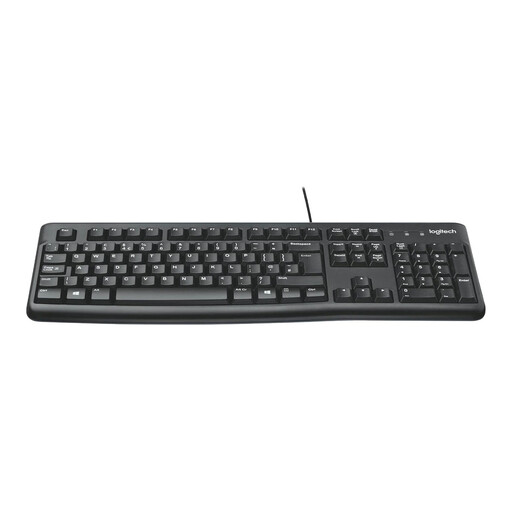
Logitech MK120 Wired Keyboard and Mouse Combo
A wired keyboard-and-mouse set for positioning laptop inputs separately from a raised screen. Check that your computer and employer arrangements allow the intended connection.
View on Joybuy
 No image available
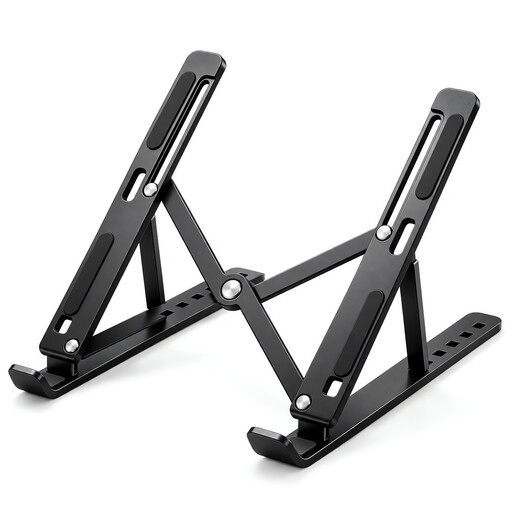
Foldable Laptop Stand for 10–17-inch Laptops
For raising an existing laptop screen; the product name specifies seven angle levels from 15 to 45 degrees and a 10 to 17 inch laptop range. Check your laptop's fit and plan separate input devices for prolonged use.
View on Joybuy
 No image available
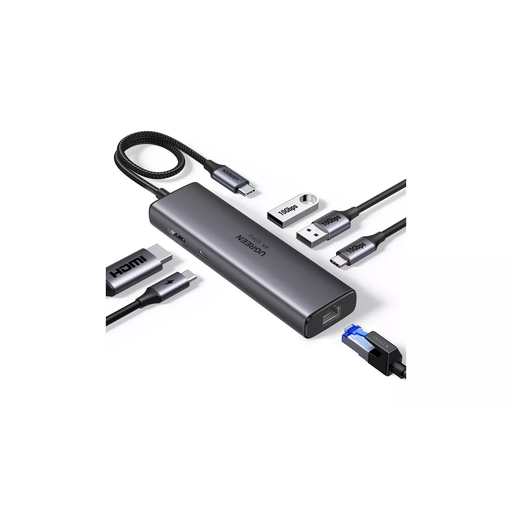
UGREEN USB-C Multi-Function Docking Station
For adding connections to a home workstation. The product name lists HDMI, USB-A, USB-C, RJ45 and PD connections; check your laptop's video and charging support and your employer's rules before choosing an accessory.
View on Joybuy
 No image available
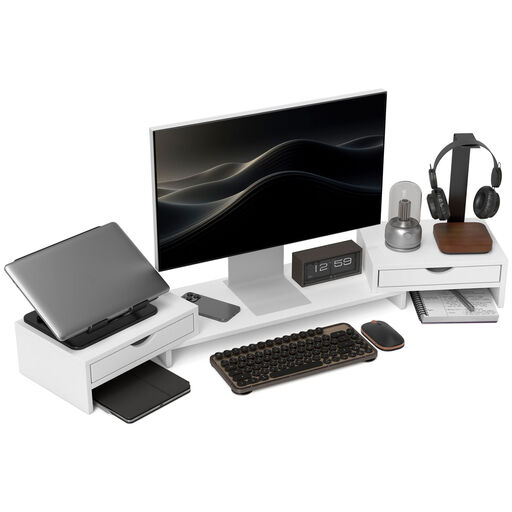
HOMCOM Dual Monitor Stand Riser, 116cm
For arranging two monitors on a desk; the product name also identifies drawers and adjustable length and angle. Check the monitor support and desk dimensions against your setup.
View on Joybuy
Home workstation equipment FAQs
Does every home or hybrid worker have to buy display screen equipment?
No. The Health and Safety Executive says Great Britain's rules can apply to permanent, long-term or routinely hybrid home workers who use display screen equipment daily for continuous periods of an hour or more. Where they apply, the employer assesses the workstation, and workers cannot be charged for equipment required by that assessment.
Is a laptop stand enough for prolonged laptop work?
Not if raising the screen leaves you using the laptop's built-in keyboard and touchpad at that raised position. The Health and Safety Executive describes separate input devices when elevating a laptop screen for prolonged use; check the resulting setup against your workstation assessment.
Will any USB-C dock run my monitors and charge my work laptop?
No. Check the exact laptop's supported USB-C video functions, display configuration and charging requirement against the dock and supplied power adapter. Lenovo specifies protocol prerequisites for its 40AY0090UK dock and lists 65 W charging for that UK configuration; a higher capability mentioned elsewhere in the listing does not establish what every supplied configuration provides.
Who should approve home-working equipment and pay for repairs?
For equipment required by an applicable display screen equipment assessment, the Health and Safety Executive says the worker cannot be charged. For other equipment and repairs, Acas advises employers and staff to agree what is needed, who provides or pays for it and what technical support is available; check your employer's arrangements before buying.
Can I connect my own accessories or install their software on a work laptop?
Check your organisation's IT rules first. The Information Commissioner's Office advises workers handling personal data to follow organisational policies and use approved technology. A product's stated compatibility does not establish employer approval.


