Choose according to the problem at your desk: an external monitor adds a separate screen, a riser raises the laptop screen you already have, an arm repositions a compatible monitor, and a dock or adapter addresses connection needs. For prolonged laptop use, the Health and Safety Executive advises using a separate keyboard and mouse when elevating the screen; check your laptop’s video output, charging needs and supported display configuration before buying connected equipment. If this is a work-provided laptop, discuss identified equipment needs with your employer: in Great Britain, HSE guidance says workers cannot be charged for DSE equipment an assessment identifies as needed.
Who this setup is for
Laptop-first home workers
You use a laptop for long sessions and are deciding whether raising its existing screen is enough or whether a separately positioned display would suit your tasks better. The Health and Safety Executive advises separating the keyboard and mouse when elevating a laptop screen for prolonged use.
Hybrid desk reconnectors
You regularly bring a work laptop to a home desk and need to check whether its ports, charging capability and supported display setup match a monitor or dock.
Existing-monitor adjusters
You already have a usable monitor and want to work out whether its stand or a compatible arm can position it appropriately on your desk.
What to check before choosing
Identify whether the main gap is display area, laptop-screen height, reliable connections or the position of a monitor you already own; then match the equipment to that specific need.
| Concern |
What to check when buying |
Who this matters to |
| Enough display area |
Compare the screen area and resolution you need with the laptop display; check the monitor’s inputs against your laptop’s video output. |
If the laptop screen leaves too little room for my tasks, I would prioritise a separate display. Consumers whose main need is more display area make up roughly 36%. |
| Raising the laptop screen |
Check that the stand fits and supports your laptop; allow space for a separate keyboard and mouse. |
If my laptop screen is adequate but sits too low, I would look at raising it without linking screen and typing positions. Consumers chiefly seeking to raise an existing laptop screen account for around 29%. |
| Reliable connections |
Verify the laptop’s video-capable port and supported display count; compare its charging requirement with the monitor or dock’s host power delivery. |
If I reconnect a laptop frequently, I would prioritise a display and power setup that matches its ports and charging needs. Consumers focused mainly on simpler, compatible connections represent about 21%. |
| Repositioning a monitor |
Check the monitor’s mounting pattern and weight against the arm; verify the desk thickness and clamp access. |
If my monitor already provides enough screen area, I would focus on placing it appropriately on the desk. Consumers whose main need is repositioning an existing monitor make up roughly 14%. |
Common buying pitfalls
-
Assuming every USB-C port carries video and charges a laptop
A USB-C connector alone does not confirm either function. Dell notes that some laptop USB-C ports are data-only, and Dell’s P2425H monitor has a downstream data-only USB-C port rather than a USB-C laptop-video input.
Check the exact laptop port and the monitor or dock’s input and charging specifications before relying on a single cable.
A compatible cable, adapter or dock—or a separate charger—may be needed.
-
Treating a laptop riser as a complete prolonged-use setup
Raising the display while continuing to use the laptop’s attached keyboard keeps screen and input positions linked. The Health and Safety Executive advises using a separate keyboard and mouse when elevating the laptop screen for prolonged use.
Allow desk space for separate input devices as well as the riser.
If you do not already have them, a separate keyboard and mouse add equipment to the setup.
-
Choosing a monitor arm by screen size alone
VESA pattern, monitor weight and desk-clamp limits are separate compatibility checks. StarTech.com specifies a 75 × 75 mm or 100 × 100 mm pattern, a maximum monitor weight of 10 kg and a desk thickness of 2–6 cm for its H1M1AG2-MONITOR-ARM.
Compare all three limits with your monitor and desk before choosing an arm.
If a mount or clamp does not fit, a different mounting arrangement may be needed.
-
Assuming a dock supports the same displays on every laptop
Display output depends on both the dock and the host laptop. StarTech.com limits MacBook use of its DK30C2DAGPD to one monitor; DisplayLink says its macOS Manager requires Screen Recording permission to function.
Check the exact display configuration, operating system and any workplace restrictions on required software before buying.
Relevant brands and models
Dell
The P2425H and P2425E serve different monitor setups, so check the complete model rather than relying on the shared P2425 name.
- Dell specifies height, tilt, swivel and pivot adjustment for the P2425H, which has HDMI and DisplayPort video inputs.
- Dell specifies the P2425H’s USB-C port as downstream data-only, with up to 15 W; the distinct P2425E specifies up to 90 W USB-C power delivery.
BenQ
The GW2790QT combines a 27-inch QHD display with a stand and USB-C hub functions for a laptop-led desk.
- BenQ specifies 65 W laptop power delivery and height, tilt, pivot and swivel adjustment for this model.
- Check the laptop’s video output and charging requirements against the monitor’s capabilities before relying on USB-C for the connection.
Kensington
The K50420EU is an adjustable laptop riser to consider when the existing laptop display provides enough working area.
- Kensington specifies support for laptops up to 17 inches and elevation up to 180 mm for the K50420EU.
- A riser does not add screen area; for prolonged laptop use, the Health and Safety Executive advises using a separate keyboard and mouse when the screen is elevated.
StarTech.com
Its H1M1AG2-MONITOR-ARM and DK30C2DAGPD address different needs: monitor positioning and laptop connectivity.
- StarTech.com specifies the arm’s mounting pattern, weight and desk-clamp limits, which can be checked against the monitor and desk.
- For the DK30C2DAGPD, StarTech.com specifies display-mode and power-reservation details and limits MacBook use to one monitor; check the exact laptop setup.
Lenovo
The ThinkVision T27h-37 is a 27-inch QHD monitor with USB-C docking, Ethernet and display-output features for a fixed desk.
- Lenovo specifies up to 90 W USB-C power delivery for the T27h-37.
- One-cable and daisy-chain use depends on the host laptop’s capabilities; check these before choosing the monitor.
Joybuy monitor options
These Joybuy listings are external monitors for adding a separate display to a home workstation. Compare each screen’s stated format and connections with your laptop and desk, and check any charging or positioning requirements for the exact model.
 No image available
CRUA 49-inch Curved Ultrawide Gaming Monitor
For a desk where a very wide separate display suits the work, this model is listed with a 49-inch curved screen, 32:9 aspect ratio, DQHD 5120 × 1440 resolution and 165 Hz refresh rate. It lists HDMI 2.1 and DisplayPort 1.4 inputs, VESA 75 × 75 mounting and height adjustment. Its wide, heavy panel requires at least two people to move or unbox it, and the desk must be deep enough and rated to support it.
Joybuy
 No image available
BenQ MA270UP 27-inch 4K UHD USB-C Monitor
A 27-inch 4K UHD option for a laptop-led desk where a separate display is needed. The named features include a Nano Glossy IPS panel, USB-C and a height-adjustable stand; check the laptop’s video output and charging requirements before relying on USB-C for either.
Joybuy
 No image available
MSI MD272UPSW 27-inch 4K UHD Smart Monitor with Google TV
For a workstation needing a separate 27-inch 4K UHD screen, this model is listed with USB-C 65 W Power Delivery, HDMI and a four-way adjustable stand. Check the laptop’s video-output and charging requirements against the intended USB-C connection.
Joybuy
 No image available
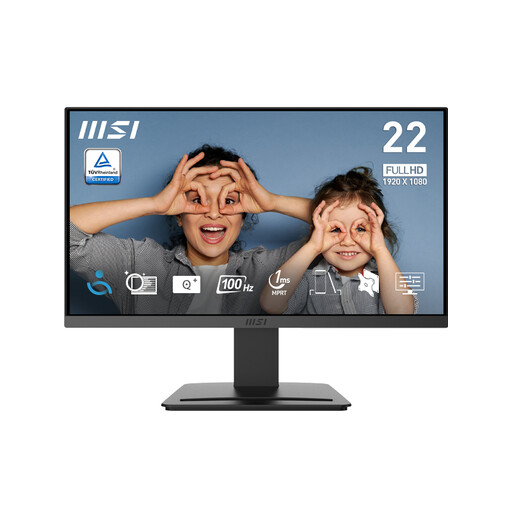
MSI PRO MP223 E2 21.45-inch Full HD Office Monitor
A separate Full HD screen for office tasks where a 21.45-inch display suits the desk. The listed features include 1920 × 1080 resolution, 100 Hz refresh rate, tilt adjustment, HDMI 1.4b and DisplayPort 1.2a inputs.
Joybuy
 No image available
ASUS ProArt PA278CV IPS WQHD Monitor
An IPS WQHD option for a workstation that needs a separate display in that named format. Before choosing it, check the exact model’s inputs, stand adjustments and mounting requirements against your laptop and desk.
Joybuy
Frequently asked questions
If I work at home, must I personally buy an external monitor?
There is no blanket requirement to buy a monitor personally. In Great Britain, HSE says additional equipment should be determined by the applicable individual DSE assessment and that workers cannot be charged where the assessment identifies equipment the employer needs to provide. Northern Ireland has its own DSE regulations and HSENI guidance on assessing home-working equipment needs. Discuss work-related needs through your employer’s process; a voluntary personal purchase is a separate decision.
Can I use my laptop’s keyboard after putting it on a high riser?
For prolonged laptop use, the Health and Safety Executive advises using a separate keyboard and mouse so the screen can be elevated independently. Plan the screen and input-device positions together rather than treating a riser alone as a complete setup.
Will any USB-C monitor or dock display video and charge my laptop?
No. Check the exact laptop port’s video capability, the laptop’s charging requirement and supported external displays, then compare these with the monitor or dock’s host-power and operating-system specifications. A USB-C port can be data-only, and a pass-through power figure may include power reserved for the dock.
How can I tell whether a monitor arm will fit my monitor and desk?
Compare the monitor’s VESA pattern and weight with the arm, then check the desk thickness and clamp access. For example, StarTech.com specifies VESA 75 × 75 mm or 100 × 100 mm, a maximum of 10 kg and a 2–6 cm clamp range for its H1M1AG2-MONITOR-ARM; those limits do not automatically apply to other arms.


