Build your setup around the task your laptop handles least well: viewing documents, reconnecting to desk equipment or taking calls. A fixed display-and-peripheral arrangement suits a recurring home desk, while compact inputs and a stand can suit equipment that needs to be put away. Before buying a dock, check your laptop’s video support, charging requirements and supported display configuration.
Who a hybrid-work laptop setup may suit
Document-heavy home-desk workers
If you regularly work at the same home desk, a separate display and input devices can let you position the screen and typing area independently of the laptop. Consider the display and typing arrangement before assuming you need a complete accessory bundle.
Frequent laptop reconnectors
If you carry one laptop between locations but leave equipment at home, a dock or hub monitor may suit a repeated connection routine. Check that its display technology and charging arrangements match your laptop.
Call-heavy workers who pack away their equipment
If your setup needs to move or be put away after work, compact inputs, a size-compatible laptop stand and separate call devices are alternatives to a permanent multi-monitor desk.
What to consider before buying
Start with the job you want to improve, then check the equipment and connection requirements for that job before choosing a permanent or pack-away setup.
A fixed desk setup
Consider it when: You return to the same home desk and want a separate display or several devices ready to connect.
Trade-off: A display and dock take up space, and the laptop must support the chosen display and connection arrangement.
A pack-away set of accessories
Consider it when: You need to clear the work surface or carry some equipment between locations.
Trade-off: A stand changes laptop positioning, not screen area or connectivity; check fit and whether you also need separate input devices.
| Concern |
What to check when buying |
Who this matters to |
| Document viewing |
Decide whether you need a separate display; check the laptop’s documented display support and the complete video connection path. |
If I work with documents and want the screen positioned apart from my laptop, I would start with display placement. Around 27% of consumers put a more useful document-viewing arrangement first. |
| Dock compatibility |
Check the exact laptop port, video support, charging requirements and any software or permissions the chosen display route needs. |
If I carry my laptop between locations but leave equipment at home, I would check that a single connection can provide the functions I need. Around 27% of consumers prioritise compatible reconnection. |
| Meeting devices |
Check which camera or audio function you need, the connector and application requirements, and whether optional features need software. |
If meetings are the main reason I am changing my setup, I would focus on camera placement, call audio or accessible mute controls. Around 20% of consumers put meeting devices first. |
| Pack-away use |
Check whether devices will travel or stay at home, and confirm a stand’s supported device size. |
If I need to store or carry my equipment after work, I would prioritise compact accessories and a stand that fits my device. Around 13% of consumers put portability first. |
| Typing controls |
Check the keyboard layout and required keys, operating-system compatibility and whether device switching is useful for your routine. |
If I want to type separately from the laptop screen, I would check the layout and controls before choosing a keyboard-and-mouse set. Around 13% of consumers prioritise separate inputs or device switching. |
Buying pitfalls to avoid
-
Choosing a connection by USB-C shape alone
A connector that fits does not establish that the laptop, cable and connected display support the video path you need.
Check the exact laptop port and the specifications of the cable and display connection before ordering.
An incompatible video connection may leave you needing different equipment to achieve the intended setup.
-
Assuming display outputs or advanced features work in every setup
Supported display counts depend on the laptop and its operating conditions. Some optional features also depend on software: Logitech states that Brio 500 auto-framing requires Logi Tune, which is unavailable for ChromeOS.
Match the feature you want to the exact laptop model, operating conditions and any software or permissions it requires.
A feature may require software setup or a different device from the one you planned to use.
-
Treating pass-through charging as a replacement for any charger
StarTech specifies up to 60W pass-through charging for its CDP2DPUCP adapter; that figure does not establish that it meets every laptop’s charging requirements.
Compare the accessory’s stated charging capability with the requirements for your laptop.
You may still need a separate charger.
-
Assuming a similar product name means the same variant
Keyboard layouts, connectors, bundles and supported device sizes can differ between products with similar names.
Check the complete model identity and the variant details that matter to your setup before ordering.
Relevant brands to consider
Dell
Dell’s UltraSharp hub monitor is relevant to a fixed desk where you want a display with connectivity built in.
- Dell identifies Thunderbolt 4 connectivity on the U2724DE.
- That specification does not establish compatibility with every laptop or prove that a separate dock is unnecessary for your required ports.
Logitech
The cited Logitech products address separate needs: compact keyboard-and-mouse inputs, a dedicated webcam and wired call audio.
- The Pebble 2 Combo is described as switchable between three devices; the H390 has inline call controls.
- These are distinct products, not evidence of a single complete bundle. Brio 500 auto-framing requires Logi Tune, which is unavailable for ChromeOS.
StarTech.com
The CDP2DPUCP is a relevant option when you need a single DisplayPort connection with pass-through charging, rather than a multi-peripheral dock.
- StarTech specifies up to 4K 60Hz and up to 60W Power Delivery pass-through for this adapter.
- It requires a host that supports DisplayPort Alternate Mode over USB-C; check the charging limit against your laptop’s requirements.
Kensington
The cited Easy Riser Go is relevant when adjusting the laptop screen is preferable to adding a separate display.
- Kensington specifies support for devices up to 14 inches and height and angle adjustment.
- A stand does not add screen area or connectivity; check the supported device size for the exact model.
Joybuy product options
These Joybuy options cover separate displays, laptop connection expansion and input devices for a home-work desk. Check each product’s stated connections and variant details against your laptop and work routine.
 No image available
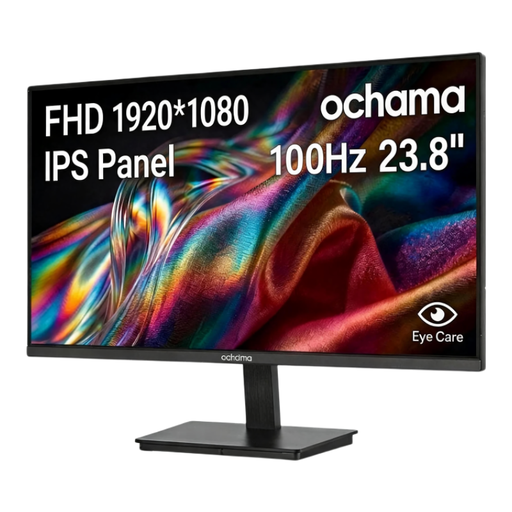
ochama Office Monitor 23.8-inch 1080P 100Hz
A separate display option for document work at a recurring home desk.
23.8-inch 1080P display; 100Hz refresh rate.
Joybuy
 No image available
Baseus Metal Gleam Series II 10-in-1 USB-C Hub, Cosmic Black
A multiport hub option for connecting a display and desk peripherals, subject to the laptop’s port capabilities.
Two HDMI outputs; USB, Ethernet and card-reader connections are listed. Video output requires a device that supports USB-C DisplayPort Alternate Mode.
Joybuy
 No image available
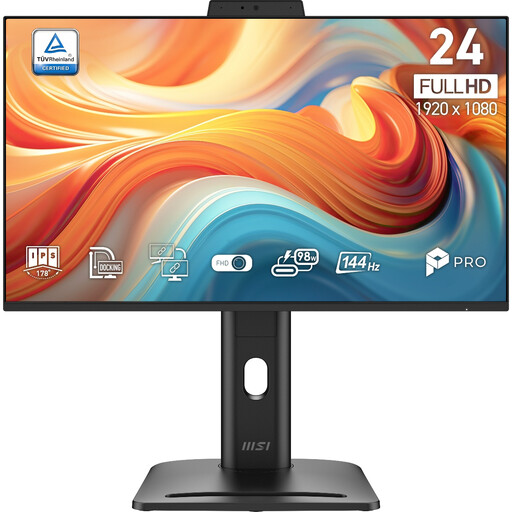
MSI PRO MP245PDG E14 24-inch FHD 144Hz Monitor
A standalone monitor option for a desk setup where you want a separate screen.
24-inch FHD, 1920 × 1080; 144Hz. Listed inputs include HDMI, DisplayPort and VGA; the description also lists built-in speakers and stand adjustments.
Joybuy
 No image available
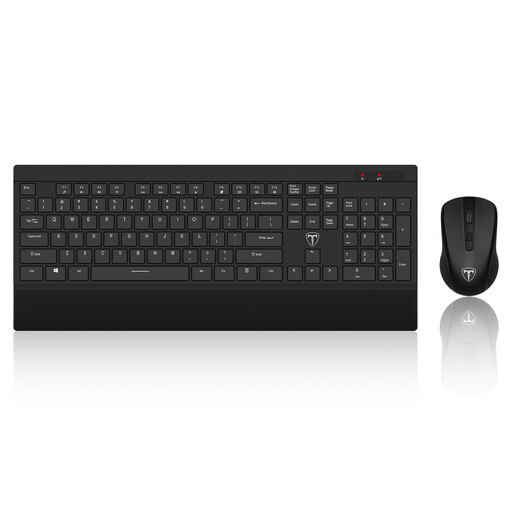
ET Silent Wireless Keyboard and Mouse Combo, US layout
A separate-input option if you want to type independently of the laptop screen.
Full-size 104-key layout; 2.4GHz wireless connection with a single receiver. The listed keyboard layout is US.
Joybuy
 No image available
AJAZZ AKP01E 8-in-1 USB-C Expansion Hub
A connection-expansion option for a desk where you need to connect a display and peripherals.
Listed interfaces include HDMI, three USB 3.0 ports, Ethernet and SD/TF card slots.
Joybuy
Frequently asked questions
What should I check before ordering a dock?
Check your exact laptop model, the capabilities of the port you plan to use, the display arrangement you need and your laptop’s charging requirements. For native USB-C video, StarTech.com explains that the host, cable and connected device need to support the required video path. If the chosen route uses DisplayLink on macOS, check that you can use its software and grant the required Screen Recording permission.
Does a work-managed laptop make every dock unsuitable?
No; being work-managed does not by itself determine whether a dock is suitable. Check whether the connection route depends on software or permissions you can use: DisplayLink Manager on macOS requires Screen Recording permission, while StarTech.com specifies driverless operation for its CDP2DPUCP adapter on a compatible host.
Can my laptop run two external displays?
That depends on the exact laptop model and its documented operating conditions. Apple states that MacBook Air and MacBook Pro models with the base M3 chip can connect two external displays simultaneously when the lid is closed; do not apply that condition to other chips or models.
Should I connect a USB headset through a dock?
Follow the instructions for the specific headset rather than assuming every model works through every hub. Logitech’s H390 setup guide recommends a direct computer connection when addressing connection problems; also check that your application and operating-system audio settings select the intended device.


