What should you check before choosing equipment?
Start with the workstation issue, then check whether changing the setup or work routine addresses it before selecting hardware.
| Priority |
What to check |
Your needs |
| Screen and input position |
Check screen height and available desk space. If raising a laptop screen for prolonged work, plan where a separate keyboard and mouse will sit; HSE describes these as part of that setup. |
I need to see the screen without leaving the keyboard or mouse awkwardly placed. A stand alone may not address both positions. |
| Assessment and employer support |
Review the whole workstation, including equipment and work conditions, as HSE advises. Confirm the employer’s assessment, equipment and IT-support arrangements before purchasing for work. |
I want to know which change is needed at my home desk, rather than buying an accessory before the underlying issue is clear. |
| Laptop compatibility |
Check the laptop’s video-capable port, monitor input, cable or adapter, charging requirements and intended number of displays. Dell Technologies cautions that a USB-C port does not necessarily provide video output; Microsoft says supported display configurations depend on the device model. |
A dock or monitor must work with my actual work laptop and the screens I intend to connect, not merely have a matching-looking socket. |
| Glare and work routine |
Check lighting and screen placement as well as opportunities to change activity. HSE advises short, frequent breaks or changes of activity rather than relying on an accessory to resolve work-routine issues. |
Before adding another screen or accessory, I want to see whether rearranging the desk or changing how screen work is scheduled addresses the problem. |
Joybuy workstation equipment options
These options cover separate screens, input devices and a USB-C adapter. Match any purchase to the workstation change needed, and check its connections and your employer’s arrangements first.
 No image available
Samsung S40GD LS22D400GAUXXU 22-inch Full HD monitor
Consider a separate display if the workstation assessment identifies a screen-positioning need. Check that the work laptop has a suitable video connection and that the monitor can be placed appropriately on your desk.
View on Joybuy
 No image available
HP 680 CFT dual-mode keyboard and mouse set
A separate keyboard and mouse belong in a prolonged-work setup where the laptop screen is raised, as HSE describes. Check the keyboard layout, desk space and permitted connection methods for the work laptop.
View on Joybuy
 No image available
AOC Q32V4 31.5-inch 2K Ultra HD IPS monitor
For a workstation that calls for a separate, larger screen, allow room for the stated 31.5-inch display. Confirm the resolution and connection you need with the work laptop, and check whether the supplied stand provides the positioning adjustments your desk requires.
View on Joybuy
 No image available
V7 V7UC-U3CRJ45HDVG-BLK USB-C adapter
This adapter lists 4K HDMI, VGA, Gigabit Ethernet, 100W Power Delivery and dual USB 3.0 ports for a desk with several connection needs. Confirm the exact laptop’s video and charging support, and check the adapter’s display limits for the intended screen arrangement.
View on Joybuy
 No image available
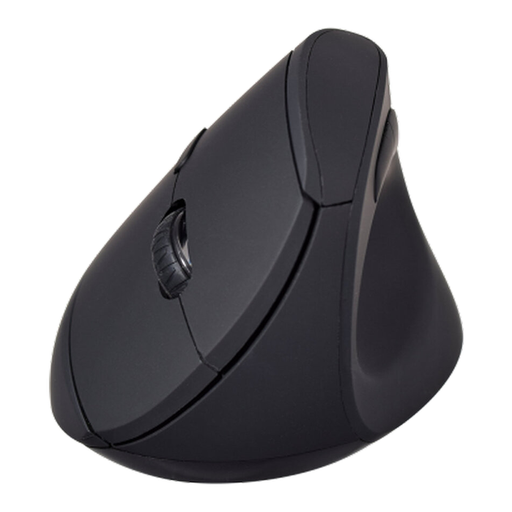
V7 MW500BT Bluetooth vertical mouse
Consider a different mouse shape if an assessment identifies an input-device need and the shape fits your hand. The product name specifies Bluetooth and 2.4GHz modes, six buttons and an adjustable sensor up to 1600 DPI; check which connection methods your work laptop permits.
View on Joybuy
Home workstation questions
Do DSE duties apply whenever I occasionally use a laptop at home?
Not necessarily. HSE says DSE regulations can apply to permanent or long-term home workers; occasional, short periods of laptop use should not be treated as automatically creating the same workstation-equipment requirement. Ask your employer how its DSE assessment process applies to your working pattern.
Should a hybrid worker’s home and office setups both be assessed?
Yes, where both arrangements are relevant to the worker’s DSE use. HSE guidance calls for the home and office situations to be considered rather than assuming that a suitable setup in one location makes the other suitable.
Is a laptop riser enough on its own for prolonged work?
No, not for the prolonged laptop arrangement described by HSE. Its guidance pairs an elevated laptop screen with a separate keyboard and mouse, so check that all three fit on the desk before choosing a riser.
Will any USB-C dock work with my work laptop?
No. Dell Technologies notes that not every USB-C port supports video output. Check the exact laptop model, dock connection requirements, charging capability, intended displays and cables, then confirm any employer IT restrictions.
Is there a fixed 20-minute break rule for screen work?
No fixed break length or frequency applies to every DSE task in HSE’s guidance; it depends on the work. HSE advises short, frequent breaks or changes of activity rather than longer, less frequent breaks, so plan the work routine as well as the physical desk setup.


