Households with recurring dead zones
If Wi-Fi repeatedly weakens in distant rooms or across floors, the layout and walls may matter more than the router's advertised speed. Ofcom advises considering placement and obstacles when assessing home Wi-Fi.


Check whether the incoming broadband service or the Wi-Fi inside your home is causing the problem before buying equipment: a new router cannot make the broadband connection itself faster. For weak signal across several rooms, consider mesh; for one isolated gap, an extender or powerline kit may be proportionate. A single-router upgrade makes more sense when its location can serve the home and its connection to your provider's equipment is compatible.
If Wi-Fi repeatedly weakens in distant rooms or across floors, the layout and walls may matter more than the router's advertised speed. Ofcom advises considering placement and obstacles when assessing home Wi-Fi.
Calls, study, gaming and streaming may all compete for a connection. Ofcom recommends testing at different times to help distinguish a problem with the incoming service from one affecting Wi-Fi around the home.
If you want to replace a provider hub or connect another system to it, check the broadband connection method first. Existing voice services and older or smart-home devices may also affect which setup is practical.
Start with tests near the router and in the affected rooms. If the service is poor even near the router, speak to your provider; if the trouble is confined to Wi-Fi, choose between a compatible router, multi-room mesh or a targeted fix according to where it occurs.
| Concern | What to check | Who this matters to |
|---|---|---|
| Recurring dead zones | Map the weak rooms and floors. For mesh, check node placement, expansion options and wired-backhaul support if you have Ethernet cabling. | If Wi-Fi drops out in several distant rooms, I need coverage where people actually use their devices, not just beside the main router. Around 31% of consumers would put recurring coverage gaps first. |
| Simultaneous use | Compare results near the router with those in busy rooms, and repeat tests at different times. Check whether fixed devices can use Ethernet. | When calls, games and streams run together, I want to know whether the bottleneck is our broadband service or the wireless link. Simultaneous-use reliability would come first for around 31% of consumers. |
| Equipment compatibility | Identify your provider hub and broadband hand-off before replacing it. Check the connection needs of older and smart-home devices. | Before changing the hub, I need the new setup to work with my connection and the devices we still use. Around 23% of consumers would make compatibility their primary concern. |
| One-room fix | For an extender, find a position with a usable signal. For powerline, test the intended sockets; wiring quality affects the result. | If just one desk or fixed device has trouble, I would rather address that room than change Wi-Fi throughout the home. A targeted fix would be the first priority for around 15% of consumers. |
A router, mesh system or extender cannot make the incoming broadband service faster. Ofcom advises checking performance over several days and at different times when diagnosing slow connections.
Test near the router as well as in weak rooms, check your provider's service status and contact the provider if the problem persists close to the router.
The required connection depends on the provider's equipment and broadband hand-off. Virgin Media describes modem mode as a way to connect your own Wi-Fi kit, while BT advises using equipment designed for its fibre connection.
Identify your exact hub and connection type, then confirm whether the new router needs a modem, an optical network terminal or the existing hub left in place.
Walls, layout and node placement affect the signal that reaches each room. Ofcom notes that a larger home may need more mesh units.
Plan positions around the rooms that lose signal and check whether the system can be expanded or connected between nodes by Ethernet.
Additional nodes need suitable power sockets; wired backhaul also needs a workable cable route.
These are targeted connection routes, not assurances of identical performance in every room. Virgin Media says powerline results depend on the home's electrical wiring; Google says an extender can add range while reducing performance.
Check the connection in the intended room before relying on either route for calls, gaming or other demanding use.
A mesh range to examine when several rooms need Wi-Fi coverage.
App-managed mesh systems for households considering multiple Wi-Fi nodes.
An expandable Wi-Fi 6E mesh option to assess against your rooms and devices.
A mesh family to examine when node connections and wired connectivity are important.
These choices include multi-node mesh systems for recurring gaps across rooms and a single router to consider where one well-placed device may be enough. Check how any choice connects to your existing broadband equipment before treating it as a replacement.
 No image available
Consider this three-unit mesh system when weak signal recurs in several rooms.
The product name specifies Wi-Fi 7 and BE3600; check the connection method and where each unit could be placed.
 No image available
This three-pack is relevant when coverage problems affect multiple rooms rather than one fixed device.
The product name specifies Wi-Fi 7. If you plan to wire the nodes, confirm Ethernet-backhaul support for this exact system.
 No image available
Consider this three-unit mesh system for recurring weak signal across rooms or floors.
The product name specifies tri-band Wi-Fi 7 and BE9300. Confirm its ports and wired-node options if those matter to your setup.
 No image available
This three-pack is a mesh option for weak Wi-Fi in more than one area of the home.
The product name specifies dual-band Wi-Fi 7 and 2.5 Gbps Ethernet. Check how it connects to your existing modem or gateway.
 No image available
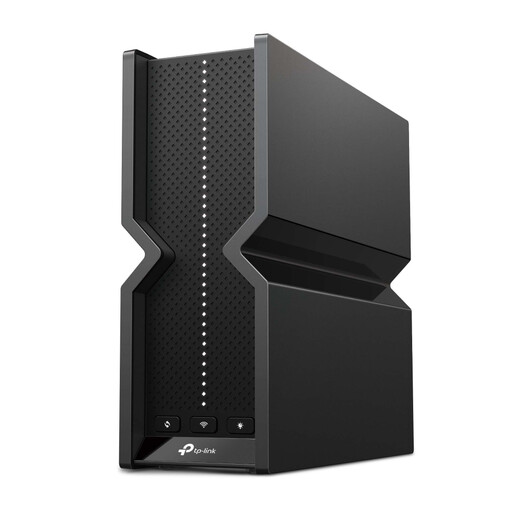
Consider a single router when a suitable central position could serve the rooms you use, rather than assuming extra nodes are needed.
The product name specifies tri-band Wi-Fi 7. Confirm the broadband hand-off and whether a separate modem or provider hub must remain in place.
Contact your provider first if performance is poor even close to the router or you suspect a service fault. Ofcom recommends testing at different times; if the connection works well near the router but weakens in distant rooms, examine Wi-Fi placement and coverage.
No mesh system can make the incoming broadband service faster. Mesh may help when the service works near the main router but Wi-Fi is weak elsewhere; Ofcom notes that Wi-Fi cannot outperform the broadband connection feeding it.
Virgin Media describes modem mode as a way to connect your own Wi-Fi equipment to a compatible Hub. Check the exact Hub model and the features affected by changing its mode before buying a router to use with it.