What to check before buying
Settle any employer restrictions on the work computer first. Then identify the recurring difficulty in your desk workflow, calls or connection before choosing an accessory.
| Concern |
What to check |
Who this matters to |
| Computer approval and security |
Before buying a personal work computer, confirm permitted devices, required security controls and IT support with your employer. |
If I plan to use my own laptop for company work, I need to know it can be approved and supported before I buy it. Around 29% of consumers put that policy and security decision first. |
| Screen space and desk connections |
Check the laptop’s display outputs and charging needs against the proposed monitor or dock; use any workstation assessment to guide the setup. |
When documents and peripherals make a laptop-only desk awkward, I want to resolve that daily task friction. Roughly 24% of consumers prioritise screen space and desk connections. |
| Calls and collaboration |
Identify whether the camera, microphone, room conditions or connection is the problem; check compatibility with approved meeting software. |
If colleagues struggle to hear or see me in regular calls, I want to address the part of the call that is causing trouble. Around 24% of consumers place call equipment first. |
| Connectivity at the work location |
Distinguish a broadband or work-VPN issue from weak local Wi-Fi; check router compatibility and security-update support. |
When the connection falters where I work, I need to establish whether better local coverage would help. About 23% of consumers make home-network reliability their primary concern. |
Joybuy products by setup need
These choices cover call equipment, a fixed-desk display and dock, and a home-network option. Choose the category only after identifying the difficulty it needs to address; check each product against your work device and employer requirements.
 No image available
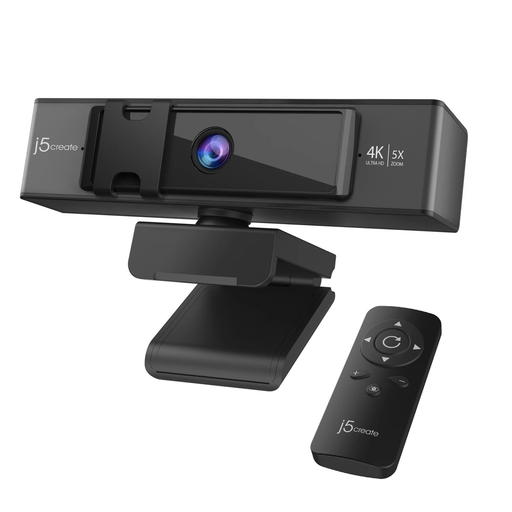
j5create JVCU435 USB 4K webcam with 5x digital zoom and remote control
Consider this webcam if the camera on your work computer is the specific obstacle during regular video calls.
The product name specifies 4K video, 5x digital zoom and a remote control. Confirm that the webcam works with your employer-managed device and approved meeting software; it will not resolve poor audio or an unstable connection.
View on Joybuy
 No image available
Targus USB-C Universal Dual HDMI 4K Dock with 100W Power Delivery Pass-Thru
Consider a dock when reconnecting external displays and desk equipment is a recurring part of your laptop workflow.
This variant is named for dual HDMI 4K connections and 100W power-delivery pass-through. Check your laptop’s USB-C video capability, intended display configuration and charging requirement, and confirm whether a suitable power adapter is included.
View on Joybuy
 No image available
AOC Q32V4 31.5-inch 2K IPS monitor
Consider an external display if screen space is the main constraint in your regular desk work.
The product name specifies a 31.5-inch 2K IPS display with built-in speakers. Check the available desk space, your computer’s display connection and the stand’s adjustment options against your workstation needs.
View on Joybuy
 No image available
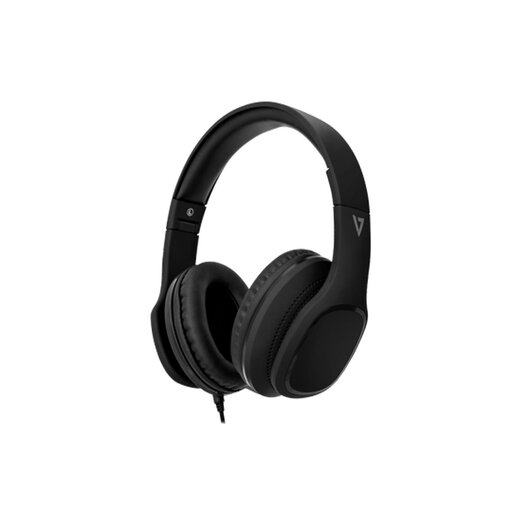
V7 HA701-3EP wired over-ear headset with inline MEMS microphone
Consider this headset if a wired listening and microphone arrangement suits your work calls.
The product name specifies 40mm drivers and passive noise isolation, not active noise cancellation. Confirm that your work device and call setup accept its 3.5 mm audio connection.
View on Joybuy
 No image available
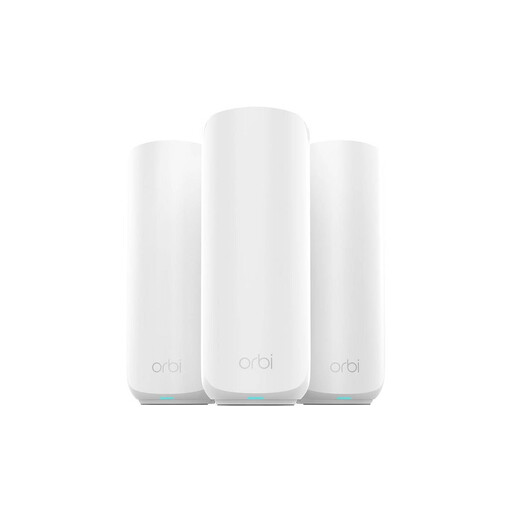
NETGEAR Orbi 370 RBE373 WiFi 7 mesh system, 3-pack
Consider a mesh system if you have traced a recurring work-location connection problem to local Wi-Fi coverage rather than the broadband service or work software.
This three-unit, dual-band BE3600 variant is named with 2.5Gbps Ethernet. Check compatibility with your existing modem or gateway and the manufacturer’s stated minimum period for important security updates; a mesh change alone will not resolve an ISP or work-VPN fault.
View on Joybuy
Frequently asked questions
Should I buy my own laptop or tablet for work before asking my employer?
Ask your employer first if you intend to use it for organisation systems or data. Confirm whether personal devices are permitted and what security, access and support arrangements apply; Information Commissioner’s Office guidance identifies greater security risks with personal-device use than with company-issued equipment.
When does a monitor or dock make more sense than replacing a laptop?
A monitor or dock is worth considering when the laptop meets your computing needs but screen space or repeated desk connections cause the difficulty. Match the dock to the exact laptop and displays, and use any relevant workstation assessment to decide what equipment is needed; the Health and Safety Executive advises assessing the individual worker’s circumstances.
Will a better webcam fix poor video meetings?
A webcam may address a camera problem, but it will not fix weak connectivity, poor audio or unsuitable room lighting. Check which part of the call is failing and whether the proposed camera works with your approved meeting setup.
What should I check about router or mesh-system updates?
Check the manufacturer’s stated minimum period for important security updates and how to install them. Also confirm that the equipment fits your existing home network; a local Wi-Fi change will not, by itself, resolve a broadband-service or work-VPN problem.
Who provides and supports home-working equipment?
Agree the arrangement with your employer before purchasing work equipment. Acas advises discussing what equipment is needed, who will provide or pay for equipment and repairs, and what technical support or training is required; check your employer’s current home-working and expenses policies for your arrangement.


