Start with your laptop’s display connections, charging requirements and the space available on your desk, then choose the equipment that addresses your main limitation. A compatible USB-C monitor may combine an external screen and laptop charging, while a dock is more relevant when several devices need connecting; neither choice removes the need to check the exact laptop, operating system and accessory.
Who needs which setup?
The useful starting point is the part of your working day that the current laptop setup makes difficult, whether that is moving between locations, fitting everything on a desk or connecting several devices.
Home-and-office switchers
If you disconnect your laptop for office days, decide which accessories will stay at home and which must travel. Plan the connections and charging you will need at each location before adding a dock or portable input devices.
Small-desk laptop workers
When desk depth and space for a keyboard and mouse are limited, the position of each device matters as much as its size. A laptop stand, compact input devices or a clamp-mounted screen may be worth considering if they fit the available surface and mounting edge.
Multi-screen and peripheral users
If you regularly connect an external display alongside other desk devices, check the laptop’s video output, available ports and charging needs before choosing a hub or dock. The operating system also matters when you want more than one external display.
What matters when choosing equipment?
For regular home and hybrid screen work, establish what your laptop can connect to before choosing the desk arrangement. Then decide whether your main need is a setup that travels, more screen space or dedicated equipment for calls.
| Concern |
What to check |
Who this matters to |
| Laptop compatibility |
Compare the laptop’s video-output mode, supported display count and charging requirement with the exact monitor or dock. |
If my laptop needs to run a display and charge through the same connection, I want those functions confirmed before buying a dock or monitor; around 33% of consumers would put compatibility first. |
| Desk space and portability |
Measure usable desk width and depth, allow room for input devices, and check mounting clearance and what you would need to carry. |
When I work in two places or have little desk space, equipment must fit without making the setup difficult to move; roughly 27% of consumers would make space or portability their primary concern. |
| Screen arrangement |
Check display connections, screen placement, stand or mount fit, and whether lighting creates reflections or glare. |
I need an external screen positioned for sustained desk work, rather than simply adding another device; about 20% of consumers would prioritise display expansion and arrangement. |
| Meeting devices |
Check the headset or webcam connection, free ports after other devices are attached, and whether it needs to travel. |
For frequent calls, I want an audio or camera connection that works with the rest of my setup; around 20% of consumers would put meeting peripherals first. |
Buying pitfalls to avoid
-
Assuming every USB-C connection does the same job
A matching connector does not establish that a laptop can send video, charge through a monitor or run two distinct external displays. Anker specifies particular connection and operating-system requirements for its Nano 8-in-1 hub.
Check your exact laptop model, port capabilities, operating system and charging requirement against the accessory’s documentation before deciding on a cable, monitor or dock.
-
Choosing a monitor mount before checking the desk
A clamp-mounted screen needs a suitable desk edge and room to move. LG’s 32UN880K-B, for example, uses a C-clamp stand, so its mounting method matters alongside the screen dimensions.
Measure desk depth, the rear edge and the space left for your laptop, keyboard and mouse. Plan where the cables will run while checking those measurements.
-
Adding devices without planning the whole workstation
The Health and Safety Executive advises considering equipment, furniture and working conditions together when looking at a display-screen workstation. A new screen or dock still needs a workable position alongside lighting and input devices.
Lay out the laptop, screen, keyboard, mouse and cables as one arrangement, then choose the device that addresses the limitation you have identified.
-
Self-funding work equipment without checking employer arrangements
For employees in Great Britain, the Health and Safety Executive says workers cannot be charged for display-screen equipment that an applicable home-working assessment identifies as necessary.
If you need equipment for your work, check your employer’s home-working and display-screen-equipment process before purchasing it yourself.
Brands to consider for particular needs
These examples illustrate model-specific features to compare, not capabilities shared by every product from a brand.
LG
Consider LG’s 32UN880K-B if you are looking at a USB-C screen with a clamp-mounted, adjustable stand for a fixed desk.
- LG UK specifies a 31.5-inch 4K IPS display and USB-C power delivery of up to 60 W for this model.
- Check whether your laptop accepts the required USB-C video connection and whether 60 W meets its charging needs. The C-clamp also needs a suitable desk edge.
Anker
Anker’s Nano 8-in-1 USB-C hub is an example to examine when several connections must run through one laptop port.
- Anker UK lists dual HDMI outputs, USB data connections and up to 85 W laptop charging output for the cited model.
- Anker specifies full-function USB-C, USB4 or Thunderbolt connection requirements, including display and power capabilities. Its two-display behaviour differs between Windows and macOS, so check the arrangement you intend to use.
Dell
Dell’s Pro Thunderbolt 4 Smart Dock SD25TB4 is relevant to a fixed desk with multiple display and peripheral connections.
- Dell UK lists display outputs, Thunderbolt 4, USB connections and Ethernet for this dock.
- Dell lists different power delivery for Dell and non-Dell systems. Confirm the exact laptop’s connection, display and charging compatibility rather than treating the dock’s port list as a guarantee.
Logitech
Logitech’s MX Keys Mini for Business is a compact keyboard example for a desk where input devices may also move between computers.
- Logitech offers an English UK QWERTY version and specifies Bluetooth Low Energy or a Logi Bolt USB-A receiver, with switching for up to three devices.
- Check the keyboard variant, your available USB-A port or Bluetooth connection, and operating-system support for the features you intend to use.
Joybuy workstation devices by use
These Joybuy choices cover external displays, a docking station, a headset and keyboard-and-mouse input for a hybrid-work desk. Choose for the task you need to address, then check the fit with your laptop, desk and travel pattern.
 No image available
ASUS ZenScreen MB249C IPS USB-C monitor
Consider this external screen if you need display space alongside a laptop. Check that your laptop supports the USB-C display connection you intend to use, and confirm the monitor’s weight and placement requirements if you plan to move it between workspaces.
View on Joybuy
 No image available
Targus USB-C Universal Dual HDMI 4K Docking Station, 100 W Power Delivery Pass-Thru
Consider this dock when a home desk needs HDMI display connections through a laptop’s USB-C port. The 100 W figure describes power-delivery pass-through; check the required power adapter, your laptop’s display-mode and charging support, and its operating system’s intended dual-display behaviour.
View on Joybuy
 No image available
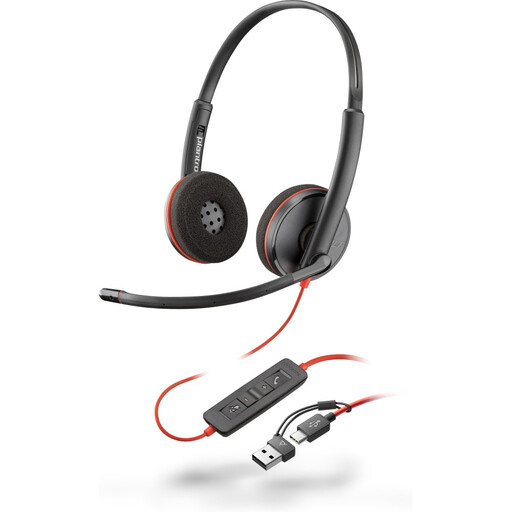
Poly Blackwire 3220 Stereo USB-C headset with USB-C to USB-A adapter
This wired headset is an option for a desk where you want a separate device for calls. Check that a USB-C or USB-A port will remain available after connecting other equipment, and allow for its cable when arranging the desk or packing for office days.
View on Joybuy
 No image available
HP 680 CFT Dual-Mode Keyboard and Mouse Combo
Consider a separate keyboard-and-mouse set if your laptop’s position leaves its built-in keyboard inconvenient to reach. Confirm the keyboard layout and which of this combo’s connection options your computer can use before choosing it for home and office work.
View on Joybuy
 No image available
Lenovo L32p-30 31.5-inch 4K UHD IPS USB-C monitor
This 31.5-inch external display is a choice to consider for a desk with room for a larger screen. Check the laptop’s USB-C display support and compare the monitor’s power-delivery rating with the laptop’s charging requirement before relying on one cable for both functions.
View on Joybuy
Questions about hybrid-work equipment
Will any USB-C dock run two different external monitors?
No; the answer depends on the exact dock, laptop and operating system. Anker says its cited Nano 8-in-1 hub needs a compatible full-function USB-C, USB4 or Thunderbolt connection with the specified display and power capabilities. For that model, Anker describes different extended-display behaviour on Windows and macOS.
Can a USB-C monitor replace my laptop charger?
It can only do so if your laptop accepts USB-C charging and the monitor supplies enough power for your intended use. LG UK specifies up to 60 W power delivery for its 32UN880K-B; compare the rating of the exact monitor you are considering with your laptop’s charging requirement.
Do display-screen equipment rules cover working from home?
They can apply to employees working from home when the relevant conditions are met. The Health and Safety Executive explains the Great Britain position for long-term home display-screen work; the Health and Safety Executive for Northern Ireland separately identifies home workers within Northern Ireland’s display-screen-equipment guidance. Check the guidance for your location and discuss work equipment needs with your employer.
What should I check after changing my desk setup?
Recheck how the screen, input devices, cables and lighting work together, as well as whether your laptop still has the connections you need. For employee display-screen users in Great Britain, the Health and Safety Executive says a workstation assessment should be revisited when a workstation is set up or its use changes.


