Choose cloud storage if access across household devices and a copy away from home matter most; choose an external drive if you want a local copy you can keep under your control. For photos and documents you could not replace, using both gives you two locations, provided the copies are separately protected. Check your file volume, device connections and backup software before choosing a drive or cloud allowance.
Who is this for?
Households protecting irreplaceable files
Family photos, scanned records and important documents can be difficult to recreate. The National Cyber Security Centre advises keeping a copy of important data in a separate safe location, so think about whether your files would remain recoverable if the original device were lost or damaged.
Households using several devices
If photos and documents need to be available on more than one computer, phone or tablet, check which folders the cloud service copies and when syncing finishes. For a shared plan, also check file permissions: Google says sharing Google One storage does not automatically share family members’ files.
Mac and mixed-device households
A drive’s plug and capacity are not the whole compatibility decision. Check its connector, the devices that must use it and the backup application: Apple says Time Machine cannot back up to a disk formatted for Windows.
What matters when choosing?
Decide where a recoverable copy will live, then size it for the files you intend to protect and check how each device will back up to it.
| Concern |
What to check |
Who this matters to |
| Recovery and separation |
Keep a copy separately protected from the original device; test that you can restore a file. The National Cyber Security Centre warns that ransomware has affected connected backup drives. |
If a device fails or malware reaches files at home, I need another copy I can still recover. About 31% of consumers put that resilience first. |
| Access across devices |
Check which folders and devices are covered, when syncing completes and who can access shared files. |
With files spread across several devices, I want selected documents and photos to stay accessible without copying them manually each time. That is the primary need for about 25% of consumers. |
| Capacity for a local copy |
Measure the files you will protect and allow for growth. If comparing cloud storage, check what else uses the same allowance; Google says its standard account’s up to 15 GB is shared across Drive, Gmail and Photos. |
As my photo collection grows, I want enough room for the files I have chosen to back up and a physical copy I can keep. About 25% of consumers place that need first. |
| Device compatibility |
Check ports, cables, file format and backup-software requirements before using a drive. Apple says Time Machine cannot back up to a Windows-formatted disk. |
If my household uses a Mac and a Windows PC, I need to know how the drive will work with the intended backup software before I start. For about 19% of consumers, avoiding setup problems is the main concern. |
Backup mistakes to avoid
-
Relying on one always-connected copy
A copy on a drive that stays connected may be affected alongside the original files. The National Cyber Security Centre reports ransomware incidents involving connected USB and network backup drives.
Keep at least one copy separately protected. If a drive does not need to remain connected, disconnect it after backing up, and try restoring a file.
-
Choosing capacity before checking the files
A growing collection can outstrip the space selected for it. Cloud allowances may also cover other files: Google counts Drive, Gmail and Photos against its standard account’s shared storage.
Measure the folders and libraries you plan to protect, decide whether a full-computer backup is needed and leave room for future files.
-
Assuming every USB drive works with every backup setup
The connector, cable and file format can each affect use. Apple says Time Machine cannot back up to a Windows-formatted disk; Western Digital says its WD Elements SE is supplied in NTFS format and may need reformatting for macOS.
Check the ports on each device and the requirements of your backup software before buying. If reformatting is necessary, move any files already on the drive elsewhere first.
-
Confusing family storage with shared files
A shared cloud allowance does not necessarily give everyone access to the same documents. Google says Google One family members cannot access one another’s files without permission.
Review storage sharing and individual file or folder permissions separately, especially for private household records.
Relevant brands and services
Samsung
Its portable SSD range is relevant if you want a compact local backup drive and expect to transfer files between computers.
- For the 1 TB T7 Shield, Samsung rates sequential speeds at up to 1,050 MB/s read and 1,000 MB/s write.
- Samsung says those maximums require a compatible USB 3.2 Gen 2 host and cable with UASP enabled; check the exact model and your computer’s connection.
SanDisk
Its Extreme Portable SSD is another local-drive option to consider when the backup copy needs to travel with you.
- SanDisk describes drop protection of up to 3 metres and IP65 water and dust resistance for the 1 TB Extreme Portable SSD.
- Those manufacturer ratings are not a substitute for a separate backup copy; check the specification of the capacity and variant you choose.
Western Digital
Its external drives are relevant to households considering a conventional local backup.
- Western Digital says the WD Elements SE is supplied in NTFS format.
- That line may need reformatting for macOS. Check the exact drive and backup application before moving files onto it.
Microsoft OneDrive
A cloud option for households that want selected computer folders available through their Microsoft account.
- Microsoft says files backed up through OneDrive folder backup can be accessed from another device once syncing finishes.
- Check that the folders you need are selected and that the account has enough storage for them.
Google One
A cloud-capacity option for households already using Google Drive, Gmail or Google Photos.
- Google says a standard Google Account has up to 15 GB shared across those services, and Google One storage can be shared with family.
- Family storage sharing does not automatically share individual files; check permissions separately.
External drives for local backups
These portable SSDs and hard drives are options for keeping a local copy of household photos and documents. Choose a capacity for your own files, and plan a separately protected copy if one drive would not provide enough resilience.
 Image unavailable
Samsung MU-PG4T0B 4 TB portable SSD
Consider this for a sizeable local photo and document copy if 4 TB fits your measured backup needs.
The product name specifies USB Type-C and USB 3.2 Gen 2x2. Check your computer’s port and the drive’s format, particularly if you intend to use Mac backup software.
View on Joybuy
 Image unavailable
Samsung T7 Shield 1 TB portable SSD, blue
Consider this portable local copy if your selected files and expected growth fit within 1 TB.
The product name specifies USB 3.2 Gen 2. For a Mac backup, confirm the drive’s format and suitability for your chosen software; the drive alone is not an off-site copy.
View on Joybuy
 Image unavailable
Samsung Portable SSD T7 4 TB, grey
Consider this for a larger local file collection if your measured backup scope calls for 4 TB.
The product name specifies USB Type-C and USB 3.2 Gen 2. Check the connection and file format against the devices and backup software you will actually use.
View on Joybuy
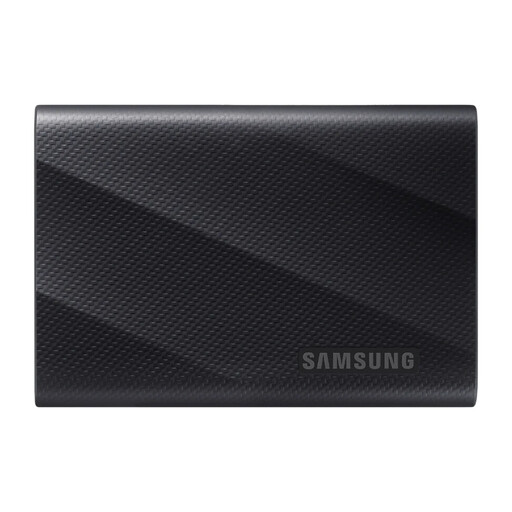 Image unavailable
Samsung MU-PG1T0B 1 TB portable SSD
Consider this for a local copy of selected photos and documents if 1 TB leaves enough room for growth.
The product name specifies USB Type-C and USB 3.2 Gen 2x2. Confirm the cable you need for your ports and the file format required by your backup software.
View on Joybuy
 Image unavailable
Western Digital My Passport Ultra for Mac 5 TB, silver
Consider this local hard drive if a Mac is central to your backup setup and your files call for 5 TB of capacity.
Check its format against your Mac backup software. If a Windows PC must also read or write the drive, confirm that workflow before buying.
View on Joybuy
Frequently asked questions
How much backup storage does a household need?
Start with the size of the folders, photo libraries and computer files you will actually protect, then leave room for growth and any backup history you intend to keep. If you are considering cloud storage, include other uses of the allowance: Google says its standard account’s up to 15 GB is shared across Drive, Gmail and Photos.
Can I use one external drive for both Windows and Mac backups?
Possibly, but check the intended backup applications and drive format before sharing it between systems. Apple says Time Machine cannot back up to a disk formatted for Windows, while Western Digital says its NTFS-formatted WD Elements SE may need reformatting for macOS. Reformatting erases files already on a drive, so move them elsewhere first.
Is a cloud copy enough for important household files?
A cloud copy can give you access away from the original device, but it is not automatically isolated from problems affecting a connected account. The National Cyber Security Centre reports ransomware incidents involving connected cloud backup locations. For files you cannot replace, consider a second, separately protected copy and test how you would restore it.


