What matters when choosing backup storage?
Decide how you would recover the files before choosing a drive or service: work out which files need copying, where a separate copy will live and how you will restore an older or deleted file.
| Concern |
What to check |
Who this matters to |
| Recoverability |
Check which files are copied, where the separate copy is kept and whether you can restore an older or deleted file. |
If losing a computer could also mean losing family photos, I need a separate copy I can restore after failure, deletion or malware. Around 36% of consumers put recoverability first. |
| Automatic off-site copies |
Check folder coverage, upload frequency, available capacity and the service’s restore and deletion-retention options. |
When I might forget a manual backup, I want important changes copied away from home without repeated effort. Roughly 29% of consumers prioritise automatic off-site copies. |
| Privacy and portability |
Check access controls and account recovery; for a carried drive, check the exact model’s protection options and connection requirements. |
If I carry personal files or keep them in a cloud account, I need to control who can open them without losing access myself. Around 21% of consumers make privacy or secure portability their primary concern. |
| Shared archive management |
Check usable storage, household access permissions, version retention and support for a separate backup destination. |
With files spread across several household devices, I want one shared archive and am prepared to maintain its backups. About 14% of consumers put shared archive management first. |
Physical storage options on Joybuy
These external drives, portable SSD and diskless NAS represent local-copy and shared-storage routes. For household files that need an off-site copy too, plan a separate destination alongside the physical storage you choose.
 No image available
Western Digital My Passport Ultra for Mac, 5TB, Silver
Consider this portable hard drive for a local copy of household photos and documents when the Mac variant suits your setup.
5TB capacity. Confirm the connection and any Mac setup requirements, plus how your backup software handles older versions and restores. Keep a separate copy elsewhere.
View on Joybuy
 No image available
Western Digital My Passport Portable Hard Drive, 2TB, Black
This portable hard drive is an option for a local copy of personal files when 2TB fits the amount you need to retain.
Check operating-system setup and whether the backup software’s version retention and restore process meet your needs. Store another copy separately.
View on Joybuy
 No image available
Samsung T7 Shield Portable SSD, 1TB, Blue
Consider this portable SSD if you regularly carry or transfer a local copy of files.
1TB capacity and USB 3.2 Gen 2. Check the intended computer’s connection and your backup software’s restore options; a carried SSD is not an off-site backup by itself.
View on Joybuy
 No image available
Western Digital Elements Port., 4TB, Black, USB 3.0
This portable hard drive offers a local storage destination for a household archive.
4TB capacity and USB 3.0. If you plan to use it with a Mac, confirm file-system and reformatting requirements before copying files; arrange backup scheduling and a separate off-site copy.
View on Joybuy
 No image available
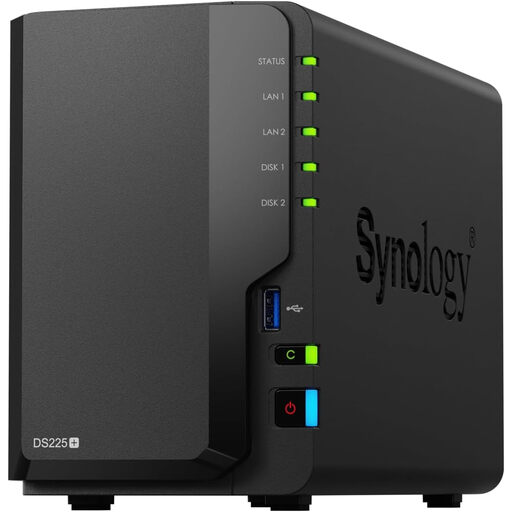
Synology DS225+ Two-Bay Diskless NAS
Consider this NAS if several household devices need shared storage and you are prepared to configure and maintain backups.
Two-bay, diskless configuration: plan the compatible drives as well as a separate backup destination. Check access controls, version settings and restoration before relying on the archive.
View on Joybuy
Backup storage questions
Is cloud synchronisation the same as a recoverable backup?
No: synchronisation copies changes across devices, while a recoverable backup must let you restore the files you need. The Information Commissioner’s Office describes changes being copied across cloud folders, and Microsoft says OneDrive file version history is retained for 30 days. Check deleted-file recovery, folder coverage and a test restore, then keep a separate copy of irreplaceable files.
How much backup capacity should a household choose?
Choose capacity for the files you intend to keep and the backup history you want to retain, not just the space they occupy today. Add up documents, photographs, videos and files from each device, then allow room for new files and any versions kept by your chosen software or service.
Should an external backup drive stay plugged in?
Disconnect a removable backup drive when it is not in use if your backup routine allows it. The National Cyber Security Centre warns that some viruses can affect connected storage devices; check that the backup completed before disconnecting, and keep another copy off-site for important files.
How should I protect access to a cloud backup?
Use a unique strong password, enable two-step verification for the cloud account and its associated email account, and keep account-recovery details accessible to you. The Information Commissioner’s Office advises care with cloud sharing settings, while the National Cyber Security Centre recommends two-step verification for important accounts.


