Families with files on several devices
Photos, videos and documents are created on phones, tablets and computers. These households need to check which devices back up automatically and what will be available after a device is replaced.


Choose cloud backup when automatic protection across devices and access after replacing a phone matter most; choose an external drive or network-attached storage (NAS) when you need a local copy you control. For irreplaceable files, the National Cyber Security Centre advises keeping both a cloud copy and one on removable media. Whichever arrangement you choose, check what it actually backs up and how you would restore it: synchronised files alone may not cover a whole computer.
Photos, videos and documents are created on phones, tablets and computers. These households need to check which devices back up automatically and what will be available after a device is replaced.
Keeping a few files in sync may not meet the need to recover folders or a computer after deletion, corruption, malware or device failure. The important distinction is between access to current files and a usable restore process.
A large file collection, unreliable broadband or a preference for a locally held copy can make a drive or NAS appealing. The National Cyber Security Centre also advises a separate copy for irreplaceable data rather than relying on removable media alone.
Decide what must be recoverable before choosing where to store it. An external drive, a cloud service and a NAS solve different parts of that task; a combined arrangement gives important files more than one storage location.
Consider it when: You want a removable local copy of computer files without relying on an internet connection to access the drive.
Account for: A drive left connected can be exposed alongside the computer; a copy kept only at home also shares that location's risks.
Consider it when: Photos and files originate on several devices and you want automatic off-site copies.
Account for: Recovery depends on account access, connectivity and the service's coverage and retention rules; a sync folder is not necessarily a computer backup.
Consider it when: Several computers need a shared local destination and someone in the household can manage the storage setup.
Account for: Backup workflows depend on the NAS model and configuration, and a NAS at home is not itself an off-site copy.
Consider it when: Irreplaceable photos or documents need both a local restore path and a copy away from the home device.
Account for: Two backup jobs need managing, and files should be test-restored from both. The National Cyber Security Centre recommends cloud and removable-media copies for irreplaceable data.
| Concern | What to check | Who this matters to |
|---|---|---|
| Reliable restoration | Check whether the backup covers selected files, folders or a whole device, and how deleted or damaged files can be restored. | If my computer fails, I need more than access to its current synced folder: I need to know which files I can recover. Around 31% of consumers put restoration first. |
| Cross-device protection | Check coverage for each phone, tablet and computer, including when automatic backups run. | Photos taken on different devices should reach a backup without someone remembering to copy them manually. For around 31% of consumers, that automatic coverage is the main concern. |
| Local control | Check usable drive or NAS capacity and whether the local copy can be isolated or supplemented elsewhere. | With a large library or an unreliable connection, I want files available locally without depending on one cloud account. Roughly 23% of consumers place that need first. |
| Subscription and capacity | Check renewal terms and whether photos, files, email or device backups share the same storage allowance. | I do not want a growing photo library to fill an account or make me change plans unexpectedly. Avoiding that constraint is the priority for around 15% of consumers. |
A synchronised folder may leave out other computer folders, phone data or external drives. Changes and deletions may also carry across unless the service offers a suitable recovery option.
List the devices and data you need to protect, then check what the service includes and how to restore an earlier copy.
The National Cyber Security Centre warns that malware can affect attached removable media as well as the computer.
Disconnect the drive between backup sessions where practical, and keep another copy elsewhere for irreplaceable files.
Some services share an allowance across several uses. Google says a full shared account can interrupt new photo backups and activity in other Google services.
Review the account's total use and the plan's renewal terms before relying on it for household backup.
Protection and account recovery vary by service and data category. Apple says new users in the UK cannot enable Advanced Data Protection for iCloud Backup, iCloud Drive and Photos.
Check the current security and recovery options for the exact service and categories you intend to back up before depending on them.
iCloud+ is relevant to Apple-centred households that want photos, files and iPhone or iPad backups available through their Apple account.
Google One and Google Photos are relevant when household photos and videos are backed up to a Google Account for access on signed-in devices.
OneDrive is relevant to Windows households using Microsoft 365 that want to protect selected PC folders and recover cloud-file changes.
Synology NAS systems are relevant when several household computers need shared local storage and someone can maintain the hardware and backup setup.
Backblaze Computer Backup is relevant to households considering dedicated backup for a Mac or Windows computer rather than a general-purpose sync folder.
These drives and the NAS provide local storage options for household files. Choose a backup method for each device you need to protect, and arrange a separate copy elsewhere for irreplaceable data.
 No image available
Consider this portable drive for a local copy of computer files.
It has 2TB of storage. Check which folders your chosen backup software covers and how you would restore files before relying on the drive alone.
 No image available
Consider this drive when a Mac-centred household needs a local copy with 5TB of storage.
Check the intended backup and restore workflow, particularly if the drive will also be used with Windows computers.
 No image available
Consider this portable drive for keeping a local copy of household files.
The listed connection is USB Type-C with USB 3.2 Gen 2x2. If automatic backup or recovery of earlier files matters, check the software and restore process you plan to use with it.
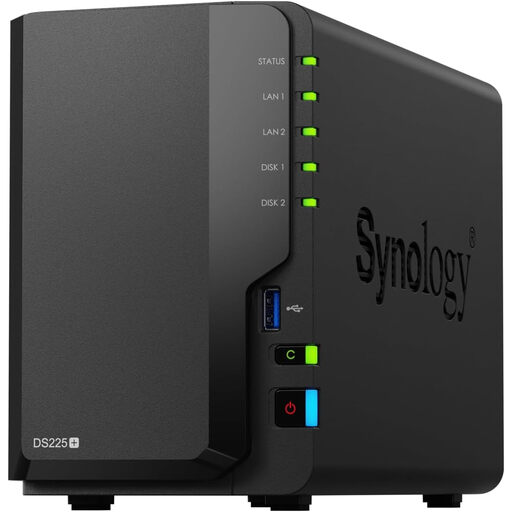 No image available
Consider this NAS when several household computers need a shared local storage destination.
It is a two-bay diskless unit, so drives must be selected separately. Confirm the model's supported backup software, drive configuration and restore workflow before using it for computer recovery.
 No image available
Consider this portable drive for a local copy of a household file library.
It is listed with a USB 3.0 connection. Check compatibility with the computers you will use and arrange backup software and a restore method that cover the files you need.
No: a synced folder makes current files available across devices, but it may not provide the coverage or earlier copies needed for recovery. Check what happens when a file is deleted or overwritten, which folders are included and how long recoverable versions remain available.
Keep both for irreplaceable photos, videos and documents when you need a copy away from the home device as well as one held locally. The National Cyber Security Centre recommends cloud and removable-media copies for irreplaceable data and advises disconnecting removable media when it is not in use.
Only if its backup and restore workflow covers the computer data you need; access to cloud files alone does not establish whole-computer recovery. Microsoft's OneDrive restore feature rolls back cloud-file activity for Microsoft 365 subscribers within the last 30 days, while Synology documents device recovery for supported backup configurations. Check the exact service, device and restore method.
Check account protection, recovery methods and the encryption available for the data categories you will store. Enable two-factor authentication where offered and make sure you can regain access to the account. In the UK, Apple says new users cannot enable Advanced Data Protection for iCloud Backup, iCloud Drive and Photos.
Google says a full shared account can stop new Drive uploads, new photo and video backups, and Gmail sending or receiving. Check total use across the Google services linked to the account before depending on it for new household files.