Keepers of irreplaceable photos
If family photos, videos or records would be difficult to recreate, consider separate cloud and removable-media copies, as the National Cyber Security Centre advises for irreplaceable data.


Choose cloud storage if off-device access and copies of selected folders matter most, provided the connection, storage allowance and account recovery arrangements work for you. An external hard drive offers a local route for a large file library, while a portable SSD may suit files you regularly carry between devices. For irreplaceable files, the National Cyber Security Centre advises considering both a cloud copy and one on removable media; whichever route you choose, check that the intended files can be restored.
If family photos, videos or records would be difficult to recreate, consider separate cloud and removable-media copies, as the National Cyber Security Centre advises for irreplaceable data.
If a photo and video library exceeds your cloud allowance, or your connection makes uploading difficult, a local drive can be the starting point. It still needs to be kept separate from the computer between backups.
If you need selected computer files on another device, a cloud service may help. Microsoft Support describes OneDrive backup for selected folders; check the folders covered, available storage and account recovery before relying on it.
Decide which loss would be hardest to recover from, then check that your chosen route covers the right files and lets you retrieve them. The National Cyber Security Centre advises checking both backup contents and how to restore them.
| Concern | What to check | Who this matters to |
|---|---|---|
| Separate recovery routes | Confirm that cloud and removable-media copies cover the intended files and that each can be restored. | If family records cannot be replaced, I want another way to retrieve them when one copy is unavailable. Roughly 33% of consumers would put separate recovery routes first. |
| Local capacity and access | Compare usable drive capacity with your file library and check the backup utility’s filesystem requirements. | With a large photo library or an unreliable connection, I need space I can use without uploading everything. Around 27% of consumers would prioritise local capacity and access. |
| Automatic copies across devices | Check which folders and devices are covered and how much shared cloud storage remains. | When I move between devices, I want recent copies of selected files available without connecting a drive. About 20% of consumers would make automatic access their primary concern. |
| Privacy and recovery | Check drive-encryption options and how you would recover access to a protected cloud account. | If files are sensitive, I need to protect a lost drive without locking myself out of the backup. Approximately 20% of consumers would put privacy and recovery first. |
A file list alone does not show that the copy contains everything you need or that retrieval works. The National Cyber Security Centre advises checking important backup contents and knowing how to restore them.
Open a sample of recent files from the backup and try restoring a non-critical file. Repeat the check after changing folders, devices or backup settings.
A drive that allows ordinary file access on both Windows and Mac may not suit their built-in backup tools. Seagate does not recommend exFAT for File History or Time Machine, and Apple says Time Machine cannot back up to a disk formatted for Windows.
Choose the backup application first, check its supported format and copy any existing files elsewhere before accepting an erase or reformat prompt.
Cloud space may also hold photos, email-related data or other account files. Microsoft Support and Google Help describe account limits that can interrupt uploads or other functions when storage is full.
Check total account use, not just the computer folder you intend to back up, and review what happens if you change your storage tier.
Apple says it cannot recover end-to-end encrypted iCloud data protected by Advanced Data Protection if you lose access and cannot use an account recovery method.
Understand the supported device and recovery requirements before enabling that setting, and keep your recovery arrangements separate from the device you are protecting.
These brands illustrate different local-storage and cloud-service considerations; the details apply to the named products or services, not every item bearing the brand.
External hard drives and SSDs for local copies.
Portable SSDs for people considering a carryable local copy.
Cloud storage for selected computer folders and access across devices.
Cloud storage for households already using Google account services.
Cloud backup and storage for Apple-device households.
These external hard drives and portable SSDs are options for a local household-file copy. Choose capacity to suit your files, and check the computer and backup application’s requirements before relying on a drive; a drive does not by itself provide the separate cloud copy discussed above.
 No image available
Consider this external hard drive for a substantial local copy in a Mac household.
Stated capacity: 5TB. Check the drive’s format against your intended backup application before setup.
 No image available
Consider this portable SSD if a 4TB local copy suits the files you need to protect.
Named connection standard: USB 3.2 Gen 2, also designated USB 3.1 Gen 2. Check your computer connection and backup application’s format requirements.
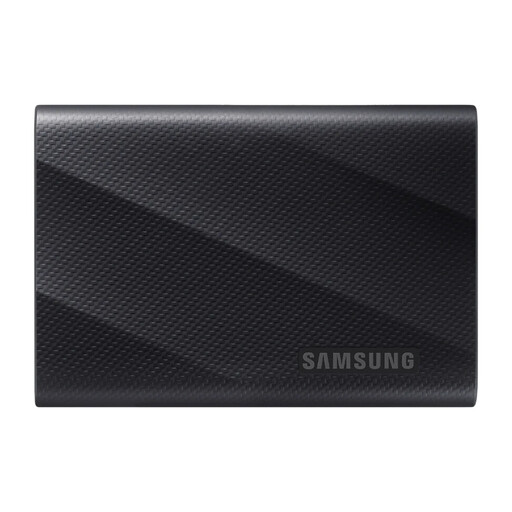 No image available
Consider this portable SSD if your intended local file copy fits within its stated capacity.
Stated capacity: 1TB; named connection standard: USB 3.2 Gen 2x2. Check computer support and backup-utility compatibility before setup.
 No image available
Consider this portable SSD for a local copy that you need to carry, provided 1TB covers the intended files.
Named connection standard: USB 3.2 Gen 2. Check the backup utility’s format requirements and any encryption requirement before relying on the drive.
 No image available
Consider this external hard drive when you need a 4TB local destination for household files.
Named connection standard: USB 3.0. Check its format against your operating system and chosen backup application before use.
No: it is a useful backup route only for files actually covered and retrievable through the service. Check the selected folders, completed uploads, storage allowance and restore process; Microsoft Support says OneDrive folder backup requires you to select and manage the folders protected.
Disconnect a removable backup drive when it is not actively backing up. The National Cyber Security Centre warns that malware can reach attached media, so a permanently connected drive should not be treated as an isolated copy.
A drive formatted as exFAT can serve ordinary cross-platform file access, but it may not suit the backup applications you plan to use. Seagate does not recommend exFAT for File History or Time Machine, while Apple says Time Machine cannot back up to a disk formatted for Windows; check both applications before formatting the drive.
Apple recommends a storage device with at least twice the storage capacity of the Mac. That is Time Machine guidance, not a sizing rule for every Windows or cloud backup.
Set up an alternative account recovery method, such as a recovery contact or recovery key, and make sure you can use it. Apple says it cannot help recover the end-to-end encrypted data if you lose access without a working recovery method.