Choose a backup arrangement by what you need to recover: a cloud backup can keep copies away from your main device, while a removable drive gives you a local copy you control. For records that would be hard to replace, keeping both reduces reliance on a single drive or account, provided you check what each copy contains, test restoration and disconnect the local drive between backups.
Who needs a household backup?
Households replacing paper files with digital records
Scans, statements, family photos and account documents need a recoverable copy outside the device that created them. The National Cyber Security Centre describes a backup as a copy kept in a separate safe location; Northern Ireland Cyber Security Centre guidance also recommends keeping a copy offline.
Families needing a routine they can maintain
If manual copying is easy to forget, automatic device or cloud backup may help keep copies current. Check the included folders, apps and data types, then confirm how to restore them on a replacement device: Google notes that Android apps do not all back up or restore every setting and item of data.
People carrying sensitive records outside the home
A portable copy may need access controls as well as a safe place to store it. Check the exact drive’s protection and plan how the household will retain its credentials: Western Digital says forgotten passwords on supported protected drives cannot be recovered and require the drive to be erased.
What matters when choosing?
Start with the loss you need to recover from, then choose a copying routine you can maintain. A drive, a cloud service and an encrypted drive address different parts of that decision; none removes the need to check the files and restoration steps.
| Concern |
What to check |
Who this matters to |
| Recovering lost files |
Check what is copied and where; try restoring a deleted file or a copy to another device. For cloud storage, check version and deletion-recovery limits. |
If my device fails or I delete a document, I need a separate copy I can actually restore. Around 40% of consumers would put recoverability first. |
| Keeping copies current |
Check automatic-backup settings, included folders and data types, and how to confirm the latest successful backup. |
When new photos and scans accumulate, I need copies to stay current without remembering every transfer. Low-effort continuity comes first for around 30% of consumers. |
| Privacy while carrying a drive |
Confirm the exact model’s access controls and what happens if its password is forgotten or entered incorrectly. |
If I carry account documents away from home, I want to limit access if the drive is lost. Around 20% of consumers would prioritise protection of the portable copy. |
| Local control and capacity |
Measure the whole archive, allow room for new files and confirm connector and operating-system compatibility. |
With a growing collection of photos and records, I want room for a locally held copy and can take responsibility for updating it. That would be the primary concern for around 10% of consumers. |
Backup mistakes to avoid
-
Treating a synchronised folder as a complete backup
Synchronisation can carry changes between devices, but its file coverage and recovery options are not necessarily the same as an independently recoverable backup. Apple distinguishes syncing from device backups; Microsoft’s whole-OneDrive restoration applies to eligible Microsoft 365 subscribers within its stated 30-day window.
List the folders, photos and app data you need, then check whether the service retains an older version and how you would restore it after deletion or device replacement.
-
Leaving the only external backup connected
The National Cyber Security Centre warns that ransomware incidents have affected connected USB and network drives as well as original files. A drive kept beside the main device can also be exposed to the same physical loss.
Connect the drive for scheduled copies, disconnect it afterwards and keep another separate copy of records that would be difficult to recreate.
-
Protecting a drive without planning credential recovery
Access controls can restrict someone else’s use of a lost drive, but they can also prevent the household from reaching its own files. Western Digital says a forgotten password on supported protected drives requires erasure; Kingston IronKey specifies a failed-attempt erasure setting for its Vault Privacy 80ES.
Check the exact model’s password rules, keep credentials in a secure household recovery arrangement and test access before making it your only copy.
-
Sizing storage from the document folder alone
Photos, videos and future scans can make the full archive substantially different from the paperwork folder you first intend to copy.
Measure all the content you plan to protect, leave room for growth and compare that requirement with the drive’s capacity or the cloud plan’s current allowance.
Brands to consider by use case
Samsung
Samsung’s T7 Touch is a reference point for compact, access-controlled local storage; its features should not be assumed to apply to every T7 variant.
- Samsung specifies fingerprint or password unlocking and AES 256-bit encryption for the T7 Touch.
- Its rated transfer speeds depend on a compatible host, cable and interface; check the exact model and computer before choosing on speed.
Western Digital
My Passport drives are relevant when a household wants a portable local archive and is considering password protection on a supported model.
- Western Digital describes 256-bit AES hardware-encryption support for its My Passport family.
- Western Digital says a forgotten password on a protected drive cannot be recovered and requires erasure. Check the particular drive’s setup and compatibility.
Kingston IronKey
The Vault Privacy 80ES is relevant where authentication on the portable drive itself is a deciding requirement.
- Kingston specifies touchscreen authentication and XTS-AES 256-bit encryption for this model.
- Kingston specifies default crypto-erasure after 15 consecutive incorrect Admin or User password entries, so credential recovery needs particular care.
Google
Google’s Android backup settings are relevant to households seeking automatic, account-based copies of supported device data.
- Google says Android users can select backup data types and restore backed-up information to the original or another Android phone.
- Not every app backs up or restores all its settings and data. Check the content you need rather than assuming the phone backup covers a separate document archive.
Microsoft
OneDrive is relevant to Windows households using selected-folder backup and synchronised access across devices.
- Microsoft says selected standard folders can be backed up to OneDrive.
- Microsoft’s whole-OneDrive restoration is for eligible Microsoft 365 subscribers within the last 30 days; files permanently deleted from the Recycle Bin cannot be recovered through it.
Portable drives for local household backups
These Joybuy drives offer ways to keep a local copy of household files. Choose one around your archive size, devices and copying routine; a portable drive does not by itself establish which files are backed up or whether older versions can be restored.
 No image available
Western Digital My Passport 2TB Portable Hard Drive, Black
Consider this for a local copy of documents and photos if you can keep up a drive-backup routine.
2TB portable external hard drive. Before relying on it, check the backup software’s restore options and the setup required for your computer.
Joybuy
 No image available
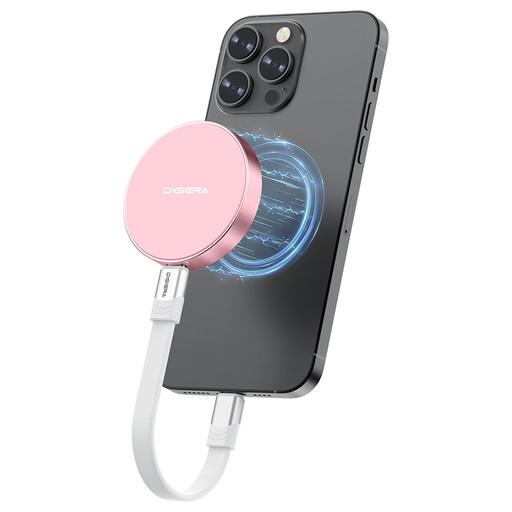
DigiEra LPS2000M-3 1TB Magnetic Portable SSD, Pink
Consider this portable SSD if copying phone media is part of your backup plan; check which devices and files its backup app covers before treating it as a document backup.
1TB capacity and USB 3.2 Gen 2x2 are stated in the product name, which also lists compatibility with iPhone 15 and 16 series and other USB-C devices. Confirm the connection and restoration process for your own device.
Joybuy
 No image available
Western Digital My Passport Ultra for Mac 5TB Portable Hard Drive, Silver
This Mac-focused drive is an option for a larger local archive. If another computer must read the copy, confirm its file-system and connection requirements before storing important files.
5TB portable external hard drive. Check the restore workflow and applicable warranty terms before purchase.
Joybuy
 No image available
Samsung T7 Shield 1TB Portable SSD, Blue
A portable local-copy option if you regularly move the drive between locations. Set up a repeatable copying routine and test that you can restore the files you need.
1TB external SSD with USB 3.2 Gen 2 stated in the product name. Check compatibility with the devices you will use; do not treat portable storage as the only copy of irreplaceable records.
Joybuy
 No image available
Samsung Portable SSD T7 2TB, Grey
Consider this for a portable local copy when a 2TB archive size suits your current files and expected growth. Check your backup method’s scheduling, file coverage and restoration steps.
2TB portable SSD with USB Type-C 3.2 Gen 2 stated in the product name. Confirm the required connection for each device that needs access to the copy.
Joybuy
Common questions
Is cloud synchronisation the same as a recoverable backup?
Not necessarily: synchronisation keeps information up to date across devices, while a backup’s content and restoration options depend on the service. Apple distinguishes syncing from device backup; check version history, deleted-file recovery and how you would restore the particular files you need.
How can I tell whether my household backup works?
Restore a non-sensitive sample file or folder to a different location and check that it opens. Record which account, drive and credentials the household needs; the National Cyber Security Centre and Northern Ireland Cyber Security Centre emphasise keeping separate copies and being able to recover them.
Should I leave an external backup drive connected?
Disconnecting it between backups can reduce its exposure to an incident affecting the main computer. The National Cyber Security Centre warns that ransomware has affected connected drives, so make scheduled copies, disconnect the drive when finished and consider another separate copy for difficult-to-replace records.
Can free cloud storage cover all our documents and photos?
It can only do so if the current allowance fits the entire archive and the service backs up the content you need. Measure documents, photos and other files together, then check the plan’s capacity, backup coverage and restoration options before relying on it.


