Regular laptop-only worker
If you use a laptop for sustained work, you may need to position its screen separately from its built-in keyboard. HSE guidance describes using a separate keyboard and mouse when raising a laptop screen.


Start with your workstation assessment, not a standard equipment bundle: prolonged laptop work may call for a separate keyboard and mouse so you can position the screen independently, while recurring multi-window work may call for an external display. Consider a dock only after checking your laptop’s ports and requirements, and choose meeting equipment for a specific call need. If an employer’s DSE assessment identifies equipment as necessary, the Health and Safety Executive (HSE) says the worker cannot be charged for that action.
If you use a laptop for sustained work, you may need to position its screen separately from its built-in keyboard. HSE guidance describes using a separate keyboard and mouse when raising a laptop screen.
If you regularly work across documents or applications, an external display is one option when your assessed setup calls for a separately positioned screen. Check that the display connects to your computer.
If you reconnect equipment at home and at another desk, assess both arrangements before choosing peripherals or a dock. HSE guidance includes home workers and hot-desking in its DSE information.
For UK employees who use display screen equipment as part of regular work, HSE guidance says workstation needs should be assessed. Start with the task and desk arrangement, then check that each device suits the computer and connections you use.
| Concern | What to check when buying | Who this matters to |
|---|---|---|
| Independent screen and input positioning | Check whether you need a stand or separate display, plus a separate keyboard and mouse. Confirm stable placement and compatible connections. | If I work on a laptop for long stretches, I want to raise the screen without raising the keyboard with it. Around 28% of consumers put independent screen and input positioning first. |
| Space for multi-window work | Compare resolution and stand adjustment with your desk space; check the computer’s video output and the display’s input. | If I regularly work across documents or applications, I want a separately positioned screen that fits my desk and computer. Around 22% of consumers put visible workspace first. |
| Employer provision or personal purchase | Review the workstation assessment and workplace equipment process before buying. A preferred upgrade is not automatically an assessed requirement. | If an assessment identifies equipment I need for work, I want to check provision with my employer before paying personally. Around 22% of consumers put assessed equipment provision first. |
| Connections across desks | List the devices used at each desk, then check the laptop’s video and charging support, required cables and workplace approval before choosing a dock. | If I change desks and reconnect several devices, I want to know that one setup will work with my laptop and peripherals. Around 17% of consumers put repeated connections first. |
| Remote-meeting equipment | Identify whether the issue is audio or video, then check the accessory’s connection and compatibility with your work computer and meeting platform. | If my current setup does not meet my needs on calls, I want to choose equipment for that specific audio or video requirement. Around 11% of consumers put meeting equipment first. |
An assessed equipment need and a discretionary personal upgrade are different purchasing cases.
Review the assessment findings and your employer’s equipment process first. HSE says workers cannot be charged for an action the assessment identifies as needed, such as providing DSE equipment.
Raising the laptop screen also raises its attached keyboard, so a stand alone may not provide the separate screen and input positioning your setup calls for.
Plan the screen position alongside the keyboard and mouse; check your assessed arrangement before choosing a stand.
Ports on the same device can have different roles. Dell specifies that the P2425HE’s downstream USB-C port is data-only, while its upstream USB-C connection supports video and up to 90W power delivery.
Check the named port, cable and your laptop’s video and charging specifications. Depending on the setup, you may need a separate cable or charger.
Dell’s P2425H, P2425HE and P2425DE are distinct models; the P2425DE is specified as a QHD model, while the P2425HE is a distinct FHD model.
Confirm the complete model name and the ports and display details relevant to your setup before ordering.
Dell’s Pro Plus monitors illustrate different options for a separately positioned screen and hub connections.
ThinkVision T24-40 is an example of a separately positioned FHD display.
The USB-C 100W G6 Dock is an example of a multi-port option for a compatible laptop setup.
The MK295 is an example of a separate wireless keyboard-and-mouse set.
The Evolve2 40 SE is a headset example for workers whose meeting needs call for a dedicated audio accessory.
These Joybuy options cover separately positioned screens, laptop docking, remote-meeting video and laptop positioning. Check the stated connections and device-size conditions against your own setup.
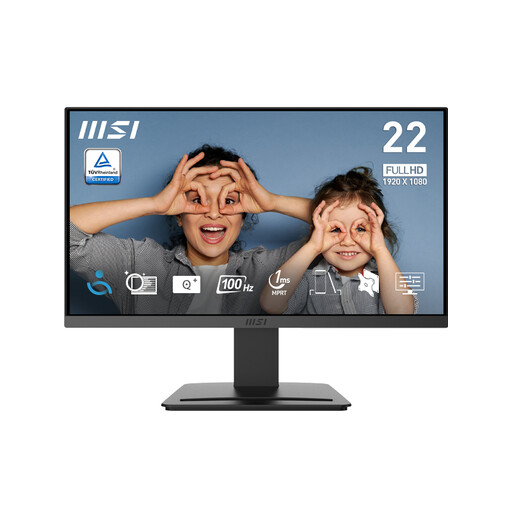 Image unavailable
Consider it when your workstation needs a separately positioned display and the computer has a compatible video output.
The listed resolution is 1920 × 1080, with a 100Hz refresh rate and tilt adjustment.
Inputs: HDMI 1.4b and DisplayPort 1.2a. Connecting it requires a compatible computer output.
 Image unavailable
Consider it when you need a separate screen for a changing or compact workspace and its positioning options suit your desks.
The listed display is 23.8 inches with Full HD resolution. The description specifies USB-C video and up to 60W power delivery.
USB-C video requires a compatible device with DP Alt Mode.
 Image unavailable
Consider a dock when you need to reconnect displays and peripherals, after checking that your laptop supports the intended setup.
The listed connections include two HDMI outputs, USB-A ports and card readers; the host connection is USB-C Alt. Mode.
The description specifies up to 100W Power Delivery pass-through and an external 100W-or-higher adapter for power.
 Image unavailable
Consider an external webcam if video for remote meetings is the specific need; check its USB connection against your computer.
The listing specifies autofocus, a built-in microphone, a 67-degree field of view, an adjustable clip and a tripod thread.
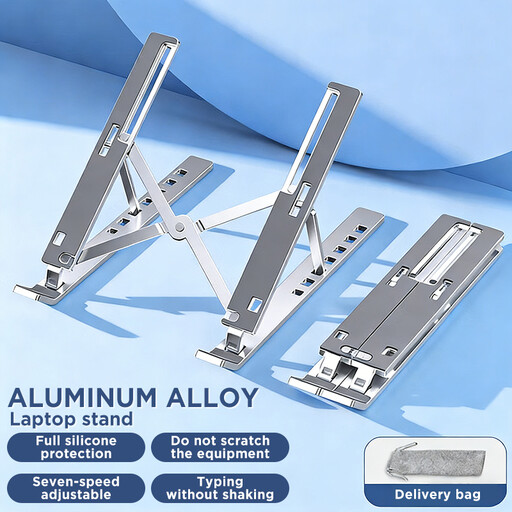 Image unavailable
Consider a stand when your assessed setup calls for raising the laptop screen. A stand does not separate the built-in keyboard, so plan separate input devices if needed.
The listed device range is 10 to 15.6 inches; the description specifies adjustable height and angle, foldability and non-slip pads.
No; HSE guidance does not prescribe one equipment bundle for everyone. Where DSE rules apply, an employer assesses the individual’s workstation arrangements and whether additional equipment is needed.
HSE guidance describes using a separate keyboard and mouse so the laptop screen can be raised, or using a separate display. Check your assessed screen and input positions; a stand alone does not separate the laptop’s built-in keyboard from its screen.
HSE says a worker cannot be charged when the employer’s DSE workstation assessment indicates an action is needed, such as providing DSE equipment. This does not mean every personally preferred upgrade must be supplied.
No; the dock’s listed ports alone do not confirm compatibility with your laptop. Check the computer’s supported video output, charging requirements and cables against the dock and displays, and confirm any workplace IT requirements.
They can apply to home workers who use DSE daily as part of normal work for continuous periods of an hour or more; HSE says the assessment should consider home and office arrangements where both are used. HSE also includes hot-desking and advises a basic risk assessment when workers change desks regularly.