Screen-cramped laptop workers
You need documents and communication windows visible during sustained home work and are deciding whether an external display would help.


Choose an external monitor if your laptop screen cannot comfortably show the work you need; choose a dock if repeated connections are the main frustration and your exact laptop supports the dock’s display and charging setup. If screen or input position is the problem, consider a monitor arm or a laptop stand with a separate keyboard and mouse instead. For workers covered by display screen equipment (DSE) requirements, follow the findings of the individual workstation assessment.
You need documents and communication windows visible during sustained home work and are deciding whether an external display would help.
You regularly reconnect a work laptop to a home display and peripherals, and need to check what its ports and a potential dock can actually support.
You have enough display area but want to change the position of the screen or input devices. Where DSE requirements apply, an individual assessment should guide equipment choices.
Consider it when: your laptop screen cannot comfortably show the documents and communication windows you routinely use.
Trade-off: it takes desk space and may need a separate charger, cable or positioning solution.
Consider it when: repeatedly reconnecting a compatible laptop to displays and peripherals is the main problem.
Trade-off: a dock does not guarantee that every laptop supports video, charging or the intended number of independent displays through its ports.
Consider it when: your existing display provides enough area but needs repositioning.
Trade-off: it does not add screen area or laptop connections, and an arm must fit both the monitor and desk.
Consider it when: the laptop display is large enough and raising it would address the positioning issue.
Trade-off: raising the laptop alone also raises its built-in keyboard, so a separate keyboard and mouse may be needed for the intended setup.
Choose according to the main bottleneck: available display area, repeated connections or screen and input position. For qualifying workers in Great Britain, the Health and Safety Executive (HSE) says equipment action should follow the individual workstation assessment.
| Concern | What to check when buying | Who this matters to |
|---|---|---|
| Usable screen area | Compare screen size, resolution, adjustment, desk space and the laptop’s supported display output. | During document-heavy home work, I want enough room to see what I need without constantly switching windows; around 36% of consumers make usable screen area their primary concern. |
| Laptop and display compatibility | Check the exact laptop’s port functions, external-display limit, operating system and the dock’s simultaneous output modes. | When connecting a laptop to a home display, I need the arrangement to work with that exact machine; around 29% of consumers put connection compatibility first. |
| Screen and input position | Check whether a monitor adjustment, laptop riser or separate keyboard and mouse addresses the positioning issue; follow any applicable individual DSE assessment. | If I already have enough screen area, I want the screen and inputs positioned appropriately for prolonged work; around 21% of consumers prioritise placement. |
| Reconnection and charging | Compare the laptop and accessory ports, power delivered to the laptop, required cable and any separate charger. | When I regularly reconnect a laptop to desk peripherals, I want fewer separate connections to manage; around 14% of consumers make reconnection convenience their main concern. |
The laptop’s capabilities and the accessory’s supported display modes determine what works; the connector shape alone does not establish compatibility.
Check the exact laptop port, operating system, dock requirements, simultaneous output modes and power delivery before choosing.
An unsuitable connection plan may require extra equipment or a separate charging arrangement.
A second display may not address an unsuitable screen or input position. HSE guidance for laptop setups describes raising the screen separately from the keyboard and mouse.
Decide whether you need more display area or a different screen and input position; where DSE requirements apply, follow the individual assessment.
A larger purchase can leave the original positioning issue unresolved.
The monitor’s mounting pattern and weight, and the desk’s attachment dimensions, are separate fit checks.
Compare the particular display and desk with the arm’s stated VESA pattern, load limit and clamp or grommet requirements.
A different mount or desk arrangement may be needed if those dimensions do not match.
DisplayLink says its manager on macOS requires Screen Recording permission to send pixels to a display.
Before choosing this route, check operating-system support and whether the work laptop permits the required software and permissions.
Setup may require additional permission or software installation, which may not be possible on a managed laptop.
The P2725QE illustrates a display-led fixed desk with a USB-C hub and charging functions.
The 27UP850K-W illustrates an adjustable external monitor with USB-C video, data and laptop charging.
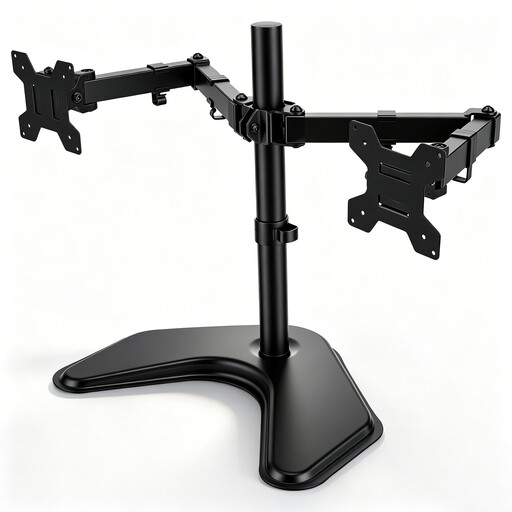
Its DK30C2DAGPD adapter and H1M1AG2-MONITOR-ARM illustrate different purchases for laptop connections and screen placement.
The USB-C 100W G6 Dock illustrates a peripheral-led desk connection option.
These Joybuy choices relate to adding an external display, connecting desk devices or repositioning monitors in a laptop-led home workstation.
 No image available
Consider it when your existing screens need repositioning and a freestanding base suits the desk better than clamping or drilling.
Specified for 17–32-inch monitors, VESA 75 × 75 or 100 × 100 mm, and up to 10 kg per screen; tilt, swivel and rotation adjustment are listed. Check each monitor’s weight and mounting pattern against these limits.
 No image available
Consider it if you need an external display and want USB-C charging and adjustable positioning in the same monitor.
Specified as a 27-inch 4K UHD IPS monitor with USB-C 65 W power delivery and a four-way adjustable stand. One-cable video and charging depend on a compatible laptop connection.
 No image available
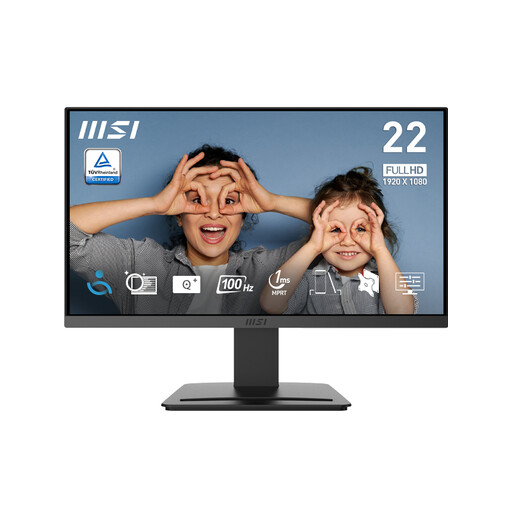
Consider it when a separate screen is needed for laptop work and its stated inputs suit the planned connection.
Specified as a 21.45-inch 1920 × 1080 display with HDMI 1.4b and DisplayPort 1.2a inputs, tilt adjustment and 75 mm VESA mounting.
 No image available
Consider it if you want a separate 27-inch display and need several stand-position adjustments at a fixed desk.
Specified as a 2560 × 1440 IPS monitor with HDMI, DisplayPort and USB-C; its stand adjusts for height, tilt, swivel and pivot. Check the laptop’s supported USB-C video and charging functions before planning a one-cable setup.
 No image available
Consider it when reconnecting a laptop to displays and several desk peripherals is the main task, provided the laptop supports the required arrangement.
Specified with two HDMI 2.0 ports, up to 100 W power-delivery pass-through, USB-A ports, card readers and Gigabit Ethernet. Dual-display use depends on the laptop supporting the dock’s USB-C Alt. Mode arrangement; the description specifies a separate 100 W or higher adapter for the dock.
No. Check the exact laptop port’s video function and charging support, the monitor or dock’s host requirements, and the cable specified for the intended functions. LG specifies the included cable for the 27UP850K-W connection; the laptop must also be compatible.
No. Check the laptop model’s external-display limit and the dock’s simultaneous display mode for the intended resolution and operating system. Apple specifies up to two external displays for the M5 MacBook Air under its stated conditions, while StarTech.com specifies one-monitor MacBook compatibility for the DK30C2DAGPD.
In Great Britain, HSE says an employer must assess a workstation when a worker uses DSE daily as part of normal work, continuously for an hour or more. HSE says home and office situations should both be covered where the worker uses both. These are employer duties for qualifying workers, not a product specification for every buyer.
For Great Britain, HSE says that when an assessment indicates action such as providing DSE equipment is needed, the worker cannot be charged for it. The assessment determines what equipment is needed, so check the applicable workplace process before paying personally.
Match the monitor’s mounting pattern and weight, and the desk’s attachment dimensions, to the exact arm. For its H1M1AG2-MONITOR-ARM, StarTech.com specifies 75 × 75 or 100 × 100 mm VESA mounting, a 10 kg maximum display weight and a 2–6 cm desk-clamp range.