What to prioritise when choosing
Decide whether one laptop screen meets your needs, then whether an additional or larger display is worth the desk space; add a hub only if your laptop supports the intended displays and charging arrangement.
Laptop-first setup
Choose when: One laptop screen is enough and you want a compact setup that can be moved or stored.
Trade-off: A riser changes screen position but does not add screen area, and the raised laptop still needs separate input devices for prolonged use.
One external monitor
Choose when: Reading or comparing documents calls for a larger or separately positioned display.
Trade-off: The monitor takes desk space, and its connection and charging features depend on the laptop and cable.
Multiple external displays
Choose when: Your work benefits from viewing several windows at once and your laptop supports the intended display setup.
Trade-off: More displays mean more equipment and connection requirements to check, and some hubs need a separate charger.
| Concern |
What to check |
Who this matters to |
| Screen and input position |
Check laptop fit and riser adjustment, then whether the screen, keyboard and mouse can be positioned comfortably together. |
If I raise my laptop for prolonged work, I still need my keyboard and mouse in a workable position. Consumers who put laptop positioning first make up around 36% of this group. |
| Usable screen area |
Consider whether your tasks need an additional or larger display, and check the available desk space, screen position and laptop output. |
When I regularly read or compare documents, I may want more viewing area without taking over my desk. Consumers who prioritise screen area make up around 29% of this group. |
| Video and charging connections |
Check the laptop’s supported displays and USB-C video mode against the intended resolution, dock conditions and charging needs. |
If I reconnect displays and peripherals often, I need the laptop, cable and hub to work together for video and power. Consumers focused on connection requirements make up around 21% of this group. |
| Meeting visibility and lighting |
Assess the existing camera position, lighting and screen reflections before choosing an addition. |
When calls or lighting are the problem, I want to address that specific shortcoming rather than add equipment by default. Consumers who prioritise meeting visibility or lighting make up around 14% of this group. |
Joybuy product options
These Joybuy options cover laptop screen positioning, portable or desk-based external displays, connection expansion and separate mouse input for home or hybrid work.
 No image available
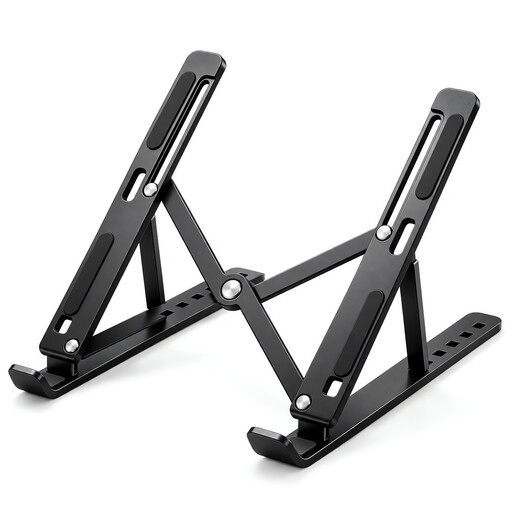
Foldable Adjustable Laptop Stand
For a laptop-first setup where you want a screen position that can be adjusted or moved between work locations.
Seven height levels with a 15–45-degree adjustment range; fits 10–17-inch laptops and folds flat. The title also specifies a ventilated panel and anti-slip silicone pads.
For prolonged laptop use, HSE guidance recommends separating the keyboard and mouse from the raised screen.
View on Joybuy
 No image available
ASUS ZenScreen MB166CR FHD
For a laptop setup that needs an additional screen which can also be carried between locations.
15.6-inch Full HD display; USB-C video uses DisplayPort Alternate Mode. The product information specifies a weight of 780 g and says HDMI is not supported.
Check that the laptop’s USB-C port supports DisplayPort Alternate Mode.
View on Joybuy
 No image available
ASUS ProArt PA278CV IPS WQHD
For sustained desk work where a positionable external display suits the available workspace.
27-inch WQHD display with an adjustable stand offering height, tilt, swivel and pivot adjustments. Connections listed include HDMI, DisplayPort and USB-C with power delivery.
Confirm that the laptop supports the intended display connection and power arrangement.
View on Joybuy
 No image available
Targus USB-C Universal Dual HDMI 4K Docking Station
For a laptop setup that needs connections for two external displays and additional peripherals.
USB-C Alt. Mode with dual HDMI outputs, Ethernet and card readers; the title specifies 100 W power delivery pass-through.
The product information specifies an external 100 W+ adapter connected to the dock for power. Check that the laptop supports the intended display setup.
View on Joybuy
 No image available
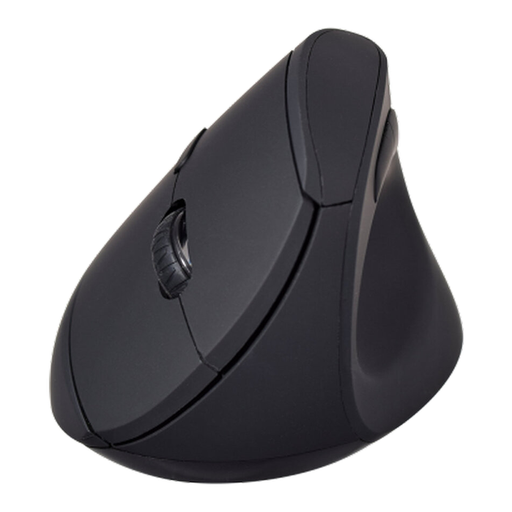
V7 MW500BT Vertical Mouse
For a laptop setup where you want a separate pointing device from the raised screen and keyboard.
Dual-mode 2.4 GHz wireless and Bluetooth connectivity, six buttons, and adjustable 800, 1,200 and 1,600 DPI settings.
View on Joybuy
Frequently asked questions
Does UK DSE guidance automatically mean I need to buy a monitor for home?
No particular monitor purchase follows automatically. HSE says DSE requirements can apply to permanent, long-term or hybrid home workers who use DSE daily for continuous periods of an hour or more. Where the requirements apply, the employer assesses the workstation and determines whether action is needed.
If an assessment identifies equipment needed to address a DSE risk, do I pay for it?
HSE says workers cannot be charged for action the employer needs to take when a DSE workstation assessment indicates that action is needed, such as providing DSE equipment. This does not mean every optional personal upgrade must be supplied.
Can a laptop riser replace a separate keyboard and mouse for prolonged use?
No. HSE guidance pairs an elevated laptop screen with a separate keyboard and mouse for prolonged laptop use, or suggests using a separate display. Check that the screen and input devices can be positioned suitably together.
Will a USB-C hub necessarily run two monitors and charge my laptop?
No. Anker’s stated 565 hub display modes depend on the laptop’s DisplayPort version, and pass-through charging requires a charger that Anker says is not included. Check the particular laptop, cables, displays and power requirements before choosing a hub.
Does a home-working DSE assessment cover only the home desk?
No. HSE says that when a worker uses DSE at home and in the office, the assessment should cover both situations. This is employer guidance, not a requirement for the worker to buy identical equipment for each location.


