Buying priorities
Work through the laptop’s capabilities first, then choose the accessory combination that solves the desk setup, reconnection or meeting problem you actually have.
| Priority |
What to check |
Your needs |
| Screen and input position |
Check whether a stand can be used with a separate keyboard and mouse; position the display directly in front of you; consider a separate monitor when one laptop screen is too limiting. |
I want to raise the laptop screen for longer sessions without having to type with raised arms or an uncomfortable neck position. Health and Safety Executive guidance recommends separate input devices when the laptop screen is elevated. |
| External-display support |
Confirm the exact laptop model’s external-display count, supported resolution and refresh rate; check the intended cable, dock or adapter path; account for whether the laptop screen stays active. |
I need the monitor setup I buy to work at the intended settings, rather than relying on the number of ports on a dock. Microsoft Support and Apple Support state that display support can depend on the model, connection method, display count, resolution and refresh rate. |
| Desk reconnection |
Check for video-capable USB-C, USB4 or Thunderbolt support; compare the laptop’s charging requirement with the dock’s power delivery; choose only the display, USB, Ethernet and audio ports you will use. |
I want one connection for common desk equipment when moving between home and workplace, without finding that charging or video output is unavailable. Microsoft Support advises confirming PC support and using the supplied or certified USB4 cable with USB4 equipment. |
| Meeting-device compatibility |
Check the required meeting platform and operating system; confirm whether USB, Bluetooth or a wireless receiver is permitted; establish whether drivers or firmware updates need approval. |
I need a webcam, headset or speakerphone that can be used with work software and my managed laptop. Microsoft Learn notes that organisations can block USB device classes or allow only specified devices. |
Joybuy product options
Joybuy product options for hybrid laptop desk setups, covering docks, external displays and a webcam. Check each option against your laptop’s ports, display support and workplace policy.
 Image unavailable
Targus USB-C Universal Dual HDMI 4K Dock with 100W Power Delivery
Consider this for repeated desk reconnection where a compatible USB-C Alt Mode laptop needs displays, power and common peripherals through one connection.
Stated features include two HDMI 2.0 outputs up to 4K at 60Hz, 100W Power Delivery pass-through, Gigabit Ethernet, USB ports and card readers. Check that your laptop supports the intended two-display setup and charging level; managed devices may also need peripheral approval.
Joybuy
 Image unavailable
Targus 2K Webcam with Auto Focus
A dedicated camera option for frequent video calls, particularly when a laptop is raised on a stand or used in a docked setup.
The listing states a 67-degree field of view, dual stereo microphones, privacy slider, auto-focus, adjustable clip and tripod thread. Check the resolution before choosing: the title says 2K while the technical details state 1080p at 30fps; confirm USB camera approval for a managed laptop.
Joybuy
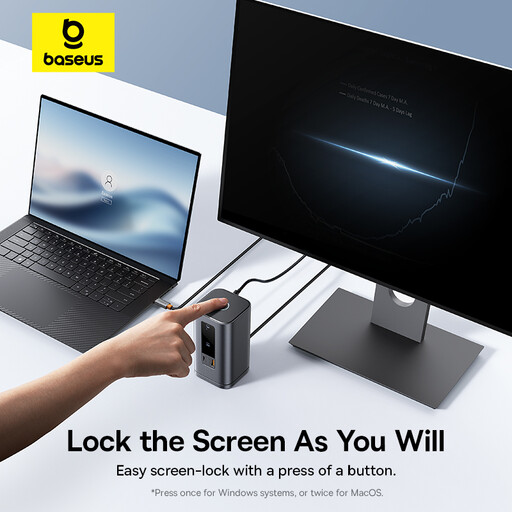 Image unavailable
Baseus Wisdom Series 11-in-1 WIN Workstation
Consider this for a regular desk with several peripherals, where the laptop’s Type-C connection supports the required video and power functions.
The listing includes HDMI and DisplayPort outputs, USB data ports, Gigabit Ethernet, audio and 100W PD input, with stated 4K at 60Hz output capability and 10Gbps USB-A and USB-C data ports. The listed video outputs do not override the laptop’s own display limits.
Joybuy
 Image unavailable
ASUS ZenScreen MB166C 15.6-inch Full HD IPS Portable Monitor
A portable second-screen option for hybrid workers who want extra workspace at home and workplace rather than a fixed desk monitor.
The listing states a 15.6-inch Full HD IPS display, single USB Type-C connection, 780 g weight, anti-glare surface, flicker-free technology and blue-light filter. It has no HDMI input or built-in speakers, so check compatible USB-C video and power support plus any separate audio requirement.
Joybuy
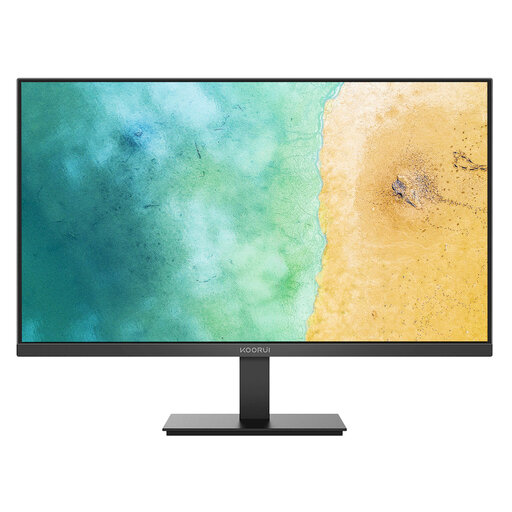 Image unavailable
KOORUI MB27V29FS2 27-inch IPS Monitor
A larger separate screen for sustained multi-document work at a fixed home desk, provided the laptop or dock has a compatible display-output path.
The listing specifies a 27-inch Full HD IPS panel, 75Hz refresh rate, HDMI and VGA inputs, anti-glare surface, flicker-free technology, tilt adjustment and VESA 100 × 100 mm mounting. No USB-C input or built-in speakers are listed.
Joybuy
Frequently asked questions
Does a USB-C port guarantee that a laptop can run an external monitor and charge through a dock?
No. USB-C is a connector type, not a guarantee of display, data or charging functions. Check the exact laptop specification for video output such as USB-C Alt Mode, Thunderbolt or USB4 support, its supported display configuration and charging capability. Microsoft Support also notes that functionality may be limited when the PC, dock or cable does not support the required USB4 capability.
Can I add two external monitors to any laptop with a dual-monitor dock?
No. The laptop’s own graphics and model-specific display limits still apply. Microsoft Support states that display resolution and refresh rate can depend on the number of connected displays and connection method, while Apple Support says display count depends on the Mac model and each display’s resolution and refresh rate. Check the manufacturer’s support information for your exact model before buying.
What is the practical minimum accessory combination for prolonged laptop work at home?
Start with a way to elevate the laptop screen plus a separate keyboard and mouse. Health and Safety Executive guidance identifies separate input devices as part of using a laptop screen on a riser or similar support. Add an external monitor when you need more working area rather than assuming a dock is the first purchase.
Should I buy a DisplayLink dock for an employer-issued laptop without asking IT?
No. Ask IT first. Microsoft Learn documents that organisations can restrict USB devices, allow only approved device IDs and control driver-update approvals. If the dock or its display function needs a driver or firmware update, you may not have permission to install it or the peripheral may be blocked by policy.
When should I choose a dedicated webcam or headset instead of relying on the laptop?
Choose dedicated call hardware when frequent video calls expose limitations in the laptop’s camera, microphone or speakers, or when the laptop will be raised or closed in a docked setup. Check the required meeting platform, operating system, connection method and employer policy before purchase.


