Hybrid workers reconnecting at home
If you move a laptop between workplaces, decide which monitor, input devices and charging connection need to be ready at the home desk. A USB-C socket alone does not establish which of those functions it supports.


Start with the exact laptop model and the desk devices you need to connect, rather than choosing a dock by its port count. A direct cable or suitable adapter can serve a single-monitor desk; a USB-C or Thunderbolt dock makes more sense when supported display, peripheral and charging connections need to come together, while an older USB-A laptop needs a dock expressly validated for that route. None of these choices overrides the laptop’s own display limits, and a purchase does not replace an applicable employer workstation assessment.
If you move a laptop between workplaces, decide which monitor, input devices and charging connection need to be ready at the home desk. A USB-C socket alone does not establish which of those functions it supports.
Check the exact laptop model’s external-display count and the resolution and refresh rate of each planned monitor before choosing a dual-monitor dock. Apple Support notes that even a supported hub does not increase a Mac’s maximum display count.
If a work or personal laptop lacks a suitable USB-C or Thunderbolt connection, look for a dock whose manufacturer documents the required USB-A connection, operating system and display arrangement. Do not assume a plug adapter creates video capability.
Choose when: One external display is the main addition to your desk and you can match the laptop’s video output to the monitor input.
Trade-off: A cable or adapter will not bring charging and other desk devices together into one laptop connection.
Choose when: You regularly reconnect a supported laptop to several fixed desk devices and want to consolidate those connections.
Trade-off: Video, charging and display count still depend on the laptop and the dock’s documented capabilities.
Choose when: A laptop lacks a suitable USB-C or Thunderbolt route and the dock maker explicitly supports its connection and operating system.
Trade-off: Display behaviour and any required software need checking for the exact dock and laptop combination.
For a routine hybrid-work desk, settle compatibility before deciding whether fewer connections or a different physical workstation arrangement is the greater priority.
| Concern | What to check | Who this matters to |
|---|---|---|
| Laptop and display compatibility | Check the exact laptop model’s video-capable ports and external-display limits against the intended monitor resolution and refresh rate. | If my planned screens exceed what my laptop supports, a dock with more outputs will not solve the problem. Around 45% of consumers put compatibility first. |
| One-cable desk connections | Match the dock’s display and peripheral connections to your devices, then compare its stated power delivery with the laptop’s charging requirements. | When I return to the same desk regularly, reconnecting several devices is the task I most want to simplify. For around 33% of consumers, consolidating those connections is the primary need. |
| Workstation arrangement | Consider display placement, desk space and separate input devices; where applicable, use the employer’s display screen equipment assessment to identify workstation changes. | If screen and keyboard placement are my main difficulty, adding dock ports will not rearrange the desk. Workstation arrangement comes first for around 22% of consumers. |
A dock cannot increase the laptop’s maximum supported external-display count. Apple Support also ties Mac display support to the model and the displays’ resolutions and refresh rates.
Write down the exact laptop model and planned display settings, then compare them with the laptop maker’s specifications before choosing dock outputs.
A matching connector does not establish that the laptop, cable and dock support the intended video and power arrangement.
Check the laptop’s documented port functions and the dock’s host requirements, then match the resulting video connection to the monitor input.
The Health and Safety Executive says UK display screen equipment duties can apply to routine hybrid workers. For workers using display screen equipment daily for continuous periods of an hour or more, it says employers must carry out a workstation assessment.
Check your employer’s assessment process before buying equipment to address a workstation issue, so you can distinguish an identified workstation measure from a connectivity upgrade.
Dell’s dock range is worth examining if you need documented USB-C power and display specifications for a fixed desk.
Lenovo lists USB-C, Thunderbolt and other docking routes for buyers comparing connections across laptops.
Kensington provides a documented USB-C and USB-A dock route for investigating connections to an older laptop.
CalDigit’s TS4 is a Thunderbolt desk-dock reference for a buyer who has already checked laptop display and charging support.
These standalone monitors suit the external-display part of a hybrid laptop desk. Choose the screen and connection only after checking the laptop’s video output and supported display settings; a monitor does not replace a dock when you also need to consolidate other devices.
 No image available
Consider this as a separate screen for a fixed home desk if its connection and display settings match your laptop.
The product title specifies a 31.5-inch IPS display and built-in speakers. Check the monitor inputs and your laptop’s supported resolution and refresh rate before choosing a cable or dock.
 No image available
Consider this curved external screen if its size and stated display settings suit your desk and laptop.
The title specifies 2560 × 1440 resolution, 165Hz, HDMI and DisplayPort, and VESA 100 × 100 mm mounting. Check whether the laptop and chosen connection support the resolution and refresh rate you intend to use.
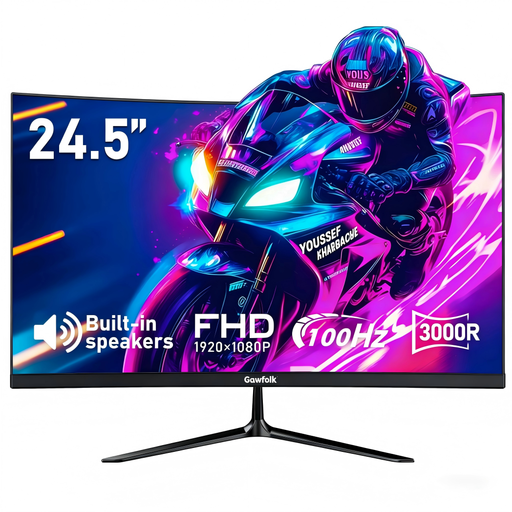 No image available
This is another external-display option when a 24.5-inch curved screen fits the planned desk arrangement.
The title specifies FHD resolution, 100Hz, HDMI and VESA 75 × 75 mm mounting. Confirm the laptop’s video output and the connection needed for your intended settings.
 No image available
Consider this standalone work display if a 24-inch FHD screen meets your desk needs.
Check its available inputs against the laptop’s video output, or against the output of a dock you have confirmed is compatible.
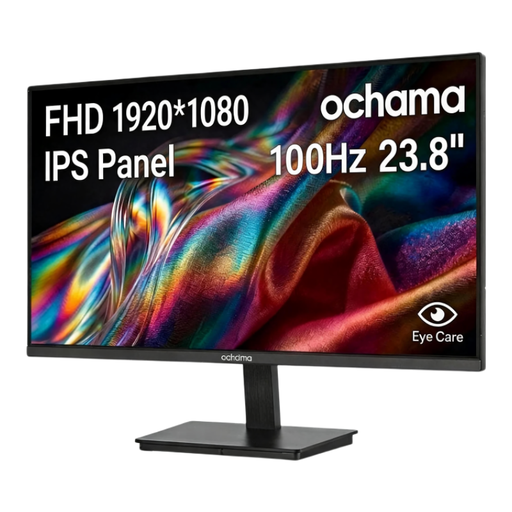 No image available
This separate screen is an option for a home desk if its size and connection suit your laptop setup.
The title specifies a 23.8-inch 1080p display and 100Hz. Confirm the monitor’s video inputs and the cable or adapter required before buying.
The Health and Safety Executive says display screen equipment (DSE) regulations can apply to people who work at home long term or routinely split their time between home and a workplace. It says employers must assess workstations where workers use DSE daily as part of normal work for continuous periods of an hour or more.
Yes, where the applicable duties cover your work: the Health and Safety Executive says employers have the same health and safety responsibilities for home workers as for workers on site. An assessment should address identified workstation risks; buying your own monitor or dock is not a substitute for that process.
Check the exact Mac model’s supported external-display count, resolutions and refresh rates before choosing the dock. Apple Support says a supported hub or daisy-chain arrangement does not increase the Mac’s maximum number of connected displays.
No: the USB-C connector shape alone does not confirm video output or the charging arrangement. Check the exact laptop port’s documented functions, the dock’s host compatibility and power delivery, and the connection to your intended monitor.