What should you choose first?
Decide whether screen space, repeated connections, input position or portability is the main reason to change your setup. A monitor, dock and laptop stand address different problems, and more than one accessory may be needed for prolonged use.
| Concern |
What to check |
Who this matters to |
| Screen position and workspace |
Check the laptop’s supported display count and video output, then the monitor input, required cable and available desk space. |
If I work at one desk with documents and calls open together, I need enough visible space without assuming my laptop can run the intended display. Around 36% of consumers put screen position and workspace first. |
| Repeated connections |
Match the dock or hub to the exact laptop’s host interface, display configuration and charging needs; check workplace IT requirements. |
Moving between work locations makes reconnecting a display and peripherals the part of my routine I most want to simplify. For around 29% of consumers, easier desk connections are the primary need. |
| Input position during prolonged use |
Choose separate keyboard and mouse connections that suit the laptop, available ports and preferred keyboard layout. |
If I raise my laptop screen, I still need to type and use a pointer in a workable position. Separate input devices come first for around 21% of consumers. |
| Portability |
Consider what must be carried and reconnected, and whether a compact stand or hub meets the actual work need. |
When I regularly change desks, I want equipment I can move without committing to a permanent monitor arrangement. Around 14% of consumers primarily favour a portable setup. |
Joybuy products for different desk needs
These products cover external screens, desk connections and separate input devices. Choose by the problem you need to solve, then confirm the proposed connection and workplace arrangements for your own laptop.
 No image available
Targus USB-C Universal Dual HDMI 4K Docking Station, 100W PD Pass-Thru, Retail Packaging
For a desk where a laptop is repeatedly connected to displays and peripherals. The product information lists two HDMI 2.0 outputs, USB-A ports and Ethernet, plus up to 100W USB-C power-delivery pass-through. Check the laptop’s display support and whether a suitable external 100W or higher adapter is available for the intended charging arrangement.
View on Joybuy
 No image available
AOC Q32V4 IPS Monitor
For adding a separate screen at a fixed desk. The product information lists a 2560 × 1440 IPS display, HDMI and DisplayPort inputs, and VESA 100 × 100 mm mounting compatibility. Check the laptop’s video output and the required cable or adapter; confirm the screen size before choosing a mount or desk position.
View on Joybuy
 No image available
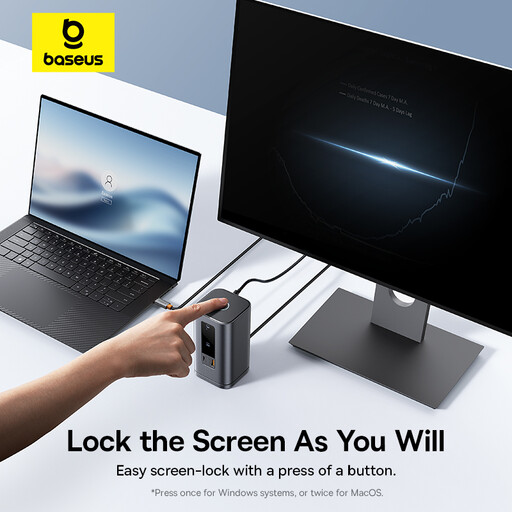
Baseus Wisdom Series 11-in-1 (WIN) Workstation, Space Gray
For a desk needing several wired connections through a laptop dock. The product information lists HDMI and DisplayPort outputs, USB data ports, Ethernet, audio and up to 100W power input. Confirm the exact laptop’s display configuration and charging needs, as well as the required power adapter, before planning a multi-screen setup.
View on Joybuy
 No image available
Philips 3000 Series SPT6318B/05 Wireless Keyboard and Mouse, UK English, Black
For using separate input devices when a laptop screen is raised. This UK English keyboard-and-mouse set uses a USB-A wireless receiver; check that the intended laptop has a suitable available port and that receiver use is permitted for work. The set does not raise the laptop screen.
View on Joybuy
 No image available
KOORUI E2412F 24-inch FHD Monitor
For adding a separate screen to a laptop desk. The product information lists a 1920 × 1080 IPS display, HDMI and DisplayPort inputs, and tilt adjustment from −5° to 15°. Check the laptop’s video output and cable requirements, then confirm that the available screen positioning suits the desk.
View on Joybuy
Frequently asked questions
Does every home or hybrid worker need a monitor or dock?
No. For workers covered by display screen equipment duties in Great Britain, Health and Safety Executive guidance calls for an assessment of the individual workstation, not the purchase of a particular accessory by everyone. The need for a monitor, dock or other equipment depends on the workstation and the risks identified.
Will any USB-C dock run two monitors and charge my laptop?
No: the outcome depends on the exact laptop, dock, displays, cables and supported connection standards. Apple Support advises checking model-specific Mac display support, and Microsoft Support documents host-dependent limits for Surface Dock displays. Confirm the complete planned configuration before choosing a dock.
Can a laptop stand work on its own for prolonged laptop use?
A stand raises the screen, but it does not separate the built-in keyboard and trackpad from it. For prolonged laptop use, the Health and Safety Executive advises using a separate keyboard and mouse so the screen can be elevated.
What should I ask my employer or IT team before choosing peripherals?
Ask which equipment is approved, who provides repairs and technical support, and what security rules apply to receivers, software and network connections. Acas advises employers and staff to agree on equipment and support arrangements for home working.


