What should you check before choosing?
For routine home or hybrid laptop work, assess the screen and input positions before deciding whether extra display space, desk connectivity or a more portable arrangement is the next priority.
| Concern |
What to check |
Who this matters to |
| Positioning for prolonged work |
Check whether the screen can be positioned independently of a separate keyboard and mouse, using a riser or a separate display. |
When I work directly on a laptop for long stretches, I need to raise the screen without making the keyboard awkward to use. For around 33% of consumers, positioning is the primary concern. |
| Screen space at a regular desk |
Check where an external monitor will sit and whether its video connection works with the laptop. |
At my regular desk, I need a separately positioned main screen rather than simply lifting the laptop. Around 27% of consumers put additional screen space first. |
| Desk connections |
Check the laptop’s required USB-C Alt Mode or Thunderbolt support and the dock’s display arrangement and charging capability. |
If I reconnect a display, wired network and input devices each workday, I need the connections to work with my particular laptop. For roughly 20% of consumers, desk connectivity takes priority. |
| Portable and multi-device use |
Check the ports needed away from the main desk, or explicit device-switching support on the keyboard or mouse. |
Moving between work locations, I want fewer connection pieces to carry, or inputs that switch between compatible devices. Around 20% of consumers place portability and device switching first. |
Joybuy products for these setups
These products address three parts of a hybrid laptop setup: a separate monitor, separate input devices and adapters or docks for connecting a laptop. Choose the part that matches your workstation needs, then check laptop compatibility and what else the complete setup requires.
 No image available
Targus USB-C Universal Dual HDMI 4K Docking Station, 100W PD Pass-Thru (Retail Packaging)
Consider this dock when a desk setup calls for HDMI display connections through a laptop’s USB-C port.
The title specifies dual HDMI 4K connections and 100W power-delivery pass-through. Check the laptop’s video support, intended display arrangement and power-adapter requirements before choosing it.
View on Joybuy
 No image available
Dahua 32-inch 4K 165Hz Curved OLED Monitor, USB-C 65W
Consider a separate monitor when a regular desk needs a main screen positioned apart from the laptop keyboard.
This model’s title specifies 3840 × 2160 resolution, a 165Hz refresh rate, a USB hub and USB-C 65W. Check whether the laptop supports the intended video connection and whether the monitor’s charging capability meets its requirements.
View on Joybuy
 No image available
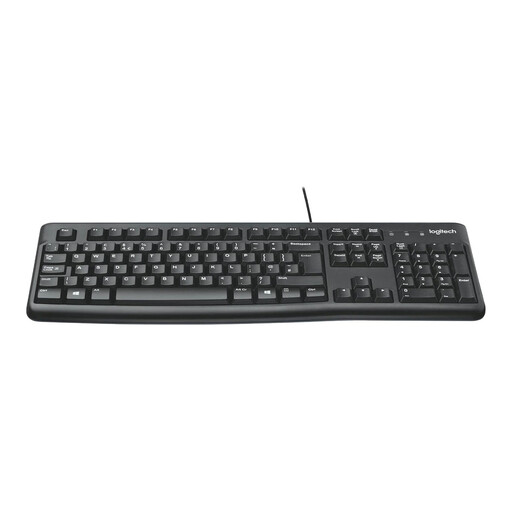
Logitech MK120 Wired Keyboard and Mouse Set, Black
This separate keyboard and mouse set is relevant when the laptop screen will be raised or a separate monitor will be used.
The set provides wired input devices. It does not position the laptop screen, so plan the screen arrangement separately.
View on Joybuy
 No image available
Baseus Metal Gleam Series II 10-in-1 USB-C Hub, Cosmic Black
Consider this hub when a laptop setup needs HDMI display connections alongside USB peripherals and wired networking.
Its title lists two HDMI outputs, individually specified as 4K at 120Hz and 4K at 60Hz, plus USB, RJ45, SD/TF and a USB-C PD connection. Check laptop video compatibility and the supported simultaneous display arrangement; the individual output figures do not establish what both outputs can deliver together.
View on Joybuy
 No image available
V7 V7UC-U3CRJ45HDVG-BLK USB-C Adapter with 4K HDMI, VGA and Ethernet
Consider this adapter when a laptop needs a connection to one external display alongside wired networking and USB peripherals.
The title specifies HDMI, VGA, Gigabit Ethernet, 100W power delivery and dual USB 3.0 ports. Check that the laptop’s USB-C port supports the required video output and that the chosen HDMI or VGA connection meets the display’s needs.
View on Joybuy
Frequently asked questions
When can workplace display screen equipment duties apply to hybrid work?
For Great Britain, the Health and Safety Executive says an employer workstation assessment is required when workers use display screen equipment daily as part of normal work for continuous periods of an hour or more; its home-working guidance covers relevant long-term and hybrid arrangements. Northern Ireland has separate guidance from the Health and Safety Executive for Northern Ireland. These duties do not mean every home worker needs additional equipment.
Should I ask my employer before buying equipment for work?
Yes, if an employer display screen equipment assessment applies, raise the workstation need through that process first. Guidance from the Health and Safety Executive for Great Britain and the Health and Safety Executive for Northern Ireland says a worker cannot be charged when the assessment identifies action such as providing equipment for home working; the assessment establishes what is needed.
Is a laptop stand enough for prolonged work?
Not if you still have to type on the raised laptop keyboard. The Health and Safety Executive advises using a separate keyboard and mouse so the laptop screen can be elevated for prolonged use; a separate display is another arrangement to assess as part of the whole workstation.
Will any USB-C dock run two monitors and charge my laptop?
No: the laptop port, dock and intended display arrangement must all be compatible. Check whether the laptop supports the required USB-C Alt Mode or Thunderbolt protocol, then compare the dock’s display and charging specifications with the exact laptop and operating system.
Can a USB-C monitor take the place of a separate dock?
It can when its built-in connections cover the devices you need and the laptop supports them. For example, Dell specifies video, data, Ethernet and up to 90W power delivery over USB-C for its P2725QE monitor; check the monitor’s ports and charging specification against your own laptop before relying on one cable.


