What to consider before buying
Start with what is getting in the way at your home desk: limited screen space, repeated reconnection, an awkward working position or a specific call problem. Then check that the accessory’s connections and power capabilities suit your laptop and intended setup.
| Concern |
What to check when buying |
Who this matters to |
| Usable screen space |
Check desk fit, laptop video output and monitor input. If you plan to charge through the monitor, compare its power delivery with your laptop’s requirement. |
When documents or meetings feel cramped on a laptop screen, I want more room to work at a fixed desk. About 28% of consumers put usable screen space first. |
| Reconnecting desk devices |
Compare the laptop’s supported video protocol, display configuration and charging needs with the exact dock’s host requirements and power delivery. |
If I reconnect several devices each time I return to my desk, I want a setup that supports those connections without relying on the USB-C socket shape alone. About 22% of consumers prioritise reliable reconnection. |
| Screen and input position |
Consider screen height alongside keyboard and mouse placement. A stand alone does not provide separate input devices. |
For longer laptop sessions, I want the screen in a workable position without leaving the keyboard and mouse awkwardly placed. About 22% of consumers put screen and input position first. |
| Home-call setup |
Identify whether the problem is camera position, microphone pickup or listening privately, then check the device connection and any required software. |
If something specific is not working for my calls, I want to address that camera or audio need rather than assume one device fixes both. About 17% of consumers prioritise a more suitable call setup. |
| A smaller, selective setup |
List the devices you actually need to connect and check which functions your laptop or a hub monitor already provides before adding a dock. |
If my laptop already handles the essentials, I want to add only what solves a clear desk problem. About 11% of consumers put avoiding a duplicated setup first. |
Joybuy product choices
These Joybuy choices relate to laptop-based home workspaces, including external screens, desk connections, screen positioning and home calls.
 No image available
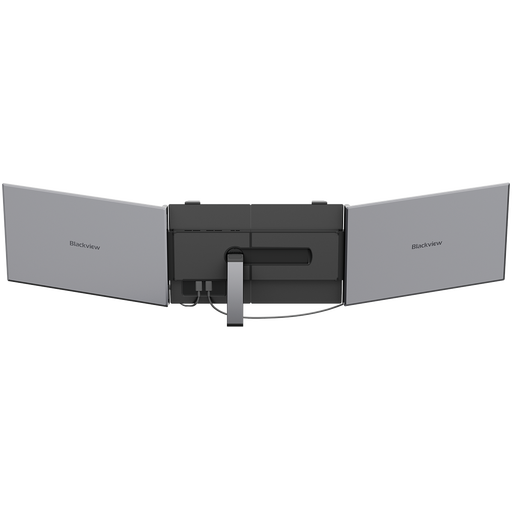
Blackview DCM8 Portable Monitor
A portable external screen for adding a separate display to a laptop workspace.
15.3-inch IPS display; 1920 × 1200 resolution; 60 Hz; 1.2 kg; USB-C and HDMI; 100 W reverse charging. USB-C video requires compatible laptop video output.
View on Joybuy
 No image available
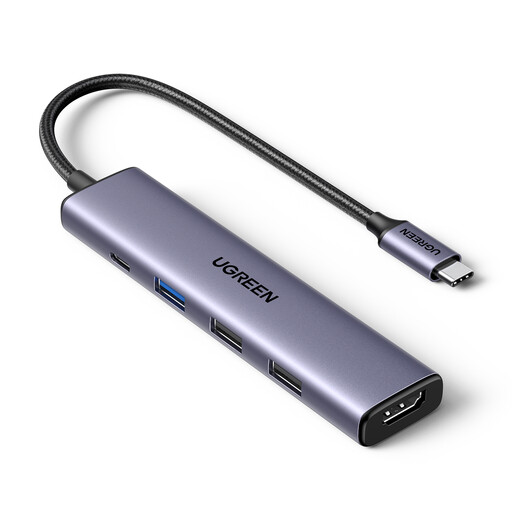
UGREEN Revodok 5-in-1 USB-C Hub
A compact multiport hub for connecting a laptop to a display and desk peripherals, where the laptop supports the required functions.
4K HDMI; three USB-A data ports; 100 W PD. Confirm that the laptop supports the video and charging functions you need.
View on Joybuy
 No image available
MSI MD272UPSW 27-inch 4K UHD Smart Monitor
A fixed-desk monitor option for adding a larger display to laptop work.
The product name specifies USB-C with 65 W power delivery and Google TV. Check whether 65 W meets your laptop’s charging requirement.
View on Joybuy
 No image available
Targus 2K Webcam with Auto Focus
A separate webcam option if camera position or focus is the specific issue on home calls.
The product name specifies 2K resolution and autofocus.
View on Joybuy
 No image available
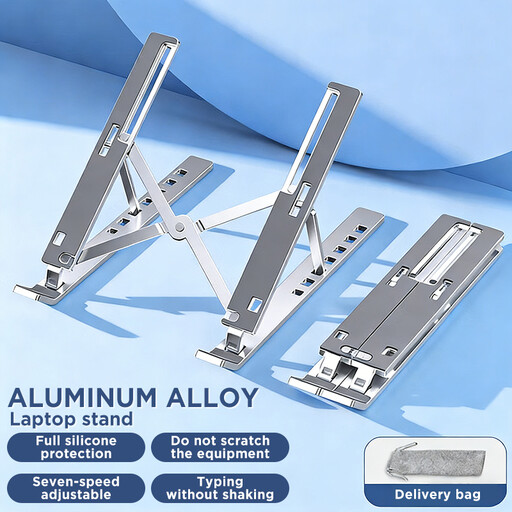
Adjustable Foldable Laptop Stand
A stand option for changing laptop screen position at a desk; plan keyboard and mouse placement alongside it.
The product name specifies an aluminium, foldable, portable design for 10–15.6-inch laptops and tablets.
View on Joybuy
Frequently asked questions
Will any USB-C dock give my laptop one-cable video and charging?
No. Video over USB-C depends on the laptop supporting the required display mode, and the dock’s display configurations and power delivery have their own conditions. Check the exact laptop port, supported displays and charging requirement against the dock before choosing it.
If I raise my laptop on a stand, what else should I arrange?
Consider the screen position alongside keyboard and mouse placement, rather than treating screen height as the only aim. HSE posture guidance addresses these positions together, so a stand may call for separate input devices to suit your arrangement.
Should I choose a webcam or a headset for home calls?
Choose according to the problem: a webcam is the camera route, while a headset addresses audio and listening needs. Check the device connection and any software-dependent features before buying.
Do display-screen rules require every hybrid worker to buy the same accessories?
No uniform accessory list follows from HSE guidance. HSE says workstation assessment duties apply in specified circumstances, including when workers use display-screen equipment daily as part of their normal work, continuously for an hour or more. The assessment considers the workstation and the worker’s circumstances; it does not mean every reader needs to buy a particular product.
What if an online accessory does not fit my setup?
For qualifying UK distance sales, GOV.UK says a customer can notify the seller of cancellation within 14 days of receiving an item and then has another 14 days to return it. Different rights also apply to faulty goods. Check the terms that apply to your purchase and identify the compatibility requirement before ordering.


