Relevant brands to consider
These examples describe particular product lines and manufacturer-stated features, not a recommendation of every product from each brand. Check compatibility for your exact laptop and setup.
Dell
Dell’s P2425HE is a monitor option for a regular desk where display space and connection functions both matter.
- Dell specifies a 23.8-inch, 1920 × 1080 display, height, tilt, swivel and pivot adjustment, and up to 90W USB-C host power delivery for this model.
- Those specifications apply to the P2425HE; check that its connections and charging capabilities suit your laptop.
Lenovo
The ThinkVision T24mv-30 combines a desk display with call hardware for a setup where both are needed.
- Lenovo specifies a 23.8-inch FHD display, 5MP camera, microphones and an adjustable stand for the T24mv-30.
- Integrated call features do not establish compatibility with every meeting or sign-in system; check your workplace requirements.
Anker
The Anker 555 is a USB-C hub option for reconnecting a display and other desk peripherals when the laptop supports the intended setup.
- Anker specifies HDMI output up to 4K at 60Hz and laptop pass-through charging up to 85W for the 555.
- These are manufacturer ratings, not a guarantee for every laptop; Anker says a wall charger is not included.
Kensington
The Easy Riser Aluminium is a laptop stand option when the screen needs positioning independently of separate inputs.
- Kensington specifies six adjustment levels and support for laptops up to 16 inches and 5kg for this model.
- A stand does not provide separate keyboard and mouse positions; check laptop fit and the height achievable on your desk.
Logitech
The Pebble Keys 2 K380s is a compact keyboard option for a laptop-and-riser or external-display arrangement.
- Logitech says the K380s can switch between three devices.
- It is a keyboard, not a keyboard-and-mouse bundle; check the required layout and whether your work laptop permits the intended connection.
Joybuy products for a hybrid workstation
These Joybuy product choices cover laptop stands, display connections, a separate monitor and input devices for a hybrid laptop workstation. Check the exact laptop’s compatibility and your employer’s DSE assessment where applicable.
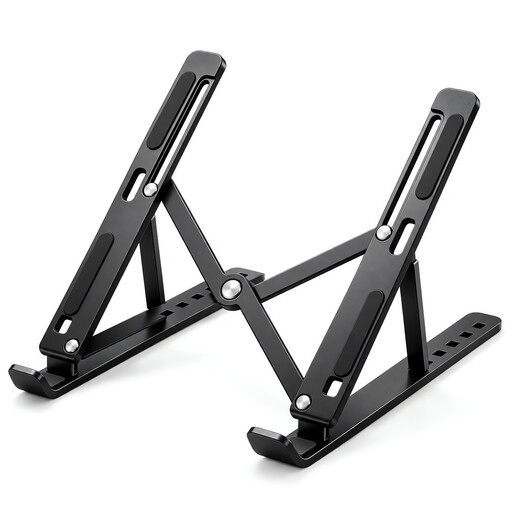 Image unavailable
Foldable Laptop Stand, 7 Levels, 10–17-inch
Consider this stand when you want to position a laptop screen independently on a home or changing desk.
Seven height levels; 15–45-degree adjustment; listed for 10–17-inch laptops.
View on Joybuy
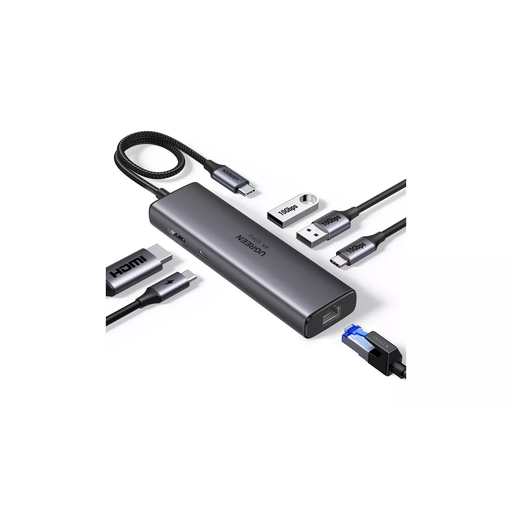 Image unavailable
UGREEN USB-C Multi-function Docking Station
Consider a hub or dock for reconnecting desk devices, after checking that your laptop supports the intended display and power arrangement.
Listed connections: HDMI, 2 × USB-A 3.2, 1 × USB-C 3.2, RJ45 and PD.
View on Joybuy
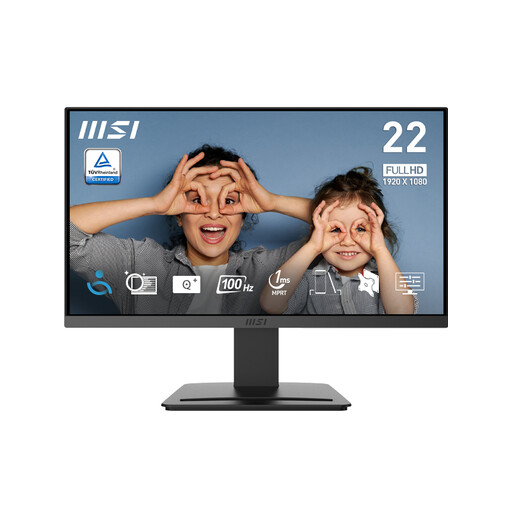 Image unavailable
MSI PRO MP223 E2 21.45-inch Full HD Monitor
Consider a separate display if your regular desk needs more usable screen space; check that its connections suit your laptop.
1920 × 1080 resolution; 100Hz; tilt-adjustable; HDMI 1.4b and DisplayPort 1.2a.
View on Joybuy
 Image unavailable
HP 680 CFT Dual-Mode Keyboard/Mouse Combo
Consider a separate keyboard and mouse when you need to position laptop inputs independently of the screen.
View on Joybuy
 Image unavailable
Dell 24 Monitor P2425, 61 cm (24.0-inch)
Consider a separate monitor for a regular desk where you want a dedicated work display; check its inputs against your laptop.
View on Joybuy
Hybrid workstation FAQs
Does my employer need to assess my home desk as well as my office desk?
In Great Britain, Health and Safety Executive guidance says that when a worker uses Display Screen Equipment at home and in the office, both situations should be assessed. Northern Ireland has separate DSE regulations and regulator guidance.
Must I pay for equipment identified by an applicable DSE assessment?
No, not when an applicable assessment identifies equipment that needs to be provided. In Great Britain, the Health and Safety Executive says workers cannot be charged for that equipment; this does not mean every optional accessory must be provided.
Can I use a laptop riser without a separate keyboard and mouse?
For prolonged laptop use, the Health and Safety Executive’s guidance pairs an elevated laptop screen with a separate keyboard and mouse. Consider their positions and the available desk space together rather than choosing a riser in isolation.
Will any USB-C dock charge my work laptop and run my monitor?
Not necessarily. Check the exact laptop’s video output, supported displays and power needs against the dock’s host connection, video ports and delivered charging power. A USB-C connector by itself does not establish compatibility.
What if an accessory I bought is faulty or unsuitable?
For a UK consumer purchase, faulty or misdescribed goods are distinct from a change of mind. GOV.UK guidance describes statutory remedies for faulty or misdescribed goods and a cancellation right for qualifying online purchases; check the rules that apply to your transaction.


