Who needs which workstation changes?

People doing long screen-based sessions at home

If you spend sustained periods reading, writing or working through documents on a laptop, consider screen position and separate input devices before convenience accessories. The Health and Safety Executive advises using a separate keyboard and mouse so a laptop screen can be raised.

People who reconnect the same desk equipment

If you repeatedly attach displays, power and peripherals to a work laptop, a dock may simplify reconnection. Check the laptop’s actual video, charging and port capabilities rather than relying on the shape of its USB-C socket.

People whose main difficulty is joining meetings

If call audio, privacy or camera framing is the immediate concern, look at a headset or webcam that works with your laptop and workplace rules. That addresses a different need from positioning a screen and input devices for long work sessions.

What to prioritise when buying

Separate screen and input devices

Choose when: Long periods of document or other screen-based work make laptop screen and keyboard positioning the main issue.

Trade-off: A monitor or riser, keyboard and mouse need more desk space and create more items to reconnect or carry.

Dock or hub

Choose when: You regularly reconnect the same compatible displays, power and peripherals to your laptop.

Trade-off: A USB-C socket alone does not establish which display, charging or Thunderbolt functions the laptop and cable support.

Headset or webcam

Choose when: Microphone use, listening privately or camera framing is the immediate meeting problem.

Trade-off: Call equipment does not provide the separate screen and input arrangement advised for prolonged laptop work.

Concern What to check Who this matters to
Long screen sessions Check that a display or laptop riser can put the screen at a suitable height, with room for a separate keyboard and mouse. The Health and Safety Executive advises placing the screen roughly an arm’s length away, with its top around eye level. If I work through documents for hours at home, I need to position the screen without forcing the keyboard into the same position. Around 33% of consumers put that screen-and-input need first.
Repeated desk reconnection Confirm the exact laptop port, required display outputs, charging needs and cable before selecting a dock; USB-C shape alone is not enough. When I return to my home desk, I want to reconnect my usual equipment without rebuilding the setup. Roughly 27% of consumers make reconnection their primary concern.
Meeting equipment Check the headset or webcam connection, meeting-platform compatibility and whether its microphone controls or mounting arrangement suit your calls. If calls are the part of my working day that needs attention now, I want equipment suited to speaking, listening privately or framing video. About 20% of consumers prioritise that meeting need.
Portability and workplace rules Consider what you will carry or clear away, and check workplace rules for personal accessories, Bluetooth, USB receivers and driver software. If my equipment moves between locations or connects to a managed laptop, I need a setup I can carry and am permitted to use. Approximately 20% of consumers put portability and workplace compatibility first.

Buying mistakes to avoid

  • Choosing a dock by USB-C socket shape

    The laptop, cable and dock determine which charging and external-display functions are available; matching connectors do not establish matching capabilities.

    Check your exact laptop model, video-output support, charging requirement and intended display arrangement against the dock and cable before buying.

  • Using call equipment to address a screen-position problem

    A headset or webcam serves meetings, but neither lets you raise a laptop screen while keeping its keyboard and mouse separately positioned.

    For prolonged document work, address display position and separate input devices; choose call equipment for the distinct meeting need.

  • Buying home-work equipment before discussing a DSE assessment

    The Health and Safety Executive says display screen equipment rules can apply when someone routinely splits work between home and the workplace.

    Ask your employer how its display screen equipment assessment applies to your home setup before deciding which equipment to obtain yourself.

  • Connecting personal accessories without checking workplace rules

    An accessory may suit the laptop’s ports but still conflict with workplace controls on managed devices.

    Check the employer’s rules for Bluetooth, USB receivers, docks, storage-connected hubs and products needing driver software.

Brands to consider for specific equipment

Dell

Dell offers business-oriented docks to consider when a work laptop needs managed desk connections or multiple displays.

  • Dell lists 130W Power Delivery for Dell systems and 96W for non-Dell systems on its Pro Thunderbolt 4 Smart Dock SD25TB4.
  • Those figures are specific to the SD25TB4; check the exact laptop and intended display configuration rather than applying them to other Dell docks.

Anker

Anker’s dock and hub range is relevant when choosing ports for a desk connection or a more portable arrangement.

  • Anker lists display, charging and peripheral connections across its UK docking-station range.
  • Available functions vary by model and depend on the laptop, operating system, display mode and cable. Check the specifications of the particular dock.

Logitech

Logitech offers keyboards, mice, webcams and headsets to consider when input devices or meeting equipment are the priority.

  • Its UK business catalogue includes wired, wireless and Bluetooth peripherals for laptop and video-call use.
  • Check the chosen model’s operating-system support and connection method, along with workplace permission for Bluetooth or a USB receiver.

Joybuy products for a hybrid laptop desk

These products address different parts of a laptop-based home desk: separate input, an external display, repeated reconnection or calls. Choose the part that matches your first need, then check its connection and positioning requirements against your own setup.

HP 680 CFT Dual-Mode keyboard and mouse combo

HP 680 CFT Dual-Mode Keyboard and Mouse Combo

This separate keyboard and mouse suit a laptop desk where you want to position the screen independently. The set specifies Bluetooth and USB-receiver connections, a keyboard wrist rest and negative tilt; check the keyboard layout and whether your employer permits the connection method.

View on Joybuy

ASUS ZenScreen MB166CR FHD portable monitor

ASUS ZenScreen MB166CR FHD Portable Monitor

This portable second screen is an option if you want an external display that can move with your laptop. It has a 15.6-inch Full HD IPS display and a stated weight of 780 g; its USB-C video connection requires a laptop with DisplayPort Alt Mode. Check the required connection before buying.

View on Joybuy

Targus USB-C Universal Dual HDMI 4K docking station, 100W Power Delivery pass-through, retail packaging

Targus USB-C Universal Dual HDMI 4K Dock, 100W Power Delivery Pass-Through, Retail Packaging

This dock is for reconnecting a compatible laptop to desk displays and peripherals. Its stated connections include dual HDMI, USB and Gigabit Ethernet, with 100W Power Delivery pass-through; the listed dual 4K at 60 Hz capability depends on the laptop and display configuration. An external 100W+ adapter is required, so check your charging arrangement as well.

View on Joybuy

AOC Q32V4 31.5-inch IPS monitor

AOC Q32V4 31.5-inch IPS Monitor

This separate display is an option for a settled desk used for document-heavy work. It has a 31.5-inch QHD IPS screen, HDMI and DisplayPort inputs, and VESA 100 × 100 mm mounting compatibility. Check whether the stand or a compatible mount will put the screen at the height you need, and allow room for its size.

View on Joybuy
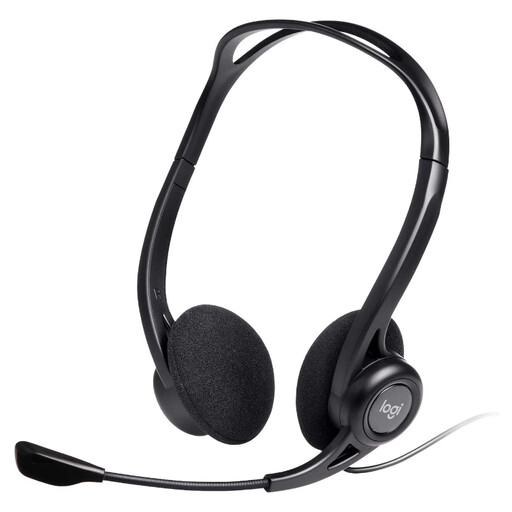
Logitech 960 wired USB headset with inline controls

Logitech 960 Wired USB Headset with Inline Controls

This headset addresses calls rather than screen positioning. It specifies a USB-A connection, adjustable microphone, inline mute and volume controls, and a 2.4 m cable. Check that your work laptop has a suitable port or approved adapter, and route the cable where it will not snag.

View on Joybuy

Questions about hybrid laptop workstations

Can display screen equipment rules apply when I work at home and in an office?

Yes, they can apply to workers who routinely split their time between home and the workplace, according to the Health and Safety Executive. Ask your employer how its display screen equipment assessment applies to both of your working locations; the guidance does not mean everyone needs to buy a monitor or dock.

Will any USB-C dock charge my laptop and run two monitors?

No: a USB-C connector alone does not establish charging or dual-monitor support. Microsoft notes that hardware and software combinations can limit USB-C functions, while Anker advises checking video output, Power Delivery and the required number of displays. Confirm those capabilities for your exact laptop, dock and cable.

Should I choose a screen setup or a headset first?

Choose a positionable screen with separate keyboard and mouse first if prolonged laptop screen work is the main difficulty; the Health and Safety Executive advises separating those input devices so the screen can be raised. Choose a headset first if meeting audio or privacy is the immediate need, recognising that it will not change your screen-and-input layout.

Should I check with my employer before connecting a personal accessory?

Check workplace rules before connecting a personal dock, USB receiver, Bluetooth device or headset to an employer-managed laptop. The National Cyber Security Centre’s device guidance highlights the need to balance usability with security controls; your organisation can clarify which peripherals and software it permits.