For prolonged laptop work, start with the screen and input position: the Health and Safety Executive advises using a separate keyboard and mouse when raising the laptop, or using a separate display. Add a hub or dock only after checking your laptop’s video, charging and connection support. Before paying for work equipment yourself, check your employer’s arrangements; where a display-screen-equipment assessment identifies equipment as necessary, the Health and Safety Executive says workers cannot be charged for it.
Who is this setup for?
Regular hybrid laptop workers
If you use a laptop at home and at a workplace, consider what can stay at each desk and what you need to carry. The Health and Safety Executive says display-screen-equipment assessments can apply to workers who routinely split their time between the two locations and should cover both settings.
Laptop users with a compact home desk
For prolonged work at a fixed surface, raising the laptop screen changes where its built-in keyboard and trackpad sit. The Health and Safety Executive advises using a separate keyboard and mouse with a raised laptop, or using a separate display.
Workers connecting displays and accessories
If you want to connect a display, charging and peripherals through a hub or dock, check the particular laptop and connection first. Microsoft Support notes that USB-C hardware and software combinations can affect functionality; Anker says its cited hub needs a host port with DisplayPort Alt Mode for external video.
What should you check first?
Decide how the laptop will be positioned for sustained work, then check the connections and equipment arrangements before adding accessories for convenience.
| Priority | What to check | Your needs |
|---|
| Screen and input position |
For prolonged laptop use, the Health and Safety Executive advises a separate keyboard and mouse if the laptop screen is raised, or a separate display. Check how either arrangement fits the desk. |
I use the laptop for long stretches and want to position the screen without relying on its attached keyboard and trackpad. |
| Moving between locations |
Decide which equipment can remain at the home desk and which pieces need to travel. Check the connections needed at both locations before choosing a portable display or accessories. |
A repeatable setup matters to me, but I may need to carry part of it between home and work. |
| Hub and dock connections |
Compare the laptop’s display output, charging input, operating-system support and required ports with the exact hub or dock. Anker says its cited hub requires DisplayPort Alt Mode for video; Microsoft Support also advises checking USB4 support and the cable used with a USB4 dock. |
I want fewer connections to make at my desk, without assuming that a USB-C socket provides every function I need. |
| Work equipment arrangements |
Ask what equipment and IT support your employer provides or permits. Acas advises agreeing who provides or pays for equipment and repairs; the Health and Safety Executive says workers cannot be charged for equipment identified as necessary by a display-screen-equipment assessment. |
Before buying an accessory for work, I want to know whether it is already provided or covered by my employer’s arrangements. |
| Calls |
Test the existing camera, microphone and speakers in the meeting app. Microsoft Teams offers a test call; check connection and app device selection if you then consider an external headset or webcam. |
I make work calls, but would rather address a specific call problem than replace equipment that already meets the requirement. |
Purchases to think through
-
Buying a riser on its own for prolonged laptop use
Raising the laptop also raises its attached keyboard and trackpad, so screen and input positions cannot be adjusted independently.
The Health and Safety Executive advises pairing a raised laptop with a separate keyboard and mouse for prolonged use, or using a separate display.
-
Assuming every USB-C port supports a monitor
A hub’s available functions depend on the host connection and, for some setups, the cable and software. Anker says its cited hub cannot output video through a host USB-C port without DisplayPort Alt Mode.
Check the exact laptop model’s display and charging capabilities against the exact hub or dock, including its cable and operating-system requirements.
-
Paying before checking workplace arrangements
An employer may already provide equipment or have requirements for accessories used with work devices. The Health and Safety Executive says workers cannot be charged for equipment identified as necessary by a display-screen-equipment assessment.
Ask what is provided or permitted and who handles equipment, repairs and IT support before making a personal purchase.
-
Replacing call equipment before testing it
A call problem may lie in the meeting app’s selected devices or settings rather than the laptop’s camera, microphone or speakers.
Run a Microsoft Teams test call or your meeting platform’s device test, then choose external hardware only for a specific remaining requirement.
Relevant brand references
Logitech
Logitech’s MX Keys Mini is a compact wireless keyboard to consider where keyboard size matters at a home or shared desk.
- Logitech says its smaller form allows a mouse to sit closer to the keyboard; that is a brand claim, not a guaranteed effect for every setup.
- Check the layout, connection method and operating-system support, and whether you also need a separate mouse.
Anker
Anker offers USB-C hubs for combining laptop connections; the available ports and charging capability depend on the exact model.
- Anker UK lists HDMI, USB data ports, card slots and 85W charging for its cited 7-in-1 hub.
- Anker says external video through its cited 568 hub requires a host USB-C port with DisplayPort Alt Mode. Check the requirements of the model you choose.
Dell
Dell’s P2425E is an example of a monitor intended for a fixed desk with display and connectivity functions.
- Dell UK lists a 24-inch 16:10 panel, adjustable stand, built-in Ethernet and up to 90W power delivery for the P2425E.
- Check the laptop’s display and charging connection; a desk-based monitor is also a different carrying proposition from portable accessories.
Joybuy workstation options
These options cover separate displays, desk connections, input devices and call audio for laptop-based hybrid work. Choose the part that addresses your setup rather than treating every item as necessary.
 No image available
ASUS ProArt PA248CRV IPS WUXGA monitor
Consider a separate display for a home desk used for prolonged laptop work. This is the IPS WUXGA variant; check that your laptop has a suitable display connection before choosing it.
View on Joybuy
 No image available
ASUS ZenScreen MB166CR FHD monitor
A separate display is worth considering if you need to set up at more than one location. Before choosing this FHD model, confirm how your laptop will connect to and power it.
View on Joybuy
 No image available
Targus USB-C Universal Dual HDMI 4K dock, 100W Power Delivery pass-through
For a desk with displays and peripherals, this dock offers the dual HDMI and 100W Power Delivery pass-through named in its product title. Check your laptop’s video, charging and operating-system support, and confirm the power-adapter requirements and what is included.
View on Joybuy
 No image available
Philips 3000 Series SPT6318B/05 wireless keyboard and mouse, UK English
A separate keyboard and mouse let you keep using input devices when the laptop screen is raised. Confirm that the connection method suits the laptops you use at home and at work.
View on Joybuy
 No image available
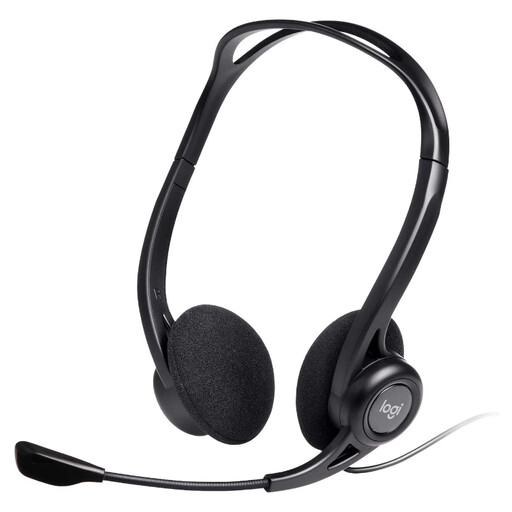
Logitech 960 wired USB headset with inline remote
Consider a headset if a test call shows that your existing audio setup does not meet your work-call needs. Check the laptop connection and that your meeting app can select the headset.
View on Joybuy
Common questions
Do I have to buy my own monitor, stand or keyboard for homeworking?
Not automatically. The Health and Safety Executive says employers must assess qualifying display-screen-equipment work, including applicable home and hybrid work, and workers cannot be charged where an assessment identifies equipment as necessary. Ask your employer what the assessment and equipment arrangements mean for your workstation.
Is a laptop stand enough for long periods of work?
Not if raising the laptop leaves you relying on its attached keyboard and trackpad. For prolonged use, the Health and Safety Executive advises a separate keyboard and mouse with a raised laptop, or a separate display.
Will any USB-C hub connect my laptop to a monitor?
No. Anker says its cited hub needs a host USB-C port with DisplayPort Alt Mode for external video, while Microsoft Support notes that hardware, software and cables can affect USB-C or USB4 functionality. Check your exact laptop and hub specifications before buying.
Should I add a webcam or headset for work calls?
Test the laptop’s existing devices in your meeting app first. Microsoft Teams provides a test call for the microphone, speaker and camera; Zoom says participants can join without a webcam using audio only, although your workplace or particular meeting may have other requirements.


